Chapter 01Getting started
Signing in and finding your way around
How to log into the dashboard, and how the menu is organised so you can find the right screen quickly.
01.1
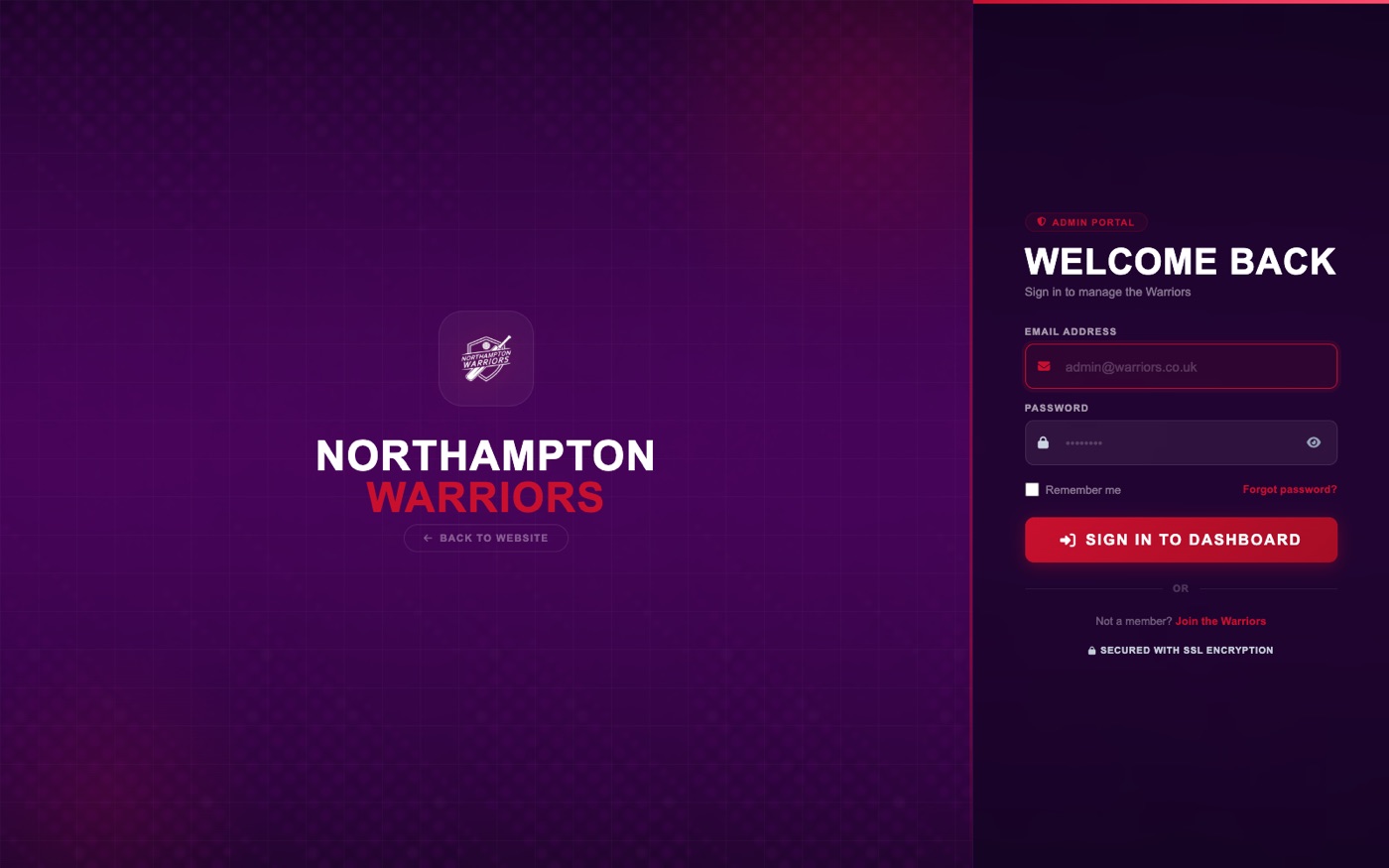
Signing in to the dashboard
The dashboard is where every change is made. You reach it from the same website address your visitors use.
How to change it
- Go to your website address followed by /login — for example
yourdomain.com/login. - Enter the email address and password you were given.
- Tick Remember me if this is your own private computer, so you stay signed in.
- Click Sign in to dashboard. You land on the Dashboard home screen.
Keep your password private.Anyone with it can change or delete anything on the website. If you think someone else knows it, change it from Profile in the top-right menu straight away.
01.3
The pattern that works everywhere
Almost every screen in the dashboard works the same way. Learn it once and every section of this guide becomes familiar.
How to change it
- Open the section from the sidebar. You see a list of everything that already exists.
- To add something new, click the Add New button at the top right of the list.
- To change something, find its row in the list and click Edit.
- Fill in the form. Anything marked with a red asterisk is required.
- Click Save. Your change is live on the website immediately — refresh the public page to see it.
- To remove something, click Delete on its row and confirm.
Hide instead of delete.Most items have an Active or Published switch. Turning that off hides the item from the website but keeps it, so you can bring it back later. Deleting is permanent.