Chapter 10Dashboard reference
Dashboard home and reports
The screens under Overview — your summary home screen, the reporting tools, and your own account.
10.1
Dashboard home
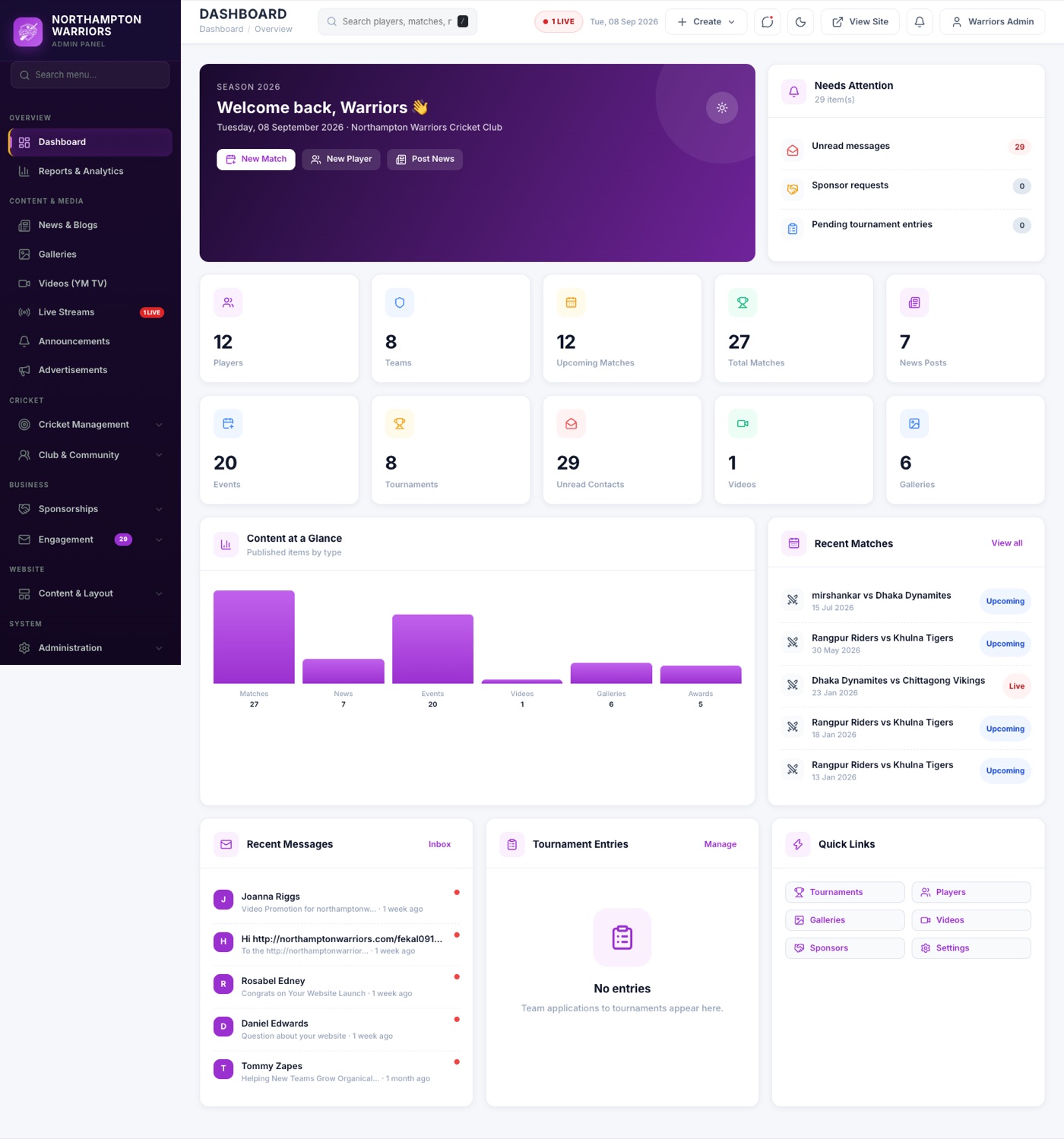
Your landing screen. Counts for players, teams, matches and news, what needs attention, recent messages and quick links to create things.
WhereOverview›Dashboard
How to change it
- Sign in and you arrive here automatically.
- The coloured tiles show how much of each thing you have — click one to open that section.
- Needs Attention lists unread messages and pending requests waiting on you.
- Use + Create in the top bar to start a new match, player, post or event without hunting through the menu.
10.2
Reports and analytics
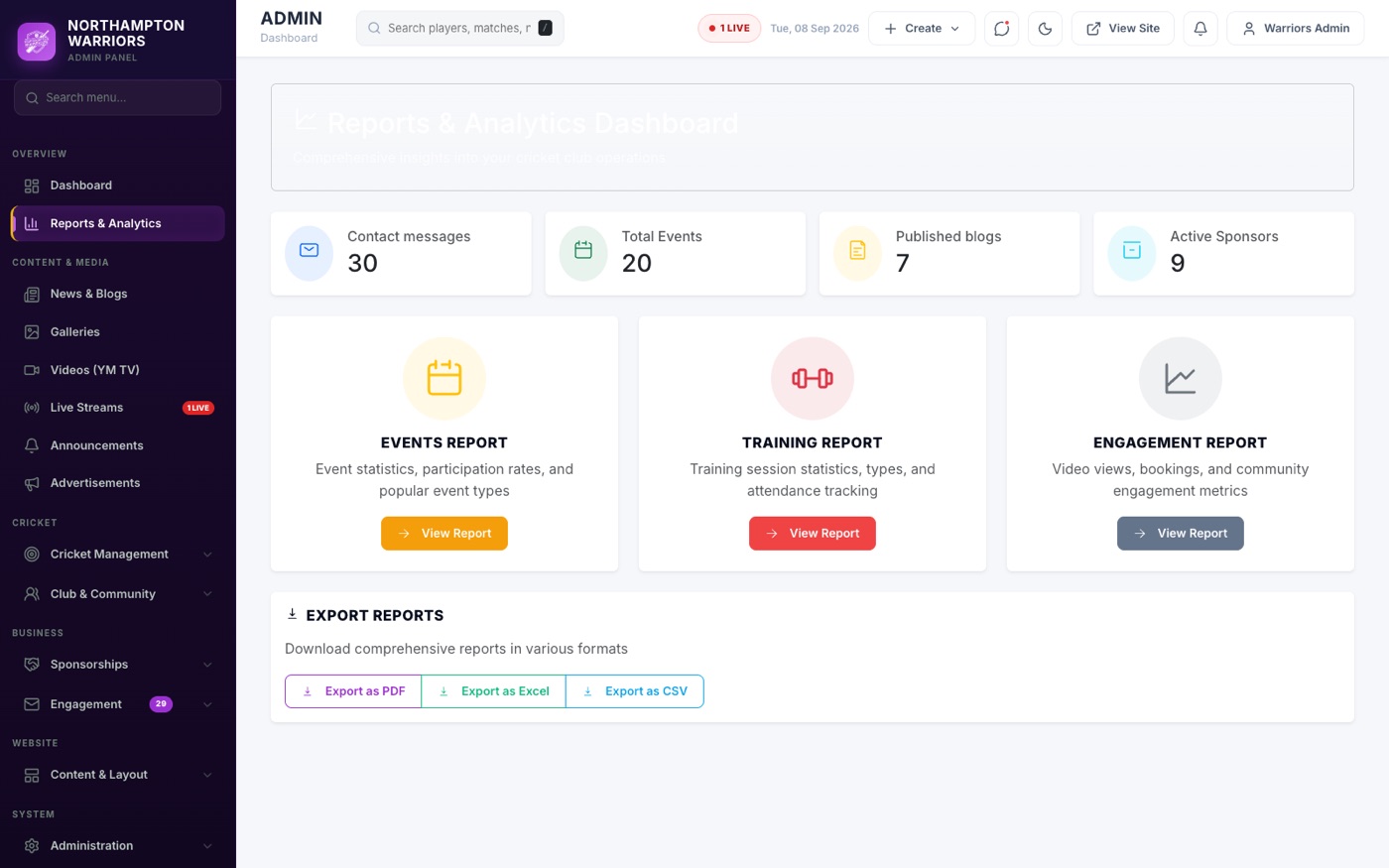
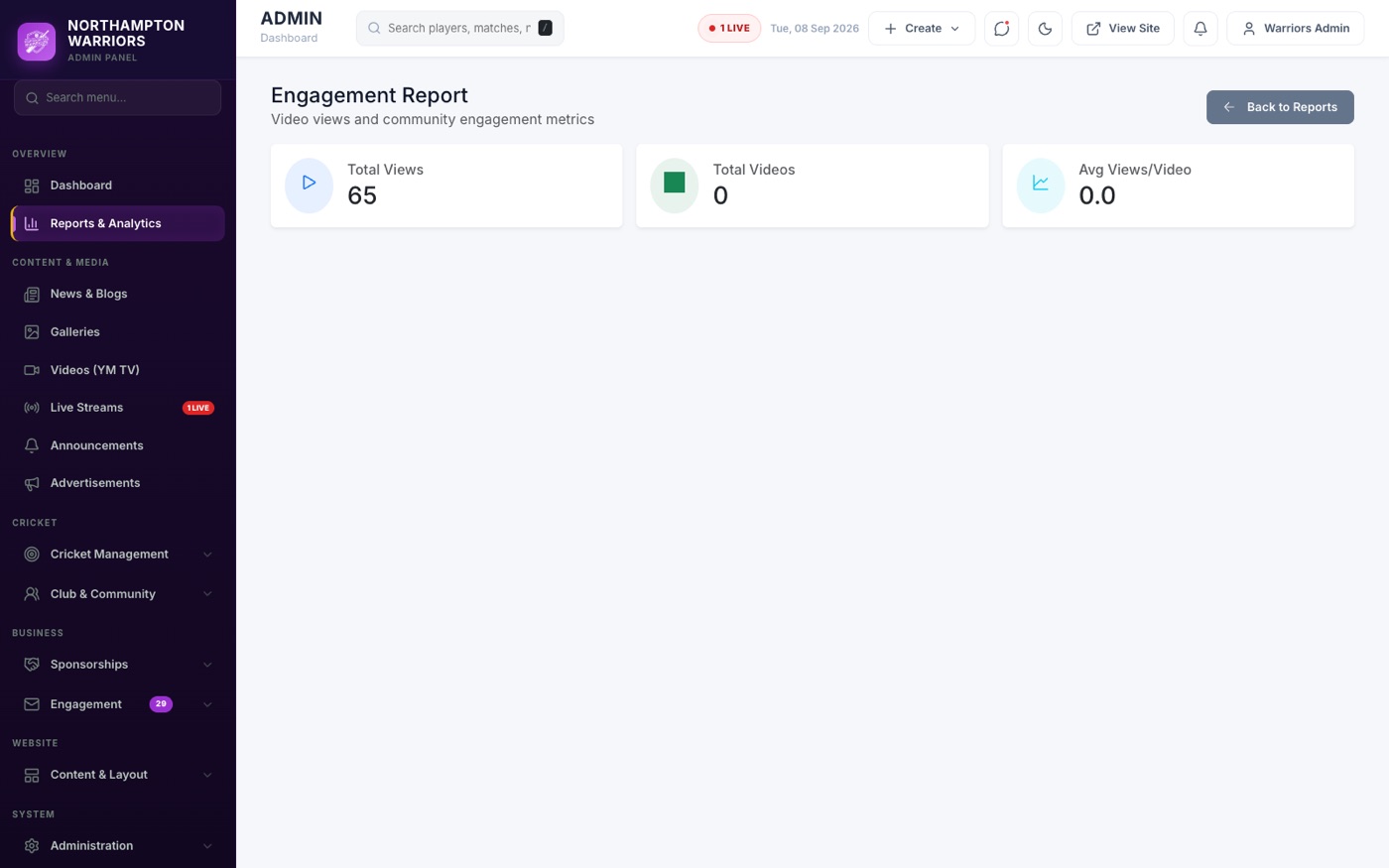
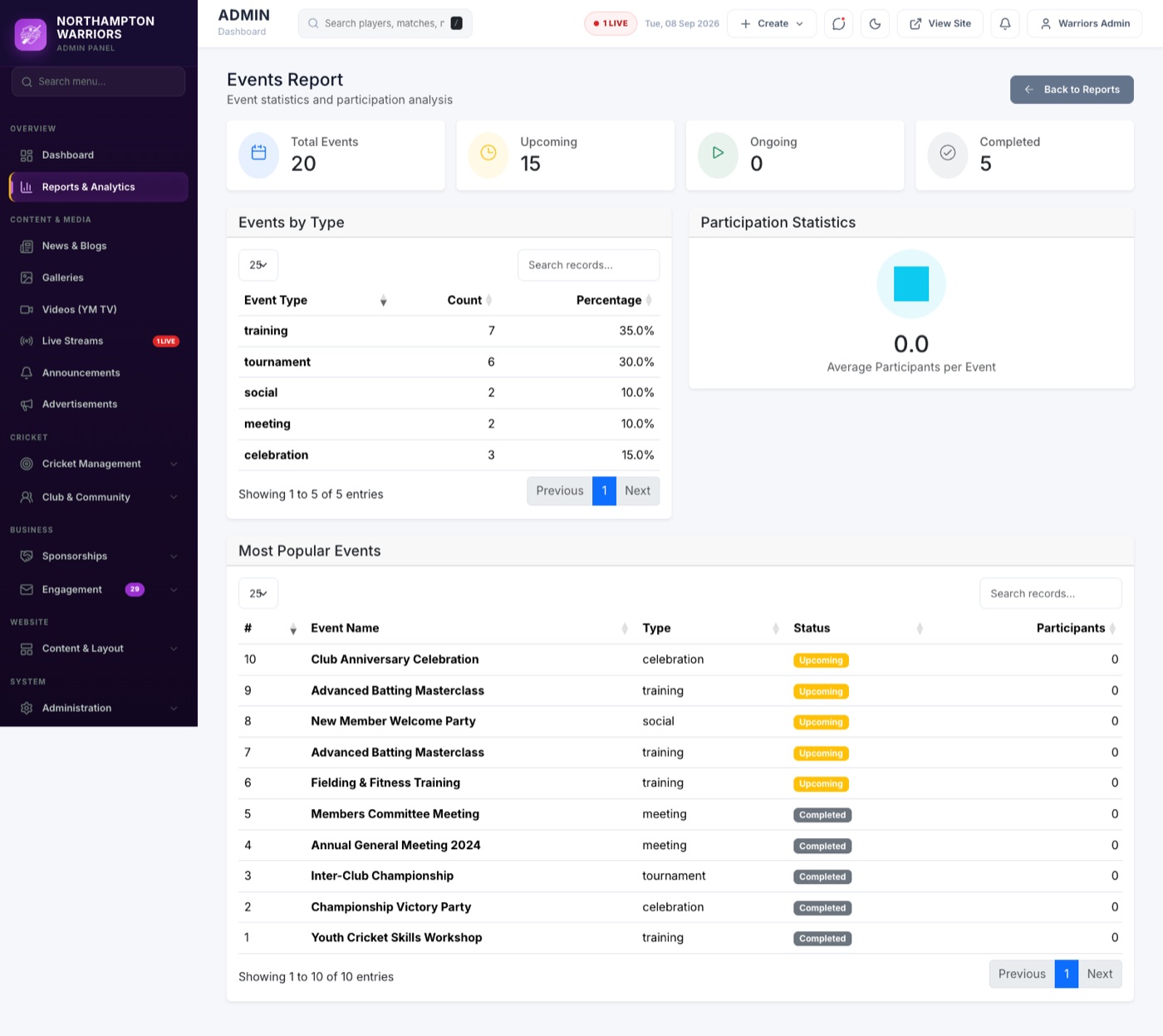
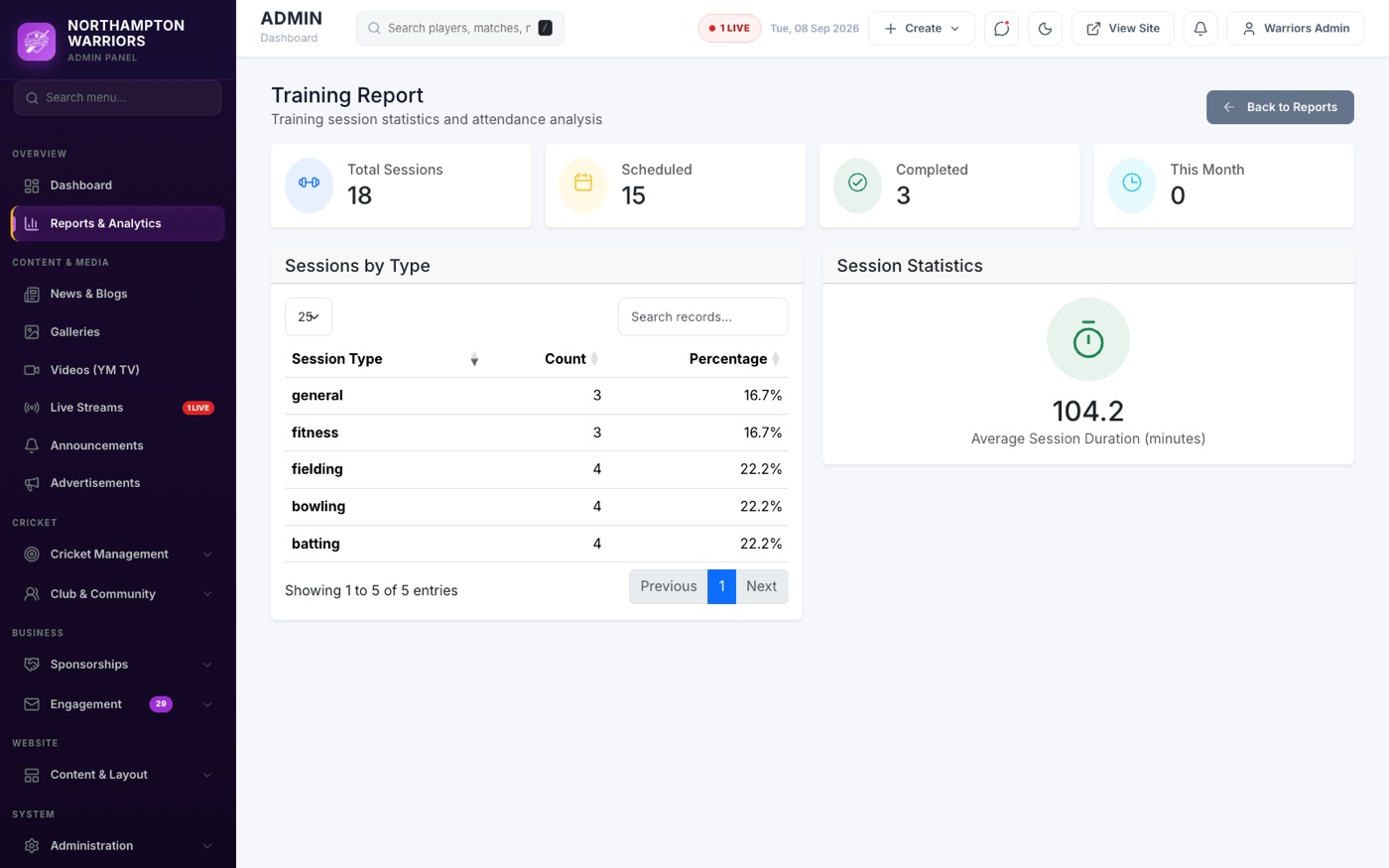
Figures on how the site and club are doing, split into engagement, events and training.
WhereOverview›Reports & Analytics
How to change it
- Sidebar → Overview → Reports & Analytics.
- Choose Engagement, Events or Training.
- Read the figures — nothing here changes your website, it only reports on it.
10.3
Your profile and password
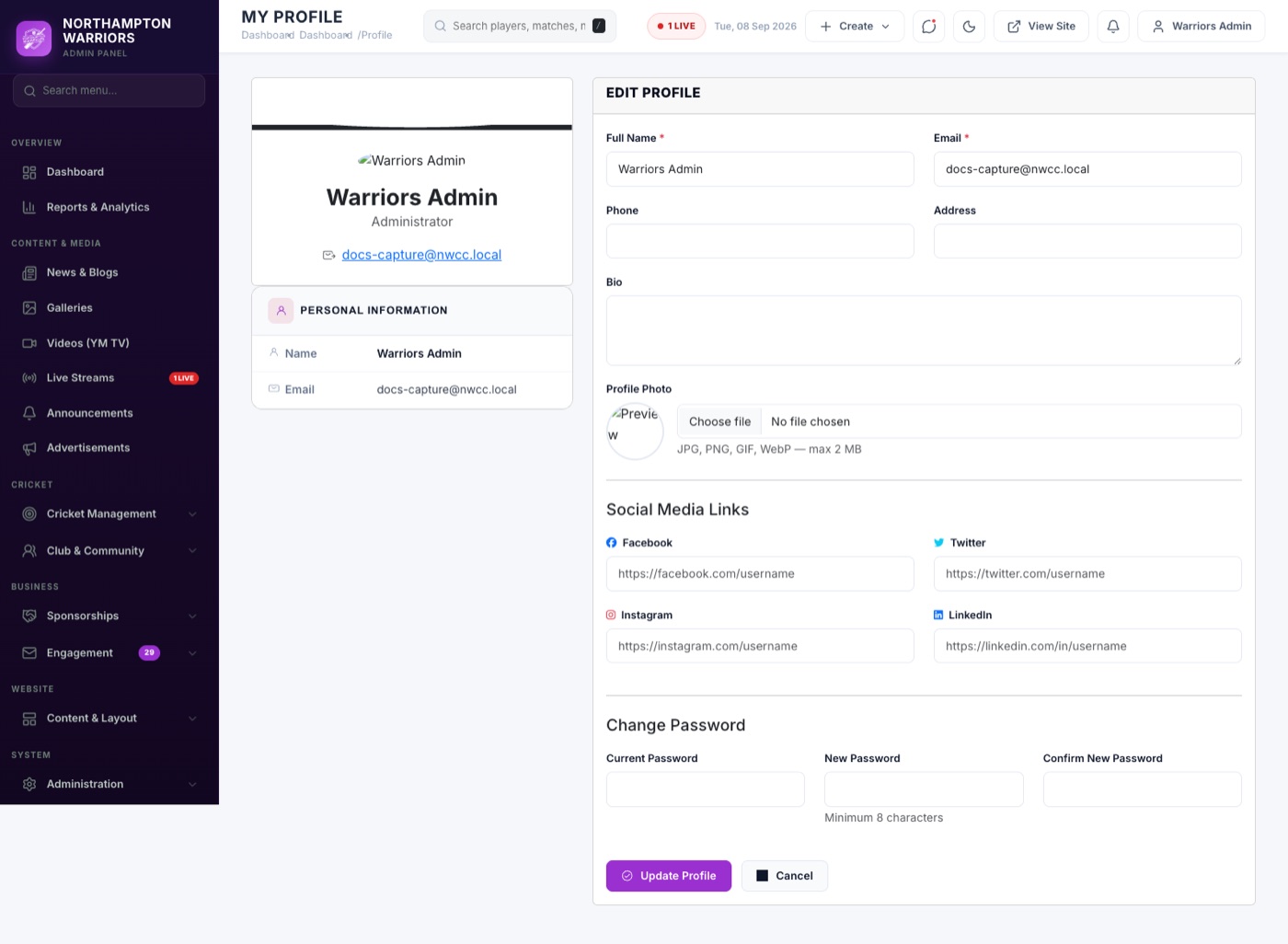
Your own account details and password.
WhereTop-right menu›Profile
How to change it
- Click your name in the top-right corner → Profile.
- Update your name, photo or contact details.
- To change your password, enter the current one and the new one twice.
- Click Save.
10.4
Notifications
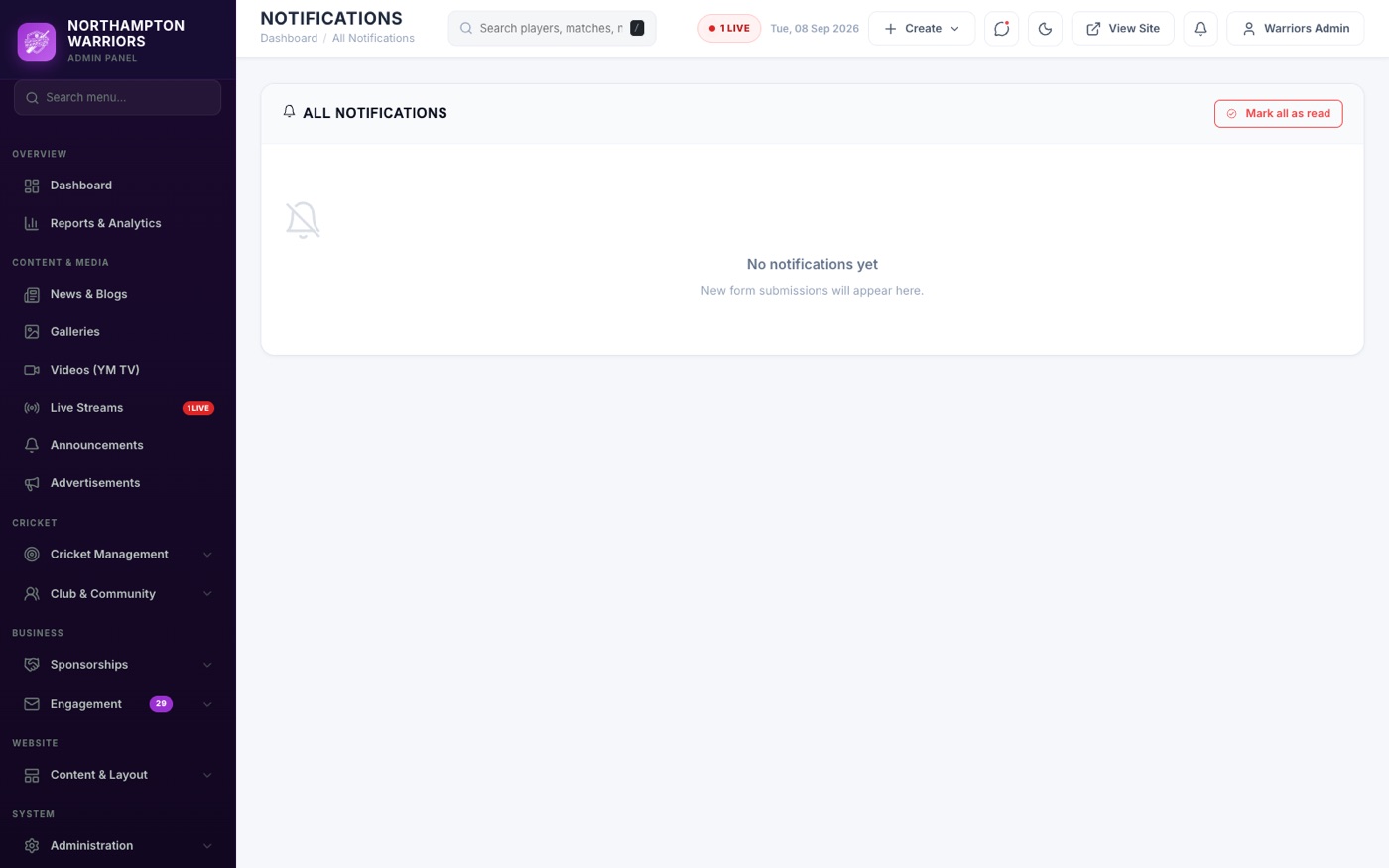
Alerts about new enquiries, sponsor requests and other activity.
WhereTop bar›Notifications
How to change it
- Click the bell icon in the top bar.
- Unread alerts are highlighted. Click one to jump to what it refers to.