The home page, section by section
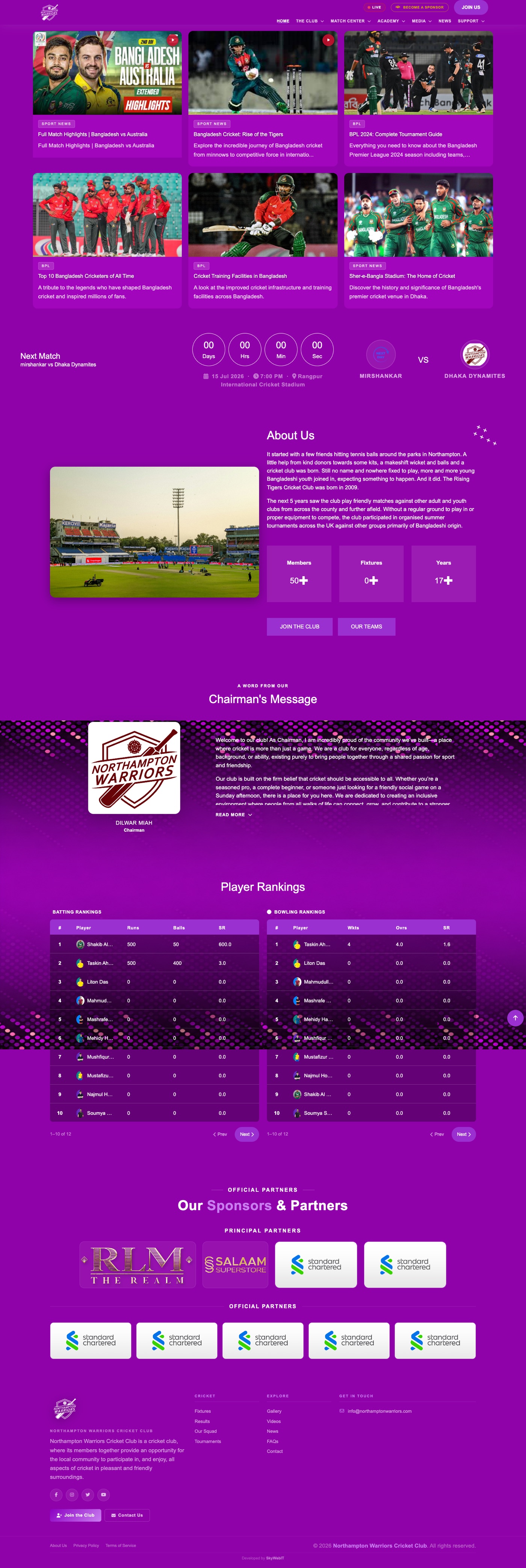
The home page is built from nine stacked sections. Each one is fed by a different part of the dashboard. Work down this page in the same order you see them on the site.
Header, logo and main menu
The bar across the top of every page: your club logo, the navigation menu, and the Live / Become a Sponsor / Join Us buttons.

How to change it
- To change a menu item: sidebar → Website → Nav Items.
- Click Edit on the item you want to rename or point somewhere else.
- Change the Label (the words visitors read) or the URL (where clicking takes them).
- To move an item, change its Order number — lower numbers sit further left.
- Click Save, then refresh the website to see the new menu.
To change the logo
Upload a new Primary Logo, then Save. Use a PNG with a transparent background so it sits cleanly on the header.
The top banner — news grid or image slider
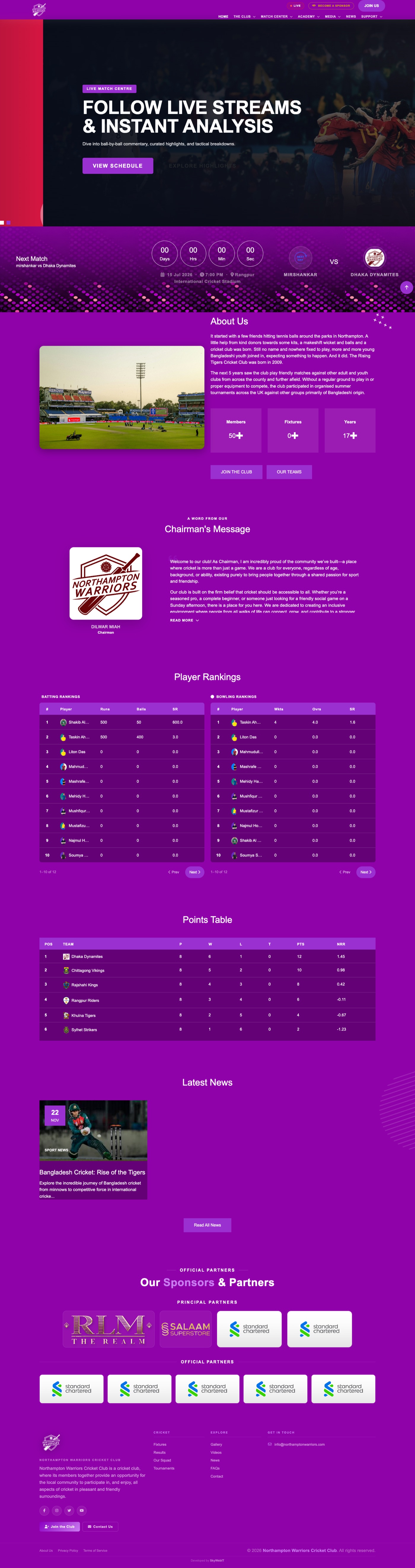
The large block directly under the menu. It can show either a grid of six featured news stories, or a full-width rotating image slider. You choose which.
Direct address: /admin/settings/website

How to change it
- Open Settings → Website (see the note below about reaching this screen).
- Find Home Hero Type and choose one of the two options:
- Modern News Grid (Latest Posts) — shows six news stories that you have flagged as featured.
- Classic Image Slider (Hero Slides) — shows a rotating full-width image banner instead.
- Click Save, then refresh the home page.
The other option

To choose which stories appear in the news grid
Edit a post and turn on Show in hero. The six most recent flagged posts fill the grid.
To manage the slider images
Add a slide with an image, heading and button link. Use Sort Order to set the sequence and the Active switch to hide one without deleting it.
Next Match countdown
The live countdown clock showing days, hours, minutes and seconds to the next fixture, with both team badges.

How to change it
- Sidebar → Cricket → Matches.
- Click Add New for a new fixture, or Edit an existing one.
- Set the two teams, the match date and time, and the venue.
- Set Status to Upcoming — only upcoming matches feed the countdown.
- Click Save. The soonest upcoming fixture automatically becomes the countdown.
About Us block
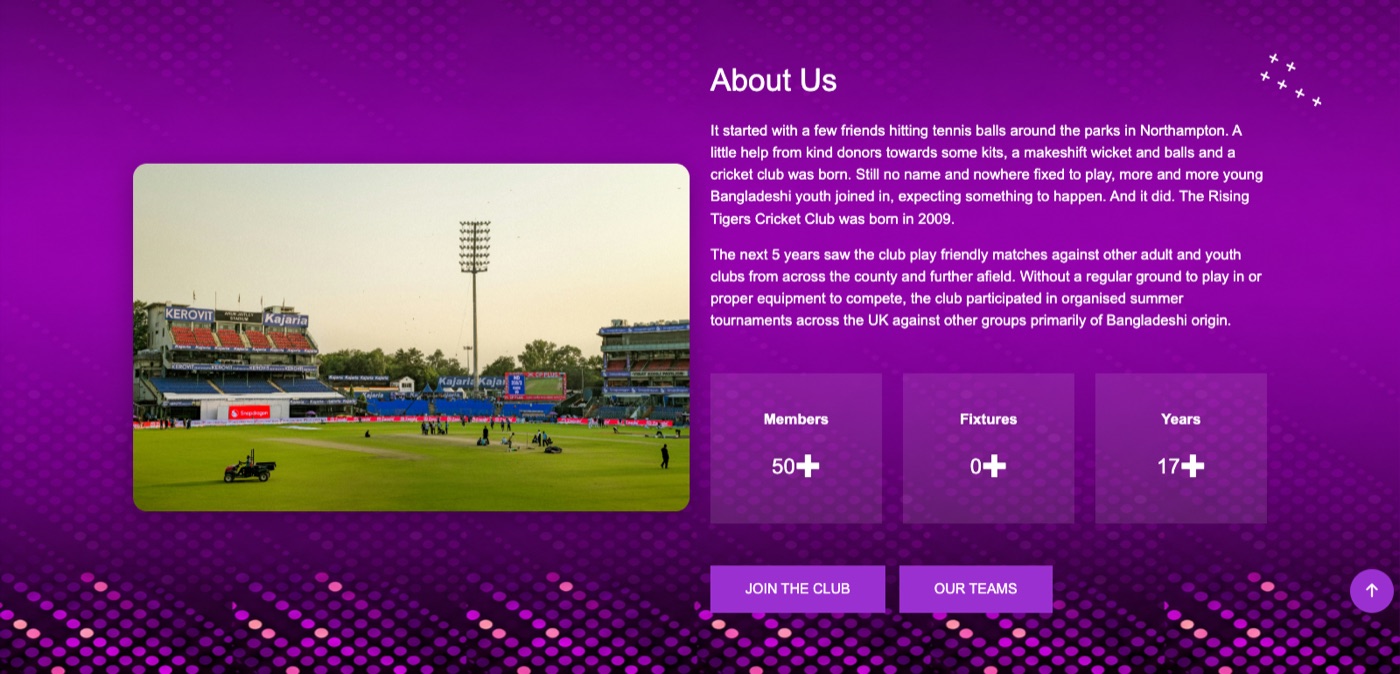
The two-column block telling your club story, with a photo and the three headline statistics (members, fixtures, years).
Direct address: /admin/settings/website
How to change it
- Open Settings → Website.
- Edit About Title — the heading, currently “About Us”.
- Edit Paragraph 1 and Paragraph 2 — your club story.
- Set the three numbers: Members stat, Fixtures stat and Years stat, and their labels underneath.
- Upload a new About Image if you want a different photo.
- Change the two button captions with About: Join Button Text and About: Teams Button Text.
- Click Save.
Chairman's Message
The welcome message from the club chairman, with their photo, name and title.
Direct address: /admin/settings/general

How to change it
- Open Settings → General from the sidebar (System → Settings).
- Scroll to the Chairman block.
- Set Chairman Name and Position / Title.
- Upload a Photo — a square image works best.
- Write the Message. Long messages are collapsed behind a “Read more” link automatically.
- Click Save Settings.
/chairmans-message. Edit it once and both update.Player Rankings
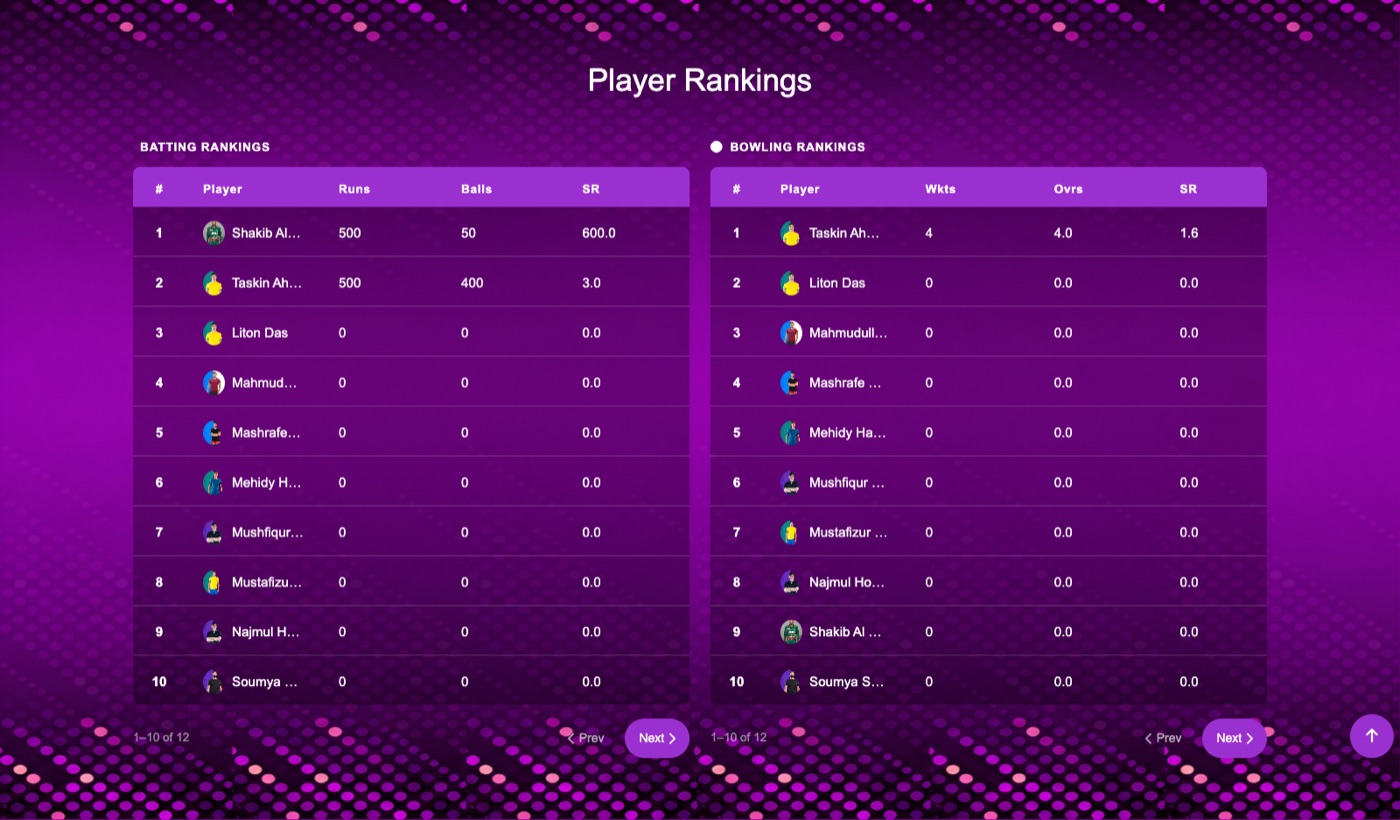
The leaderboard of your top batting, bowling and all-round performers.
How to change it
- Sidebar → Cricket → Player Rankings.
- Click Add New to add a player to the leaderboard.
- Choose the Player, their Role (batting, bowling or all-rounder) and their Rank.
- Enter the statistics you want displayed alongside them.
- Click Save.
Points Table
The league standings — played, won, lost, points and net run rate for each team in a tournament.

How to change it
- Sidebar → Cricket → Tournaments.
- Open the tournament, then choose Points Table.
- Add each competing team and enter matches played, won, lost, tied, points and net run rate.
- Click Save. Teams sort automatically by points, then by net run rate.
Latest News band
The row of recent news articles further down the home page, below the results.

How to change it
- Sidebar → Content & Media → News & Blogs.
- Click Add New to write a post, or Edit an existing one.
- Fill in the Title, Category, Featured Image and the article body.
- Turn Published on so it goes live.
- Leave Show in hero off so the post appears in this band rather than the top grid.
- Click Save.
Footer
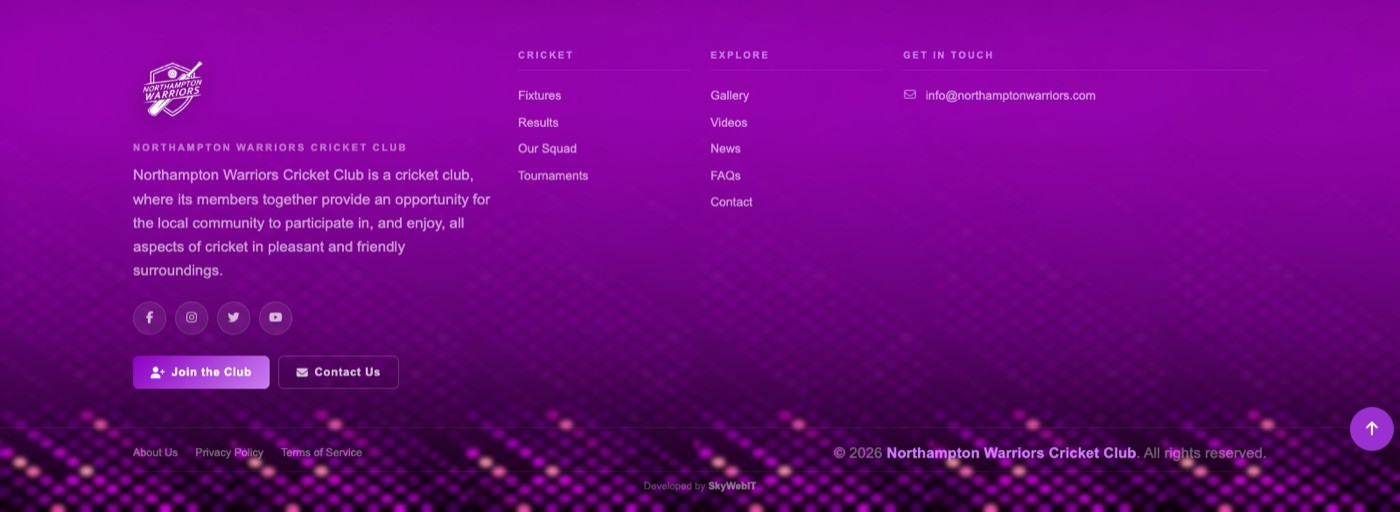
The dark band at the bottom of every page: logo, club description, contact details, social links and copyright.
Direct address: /admin/settings/general
How to change it
- Open Settings → General.
- Set Footer Logo, Footer Description, Footer Address, Footer Phone and Footer Email.
- Click Save Settings.
To change the social media icons
Direct address: /admin/settings/social
Paste the full address of each profile — Facebook, Twitter/X, Instagram, YouTube and LinkedIn. Leave one blank to hide that icon.
To change the copyright line
Direct address: /admin/settings/website
Edit Copyright Text.
Advertisement banners
Sponsor and advertiser banners slotted between sections on the home page and elsewhere.
How to change it
- Sidebar → Content & Media → Advertisements.
- Click Add New.
- Upload the banner image and set the link it should open.
- Choose the Position — this decides where on the site the banner appears.
- Set Active on and click Save.