Chapter 11Dashboard reference
Content & Media screens
News, galleries, video, live streaming, announcements and adverts — the screens you use to publish.
11.1
News & Blogs
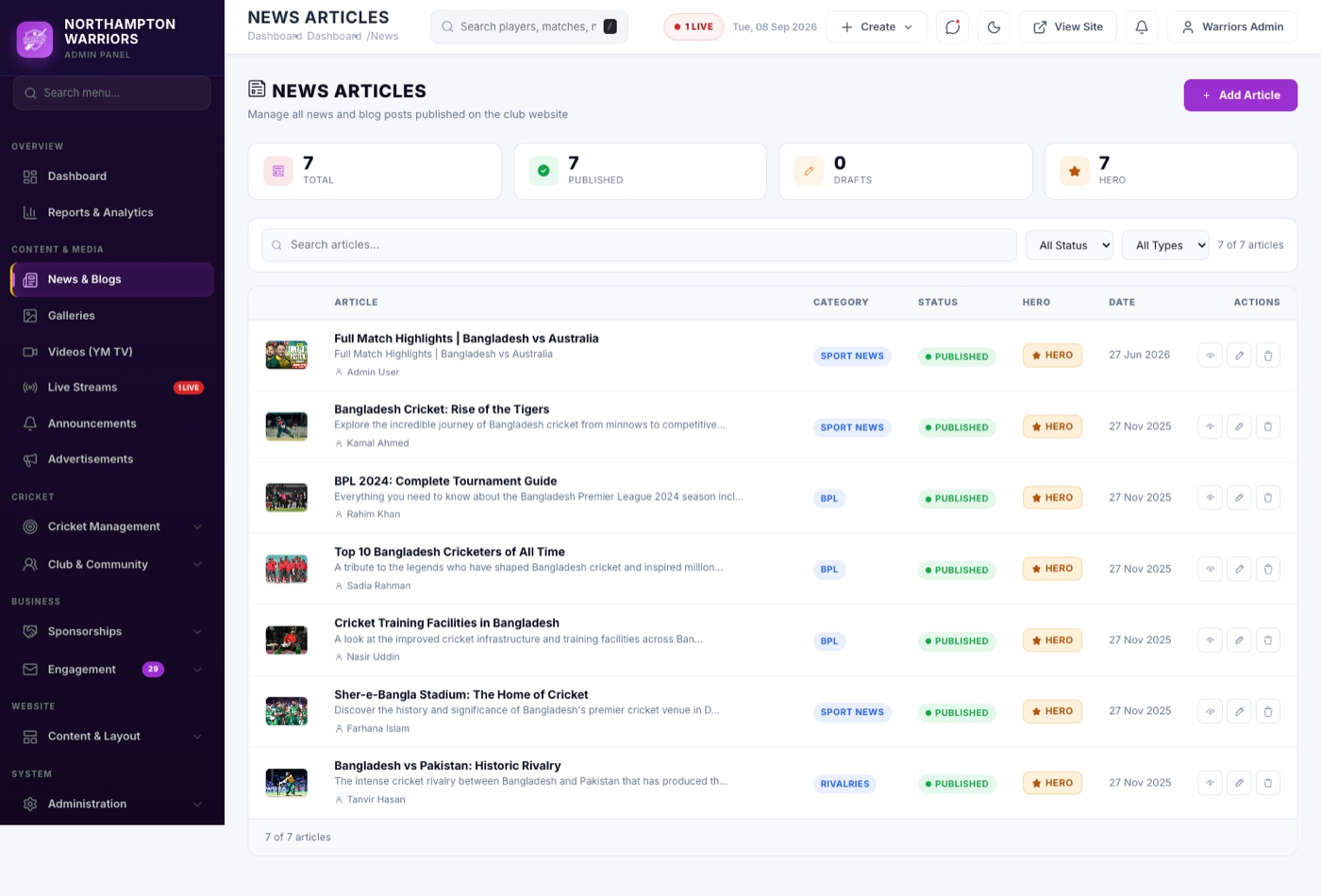
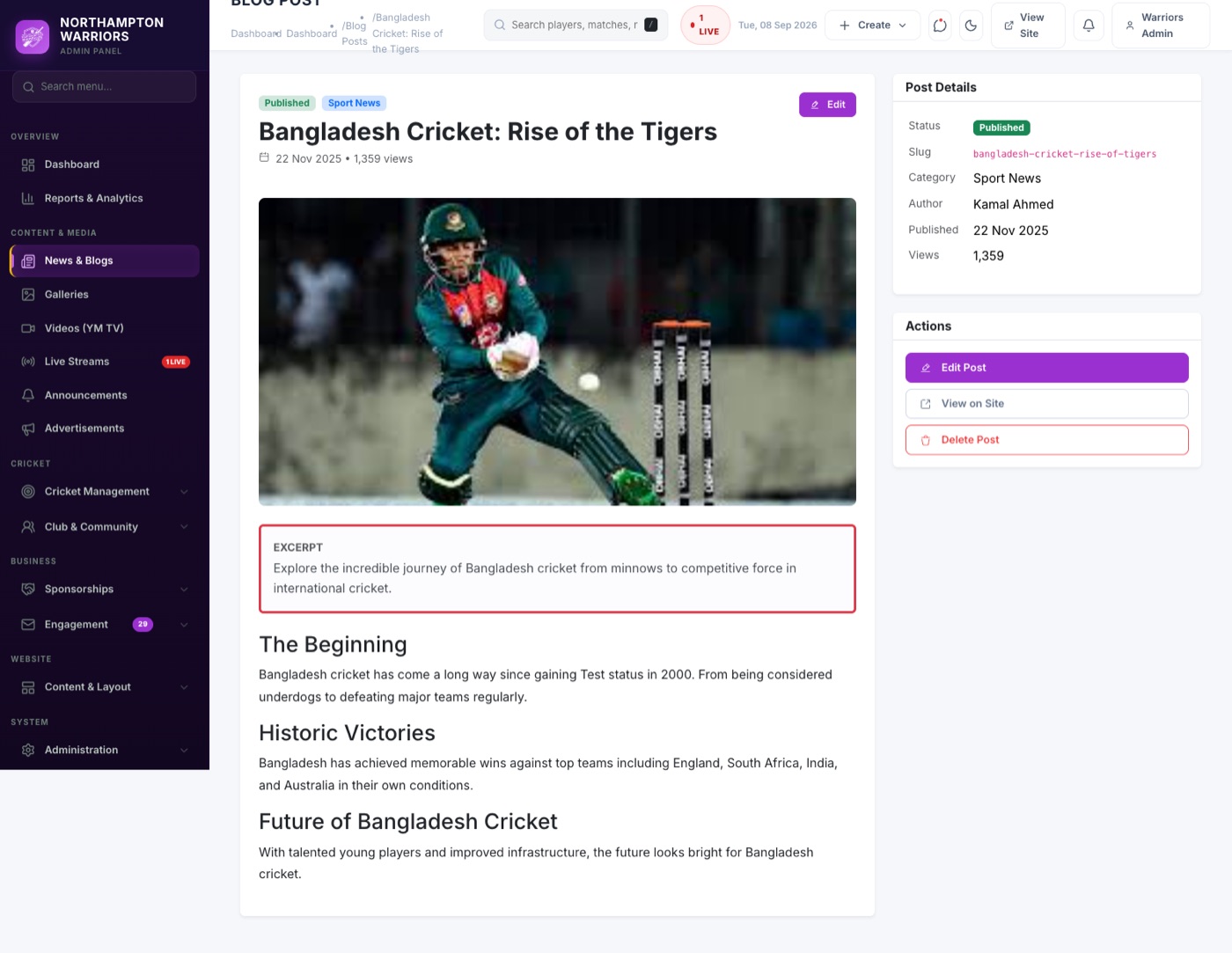
Write and publish news articles. Also controls the featured stories in the home page top banner.
WhereContent & Media›News & Blogs
How to change it
- Sidebar → Content & Media → News & Blogs.
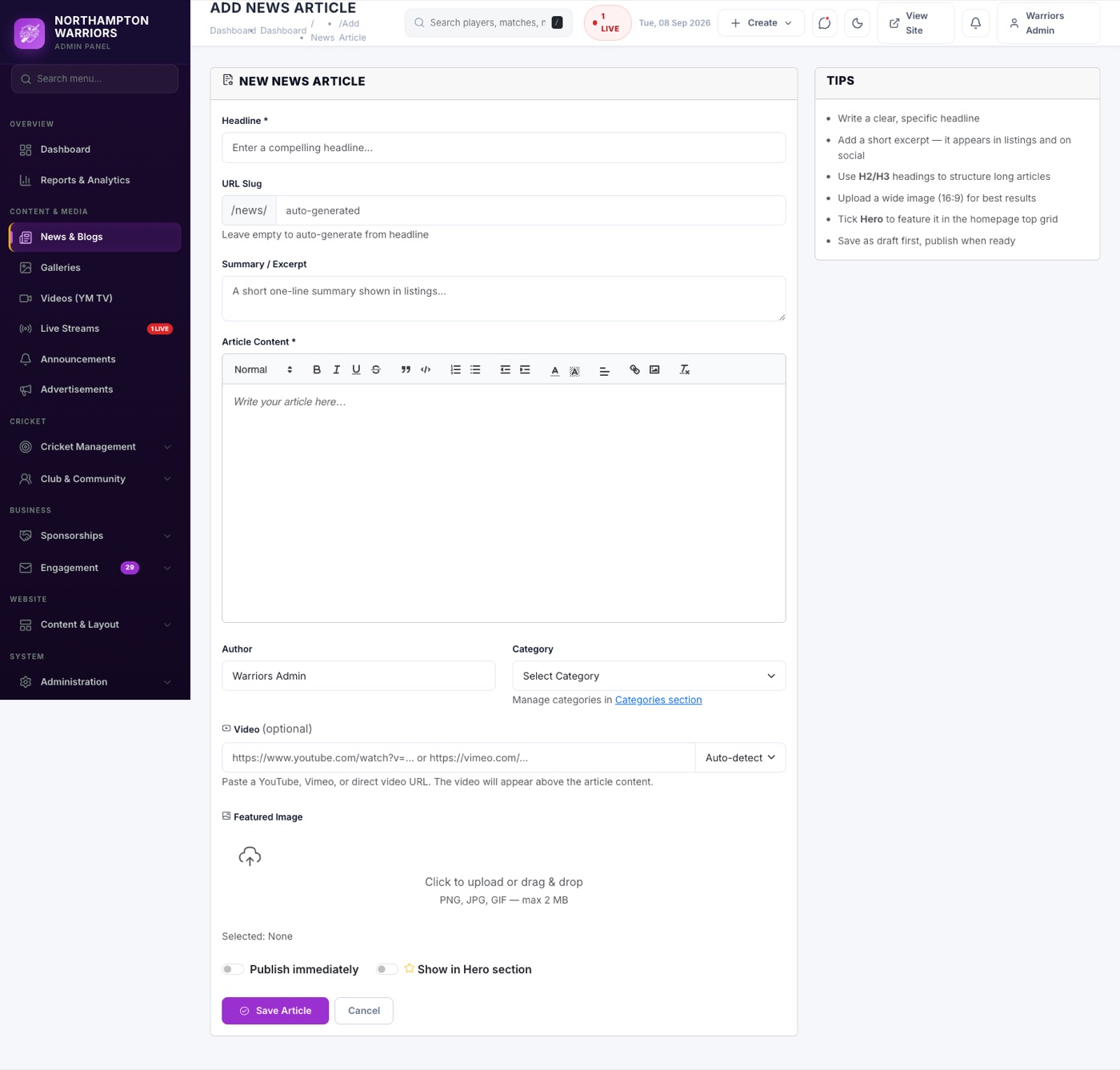
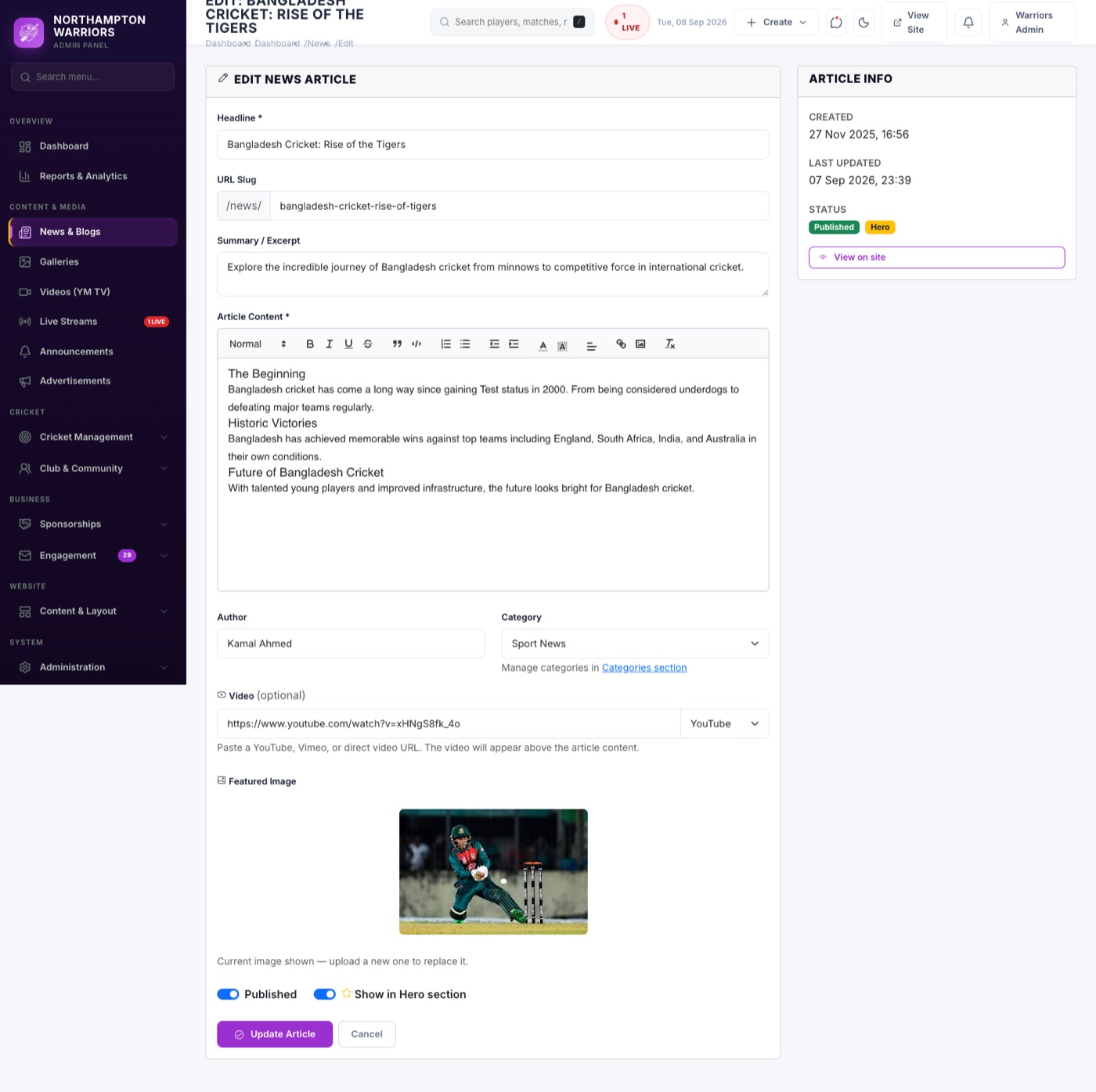
- Click Add New, or Edit on an existing article.
- Fill in the title, category, featured image and the article body.
- Turn Published on to make it live.
- Turn Show in hero on to feature it in the home page top grid, or leave it off for the Latest News band.
- Click Save.
11.2
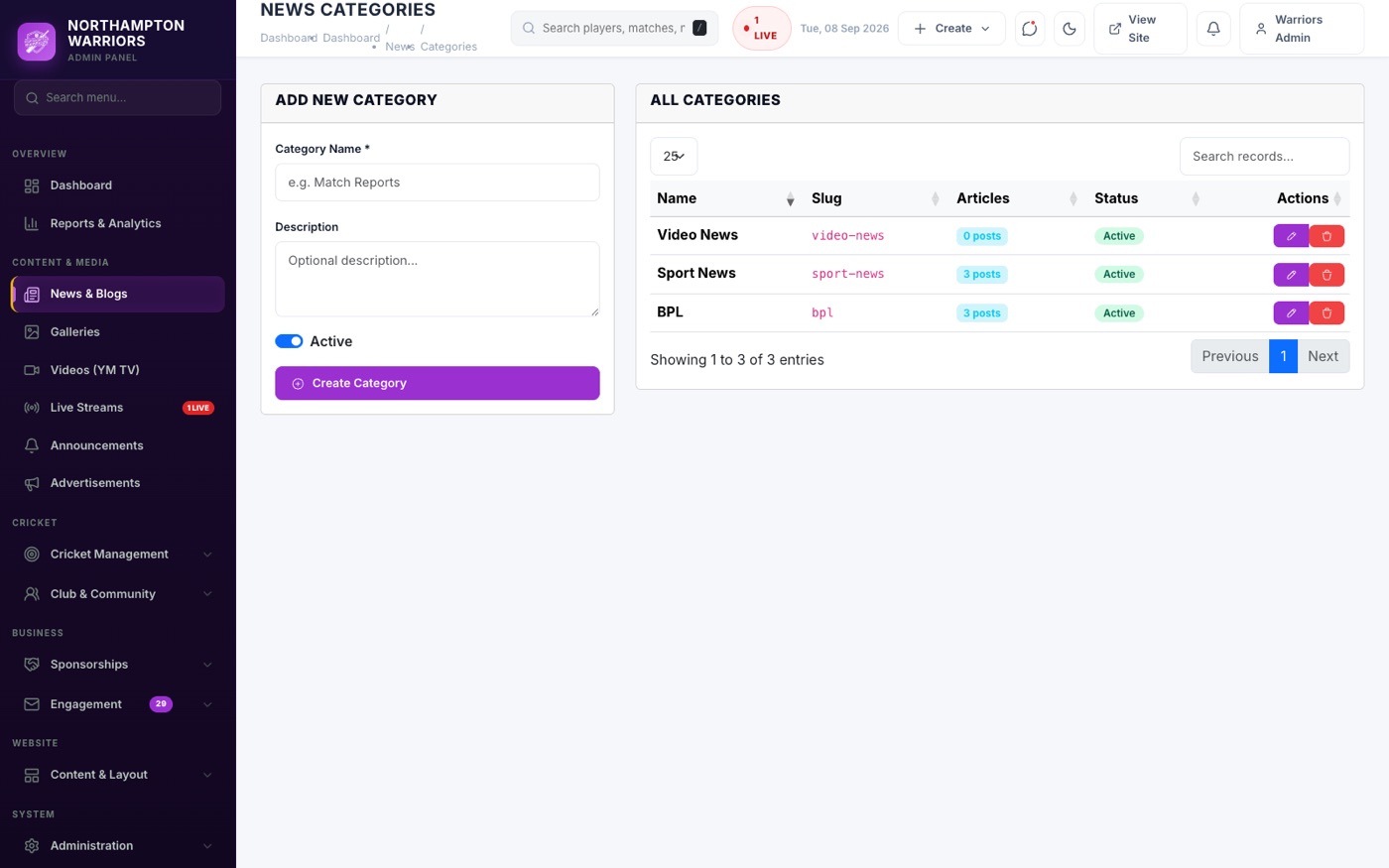
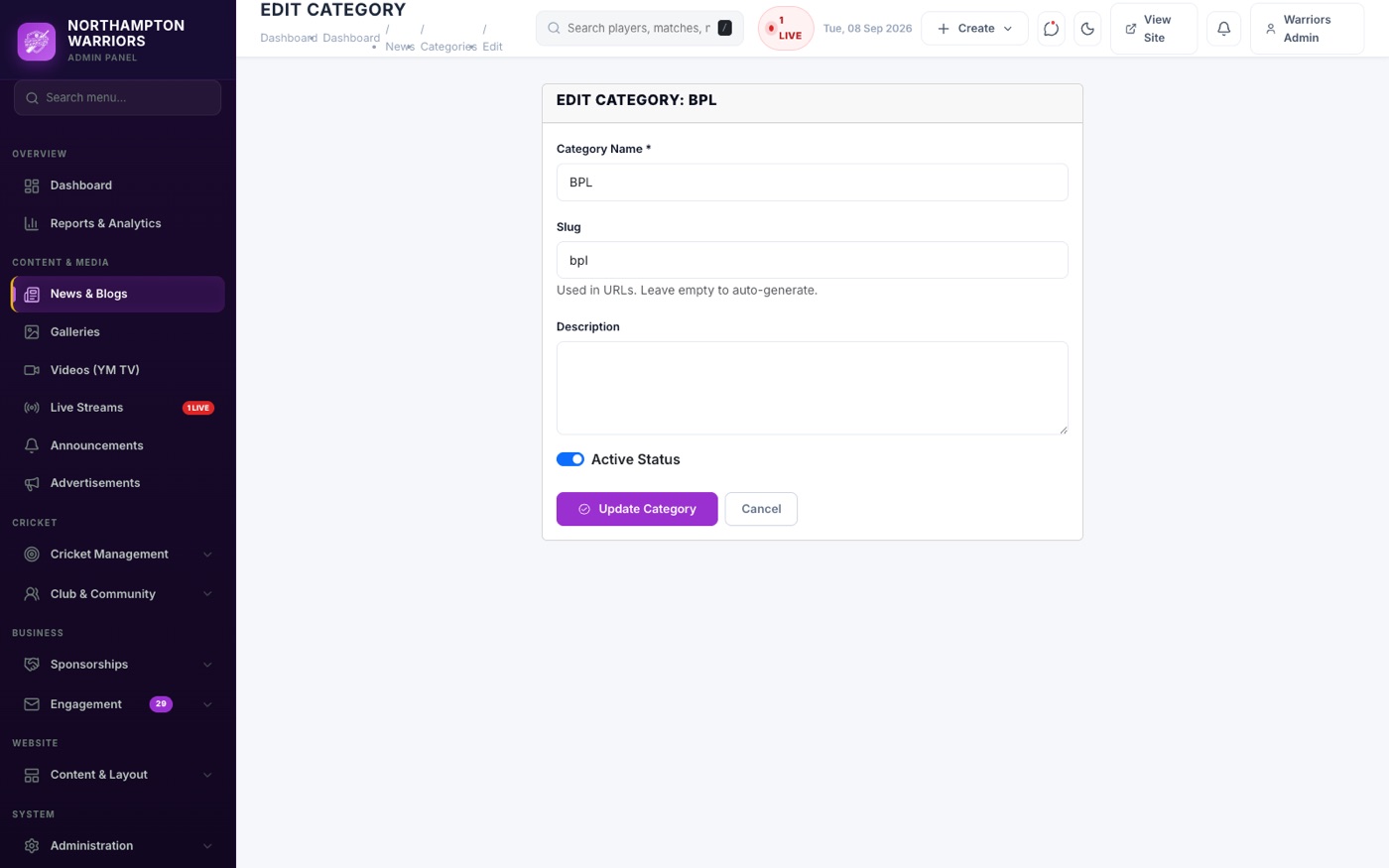
Blog Categories
The category labels used to file and filter news articles.
WhereContent & Media›Blog Categories
How to change it
- Sidebar → Content & Media → Blog Categories.
- Add or rename a category, then Save. It becomes selectable when writing a post.
11.3
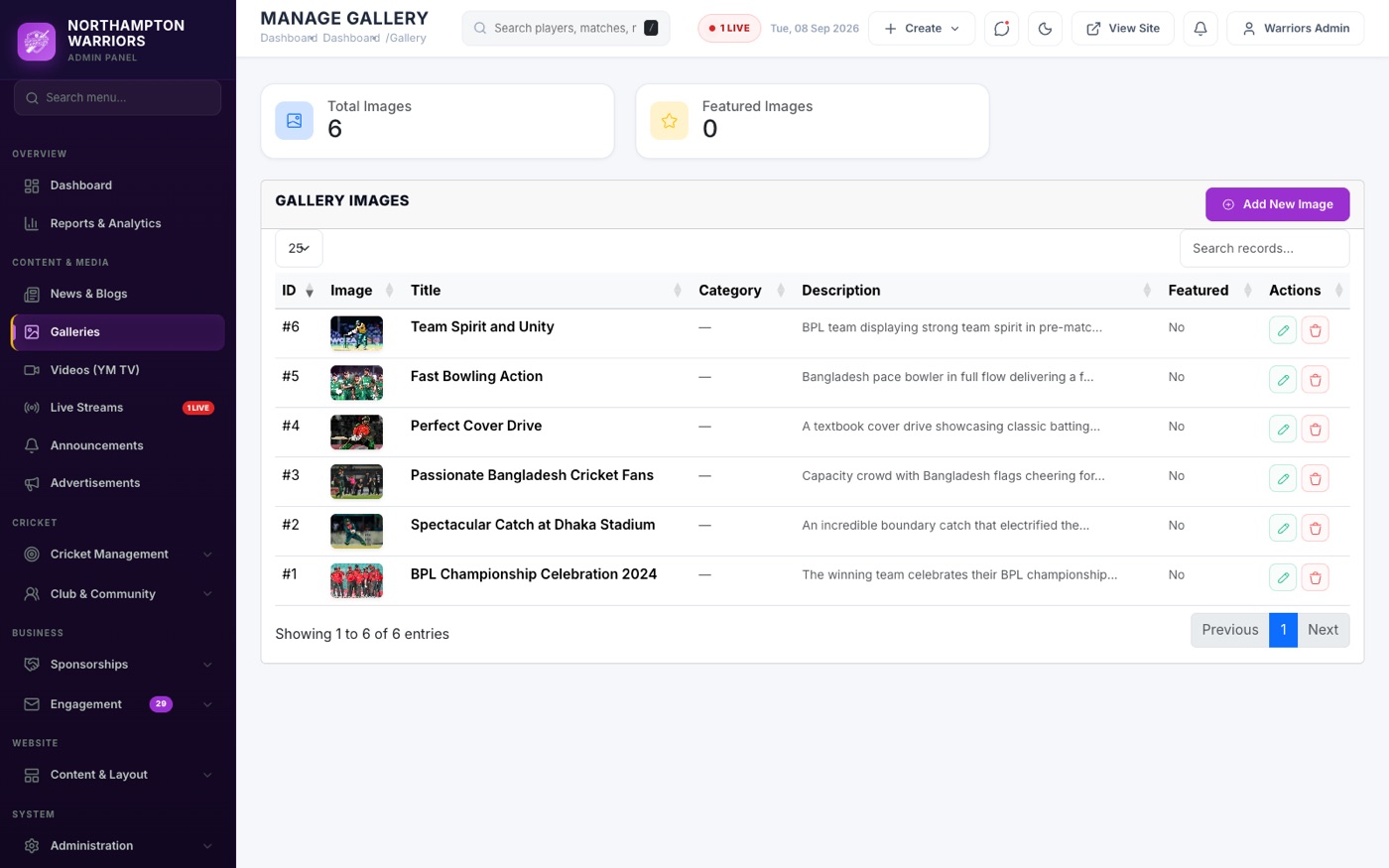
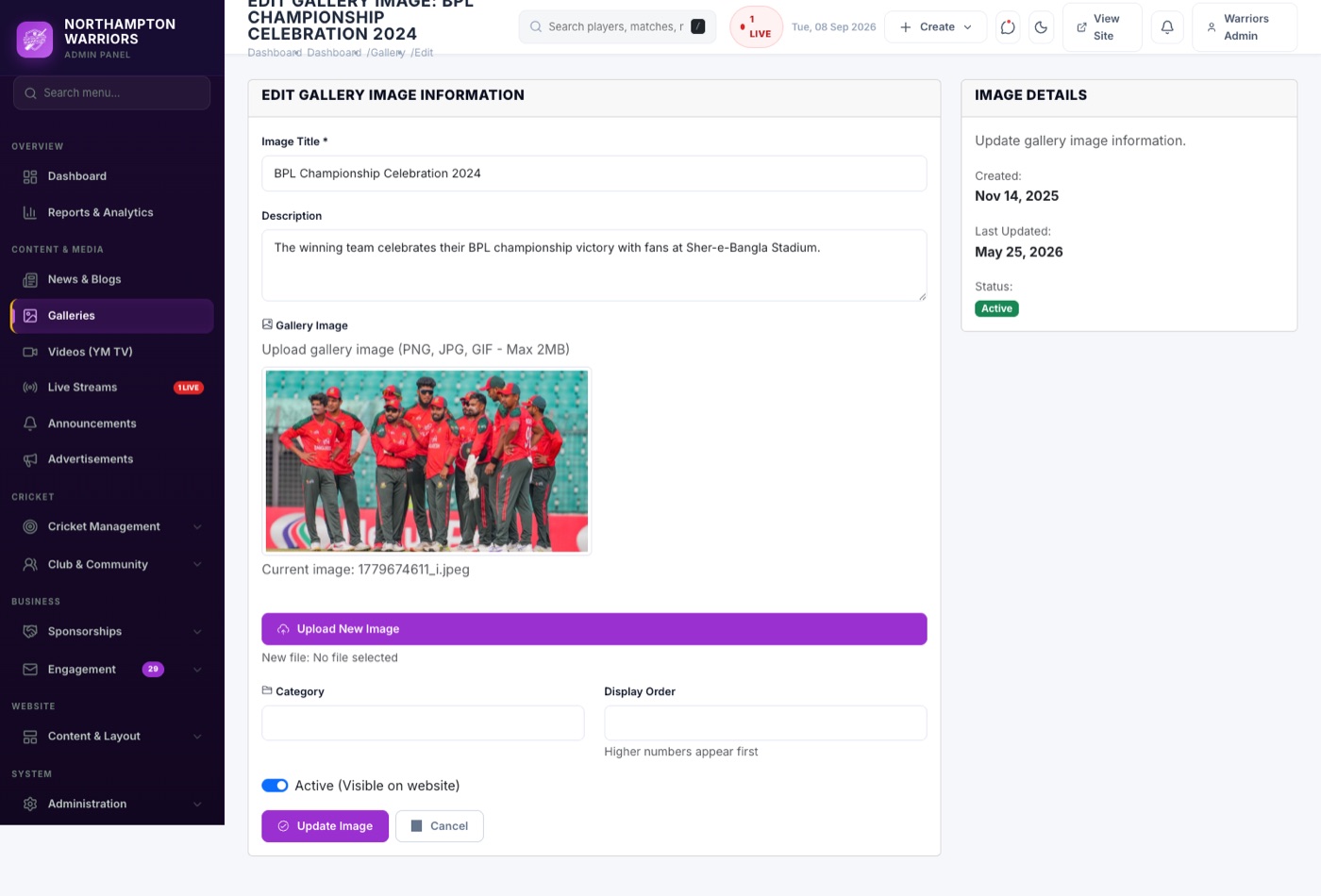
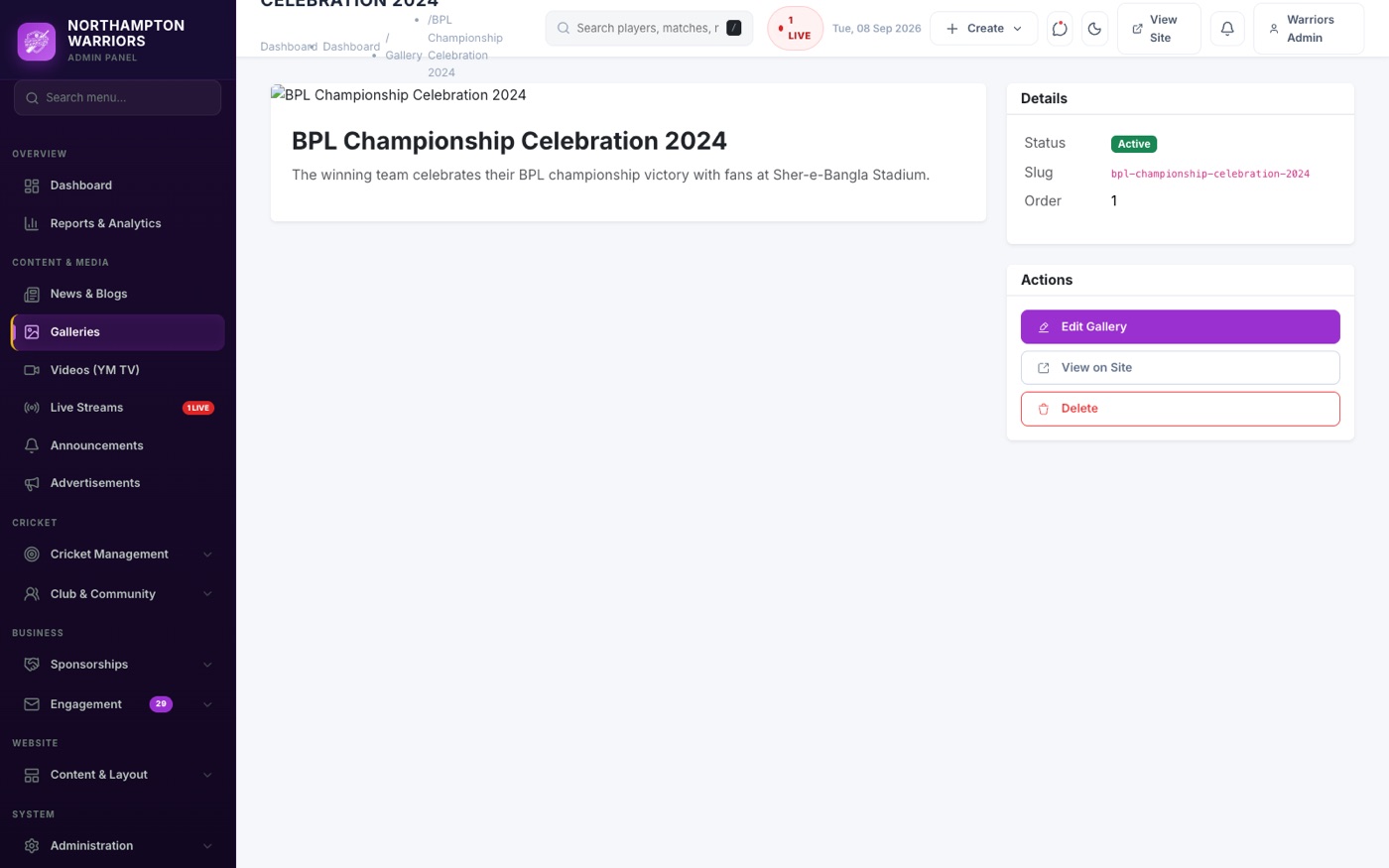
Galleries
Photo albums from matches, events and club occasions.
WhereContent & Media›Galleries
How to change it
- Sidebar → Content & Media → Galleries.
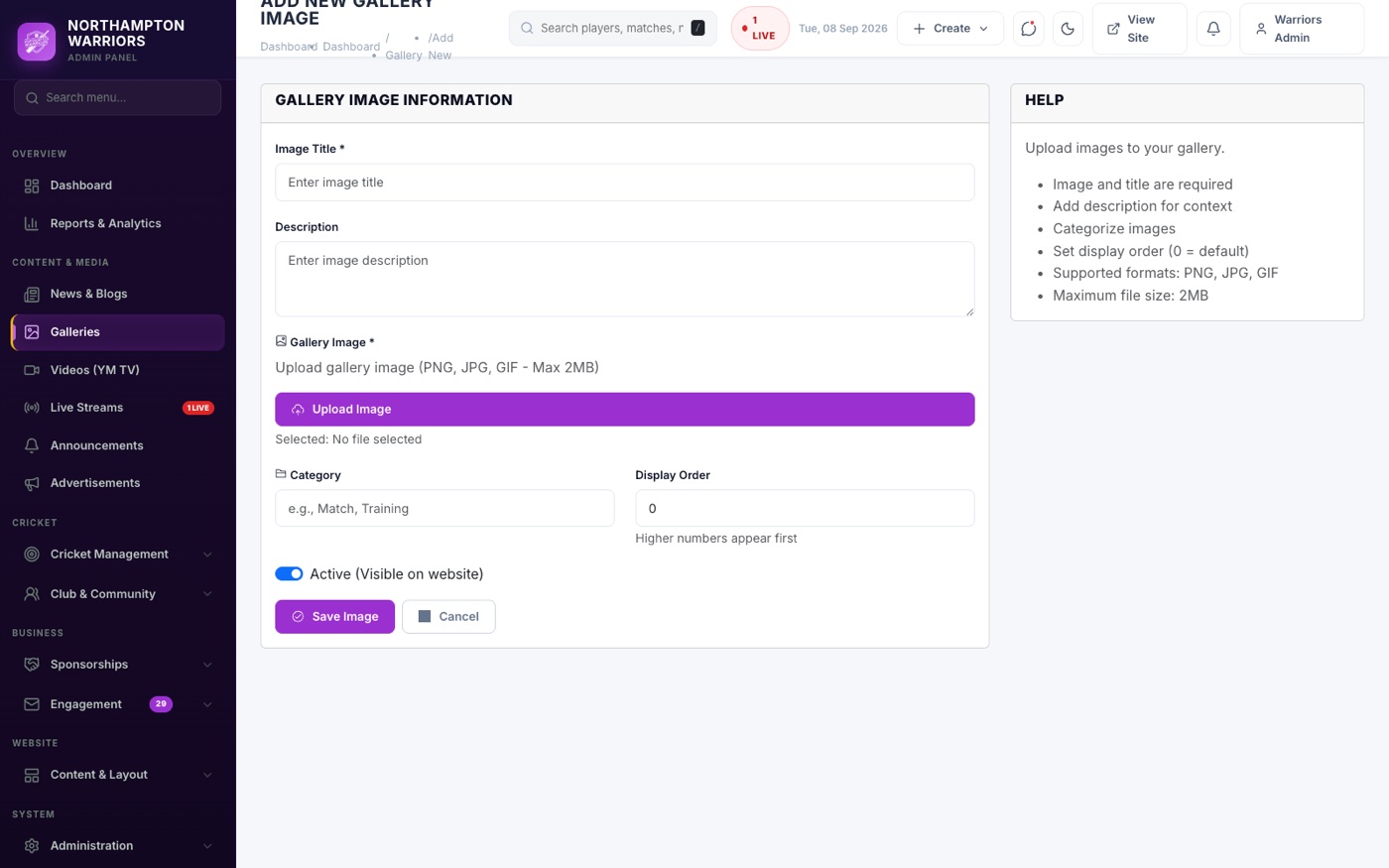
- Click Add New, give the album a title and description.
- Upload your photos — resize to about 1600px wide first so pages stay fast.
- Click Save.
11.4
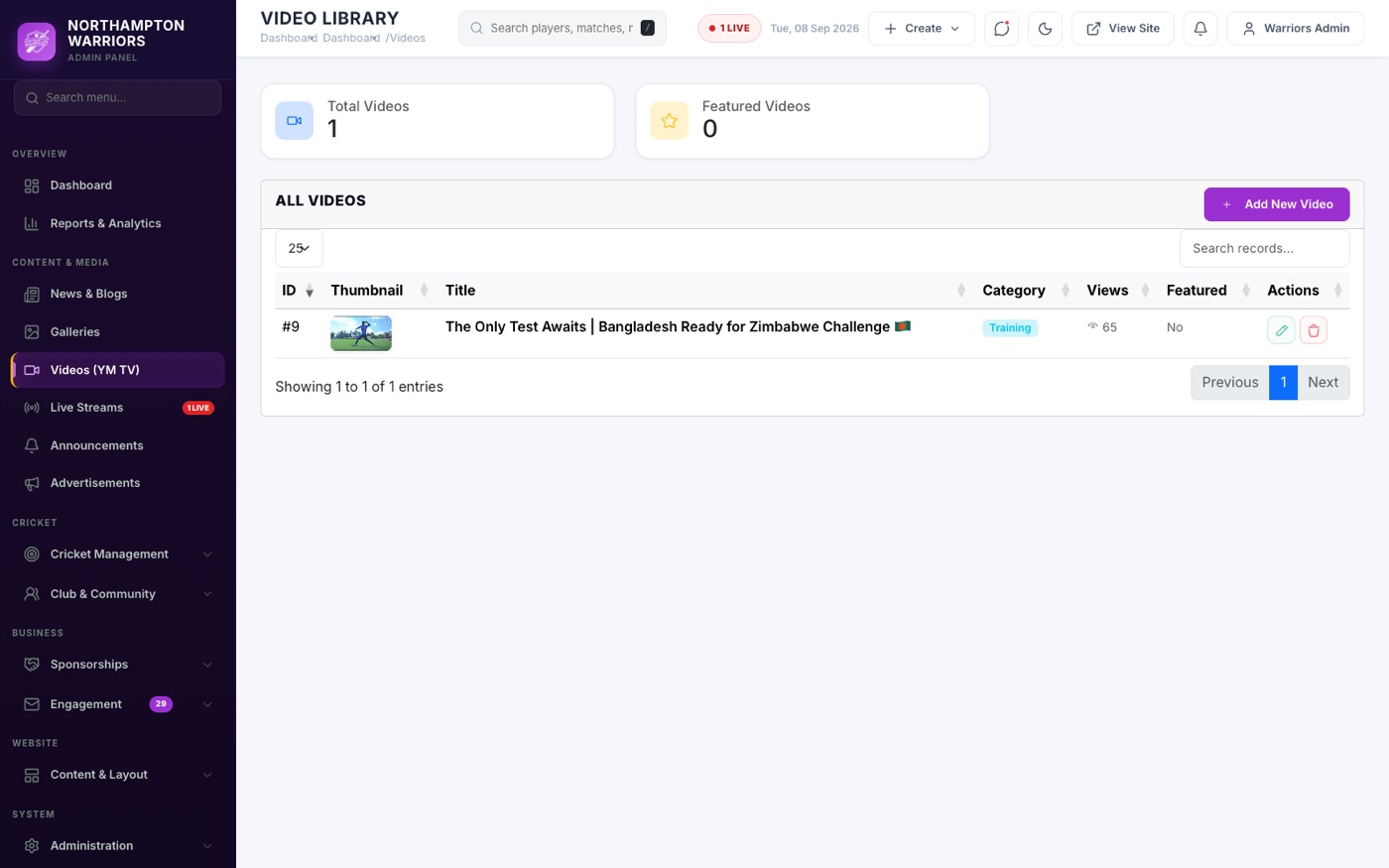
Videos (YM TV)
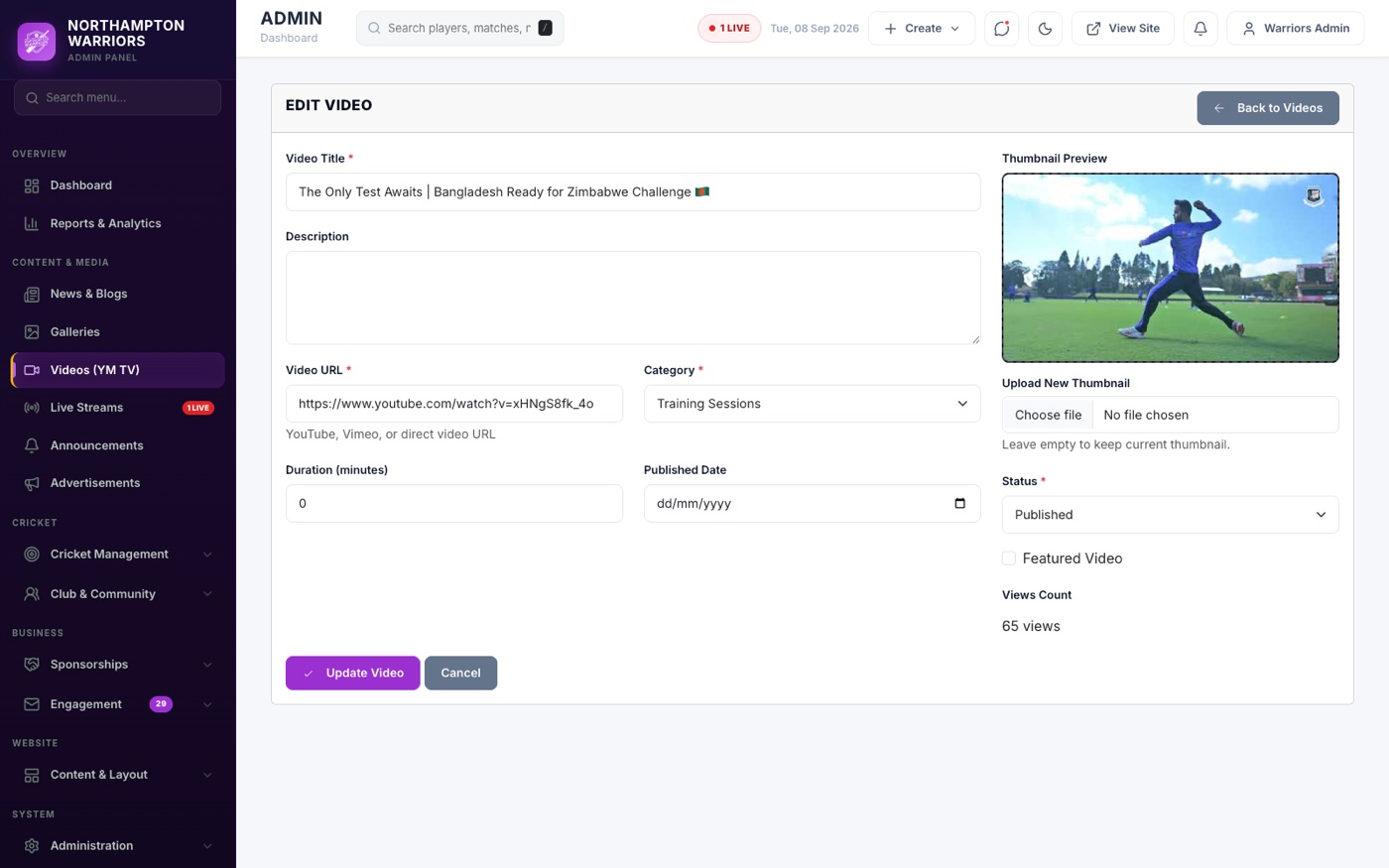
Your video library. Videos are hosted on YouTube or Vimeo — you store the link here, not the file.
WhereContent & Media›Videos (YM TV)
How to change it
- Upload the film to YouTube or Vimeo first.
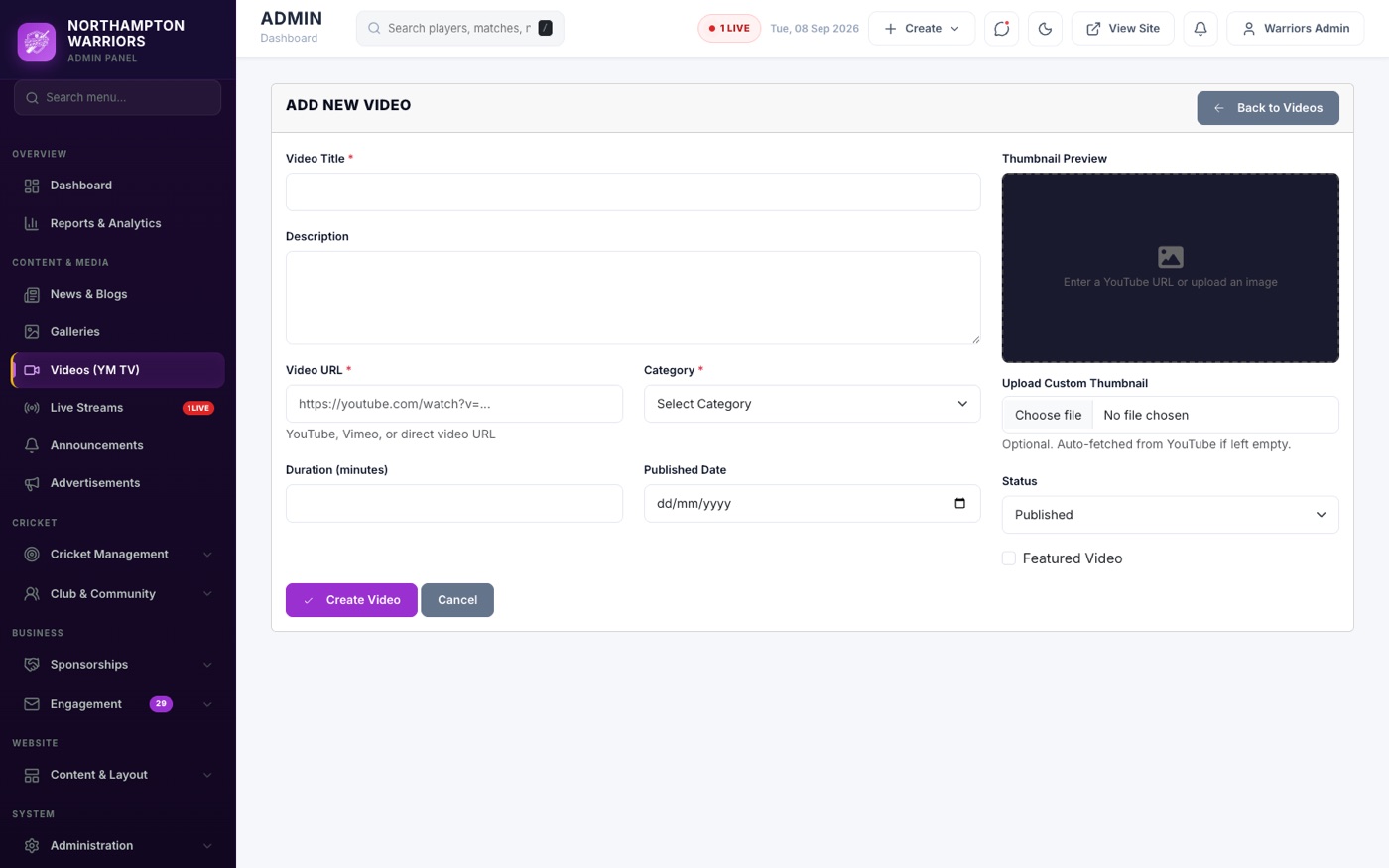
- Sidebar → Content & Media → Videos (YM TV) → Add New.
- Paste the video link and add a title, description and thumbnail.
- Set the status and click Save.
11.5
Live Streams
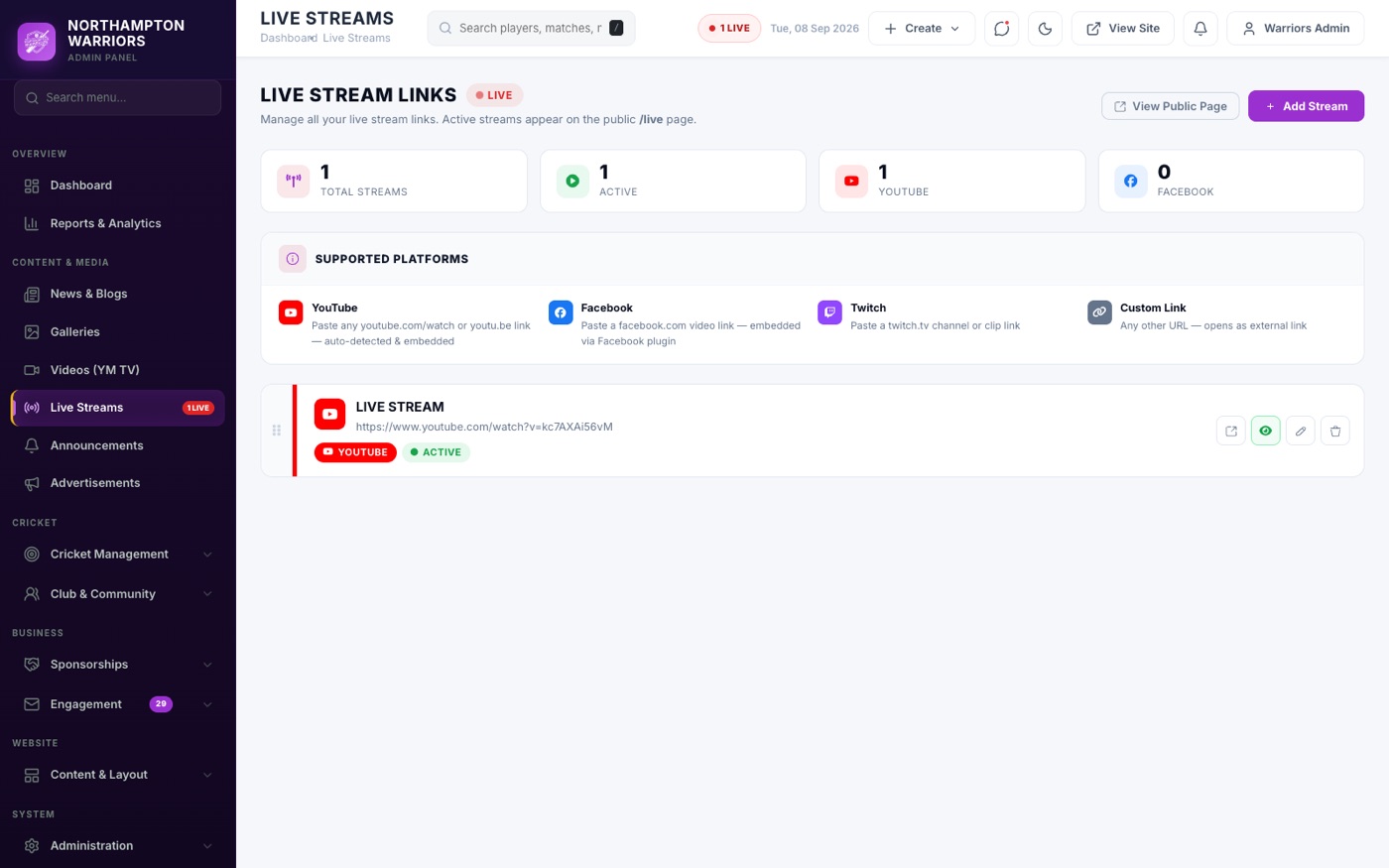
Live match streaming. An active stream also lights the red LIVE badge in the site header.
WhereContent & Media›Live Streams
How to change it
- Sidebar → Content & Media → Live Streams.
- Add the stream title and link, and set it Active when you go live.
- Switch it off after the match so visitors are not sent to a dead stream.
11.6
Announcements
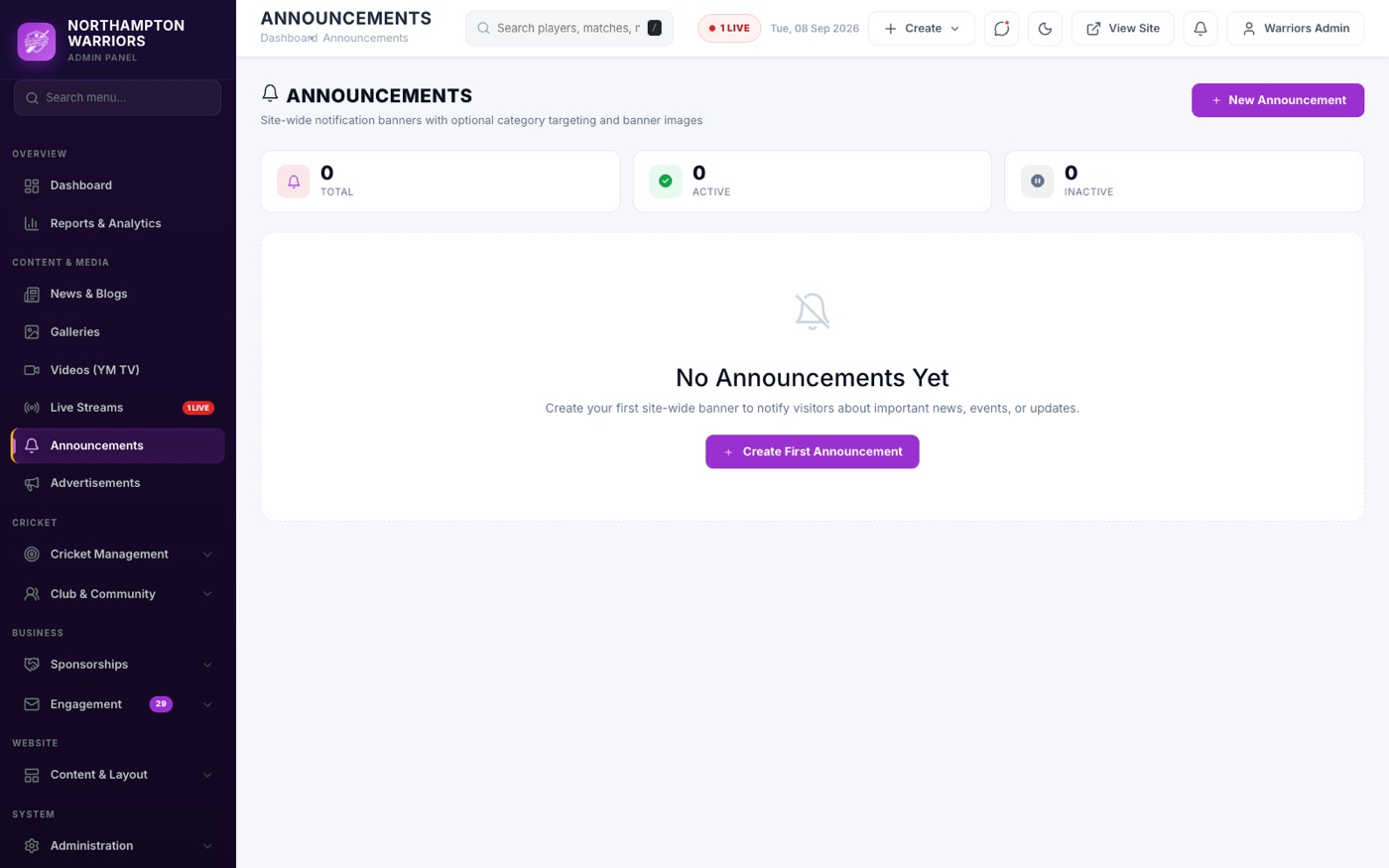
Short notices across the top of the site — a cancelled match, an AGM date, a weather call.
WhereContent & Media›Announcements
How to change it
- Sidebar → Content & Media → Announcements.
- Add the message, choose a category and an optional banner image.
- Set it Active, click Save, and remember to switch it off when it is no longer true.
11.7
Advertisements
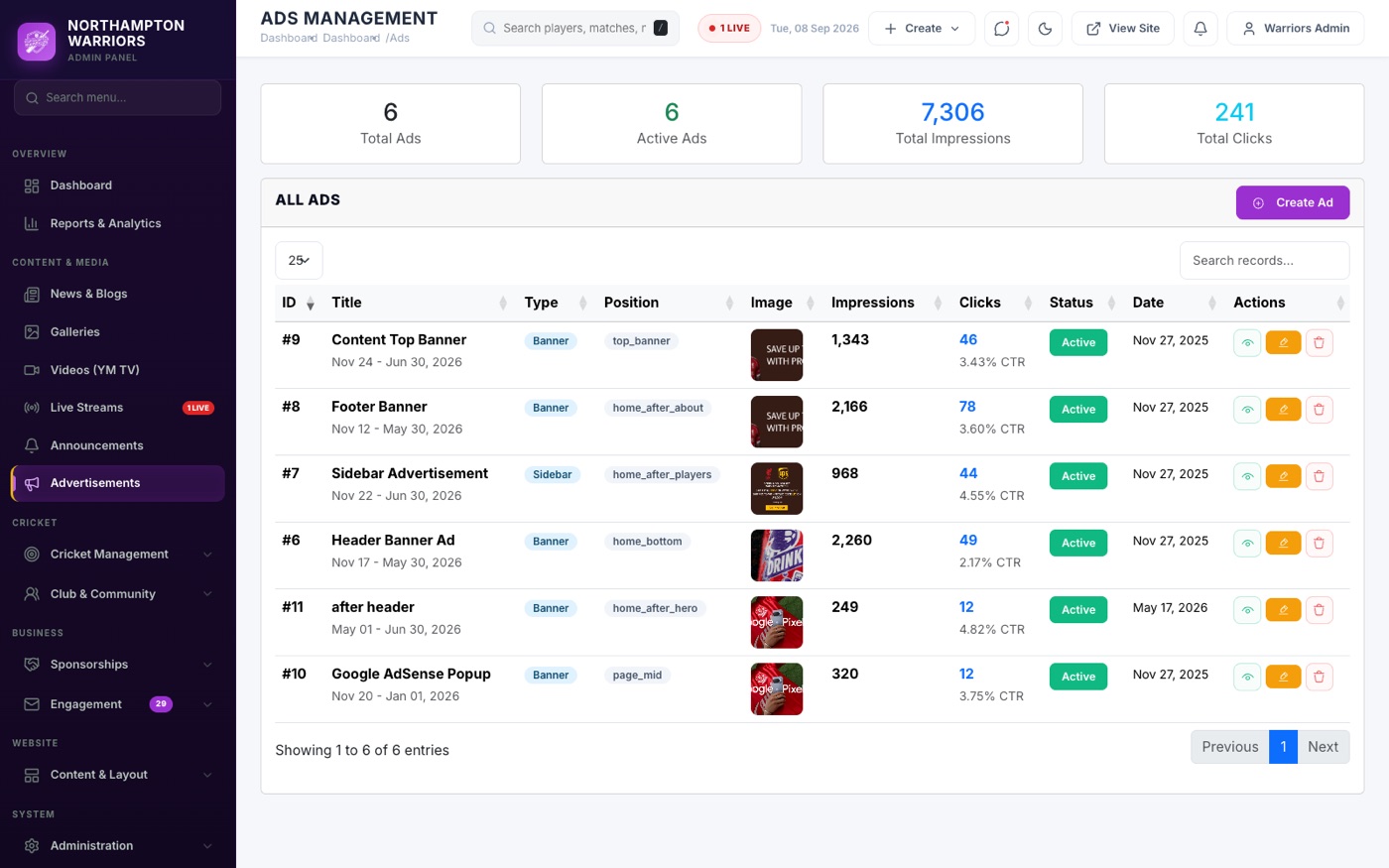
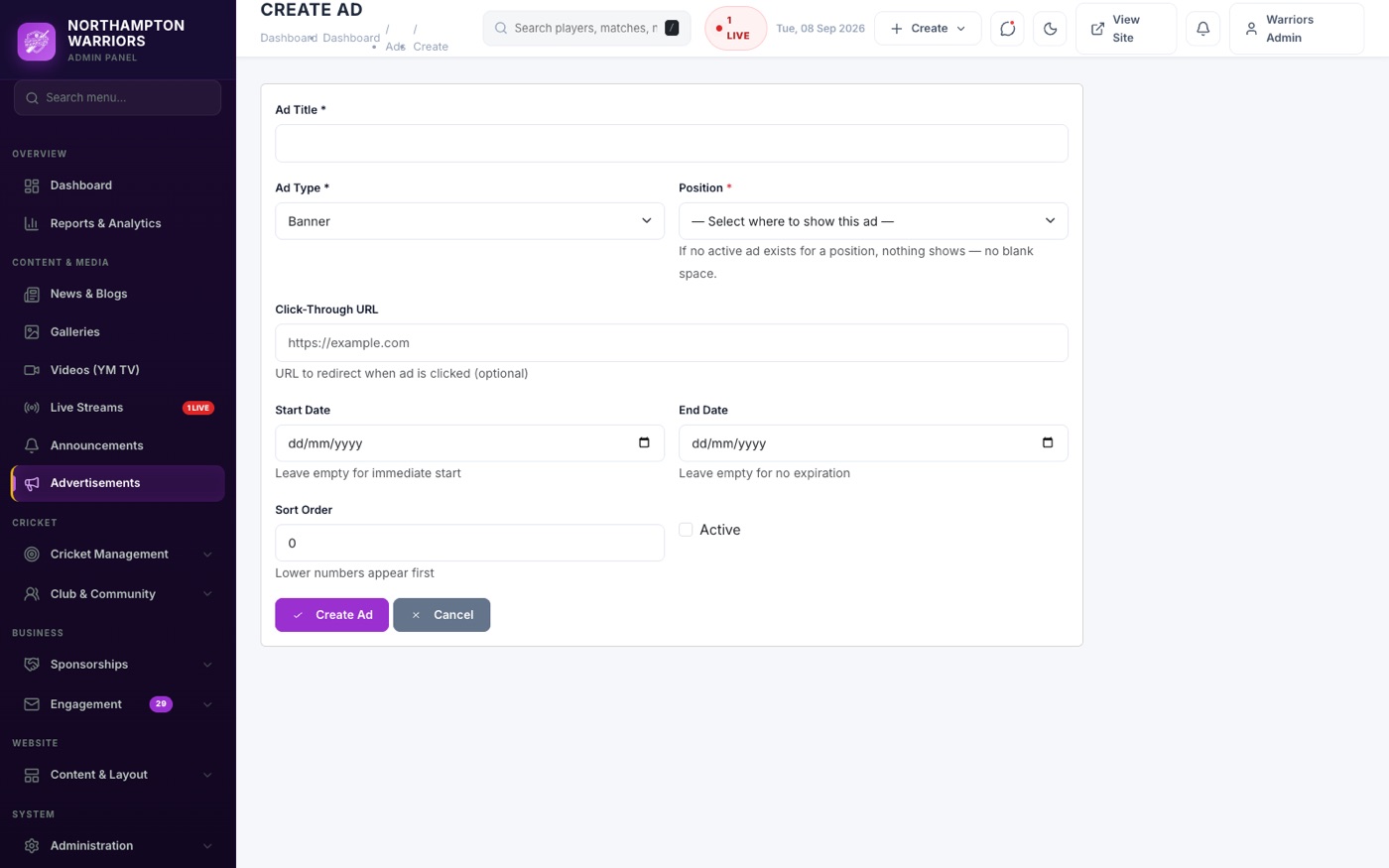
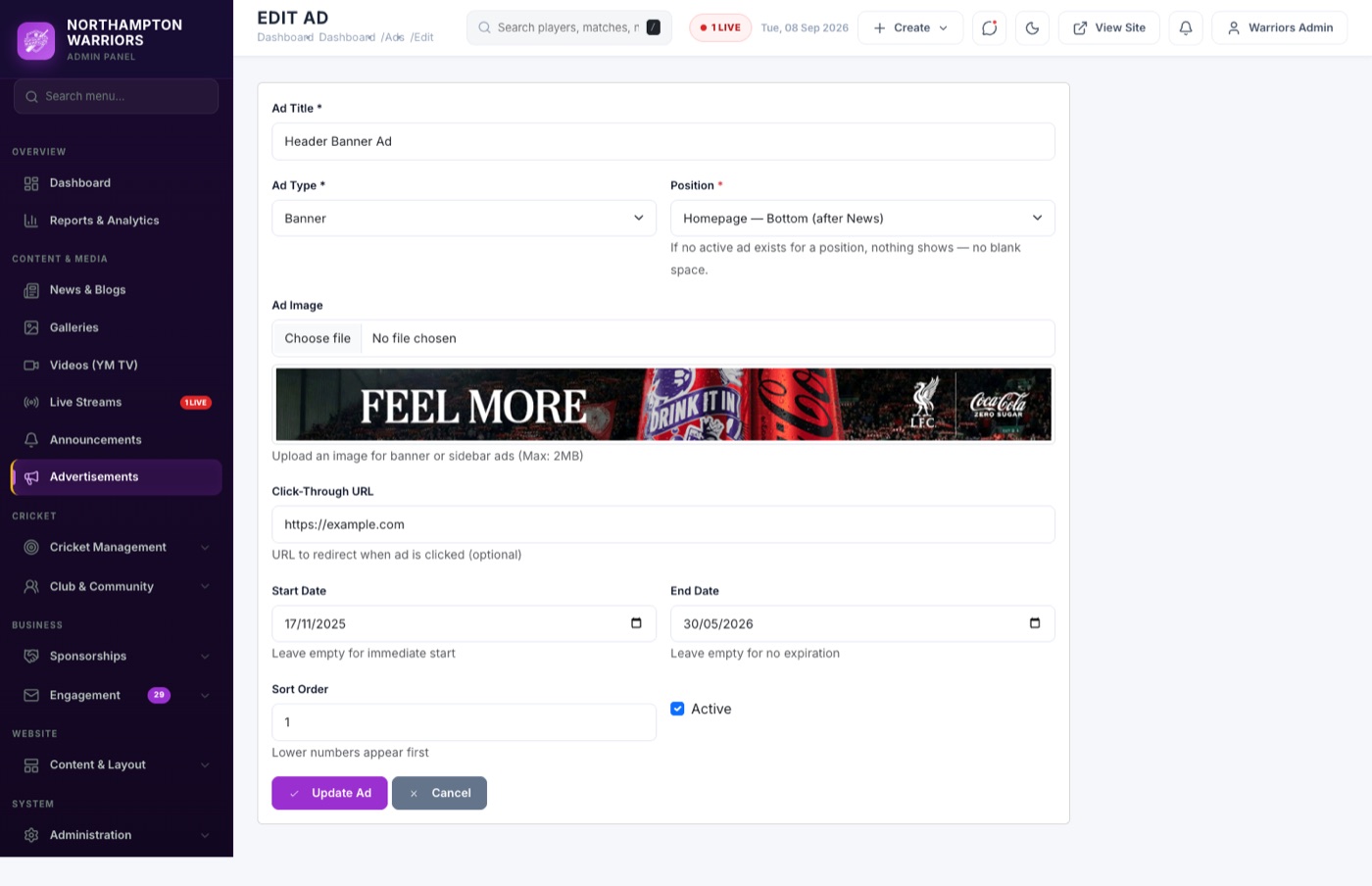
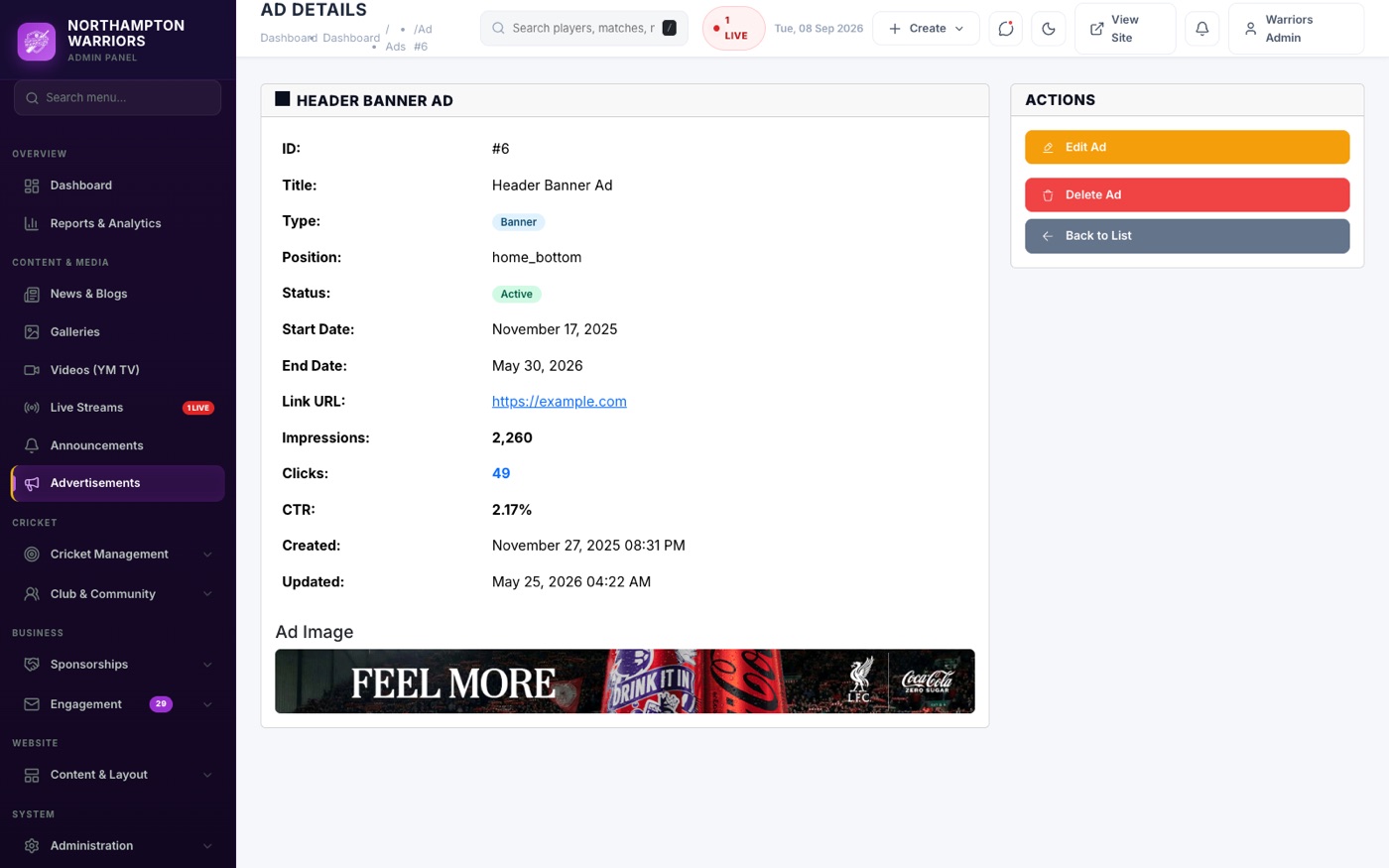
Sponsor and advertiser banners placed between sections around the site. Views and clicks are counted for you.
WhereContent & Media›Advertisements
How to change it
- Sidebar → Content & Media → Advertisements → Add New.
- Upload the banner image and set the link it opens.
- Choose the Position — this decides where on the site it appears.
- Set Active and click Save.