Chapter 13Dashboard reference
Business screens
Sponsorship and the inboxes — sponsors, packages, applications, enquiries, subscribers and comments.
13.1
Sponsors
Your sponsors and partners, with logos linking to their websites.
WhereBusiness›Sponsorships›Sponsors
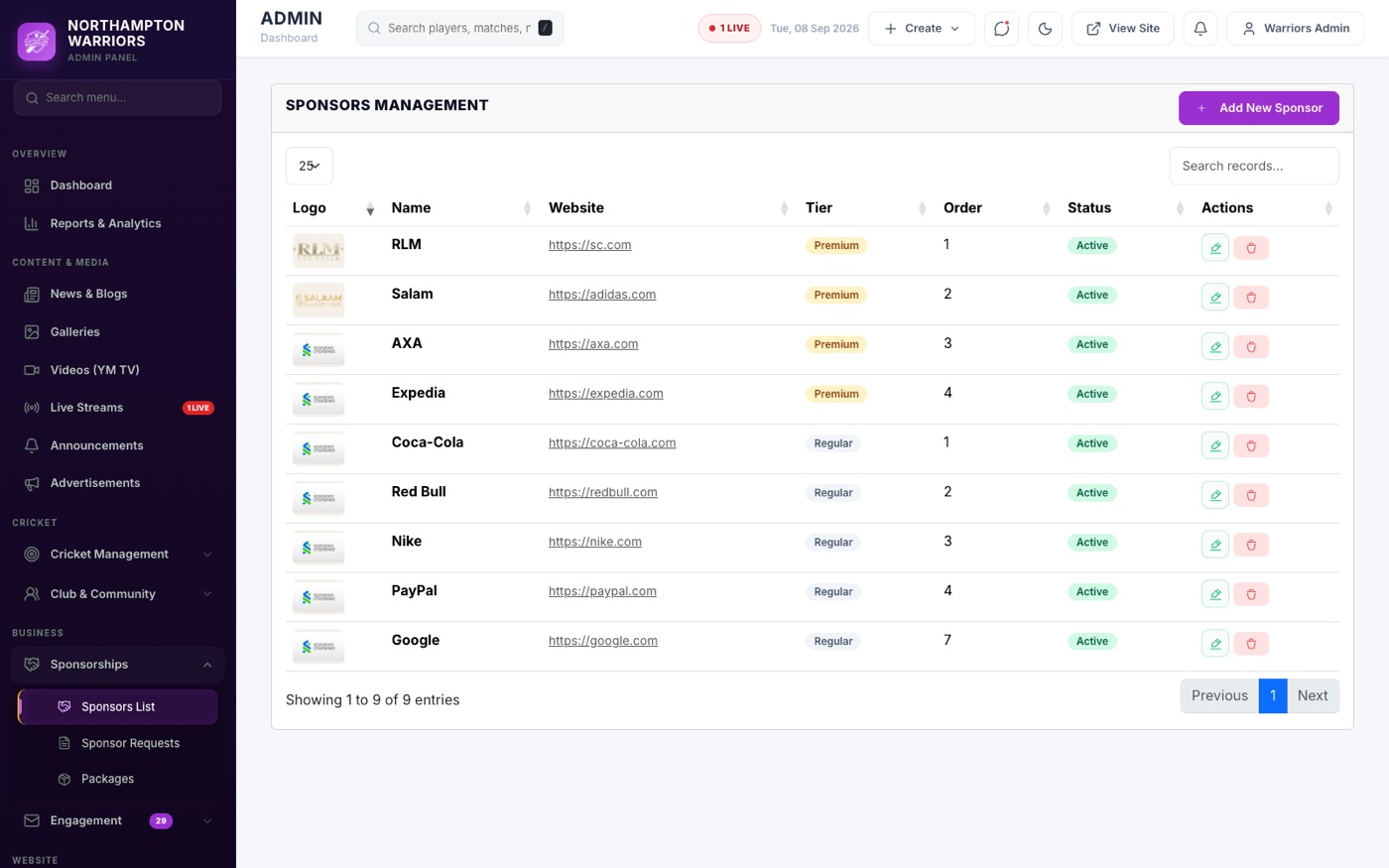
How to change it
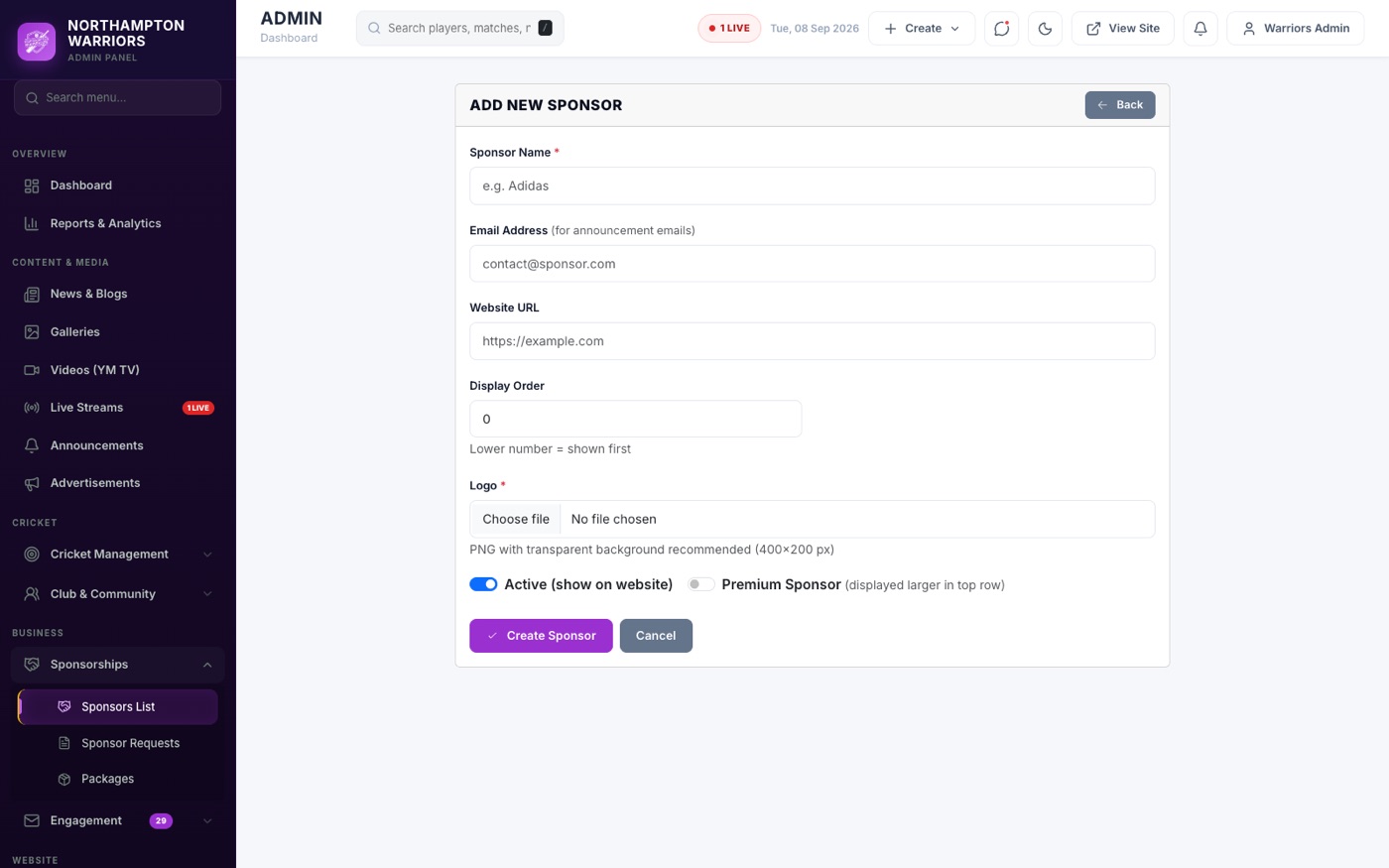
- Sidebar → Business → Sponsors → Add New.
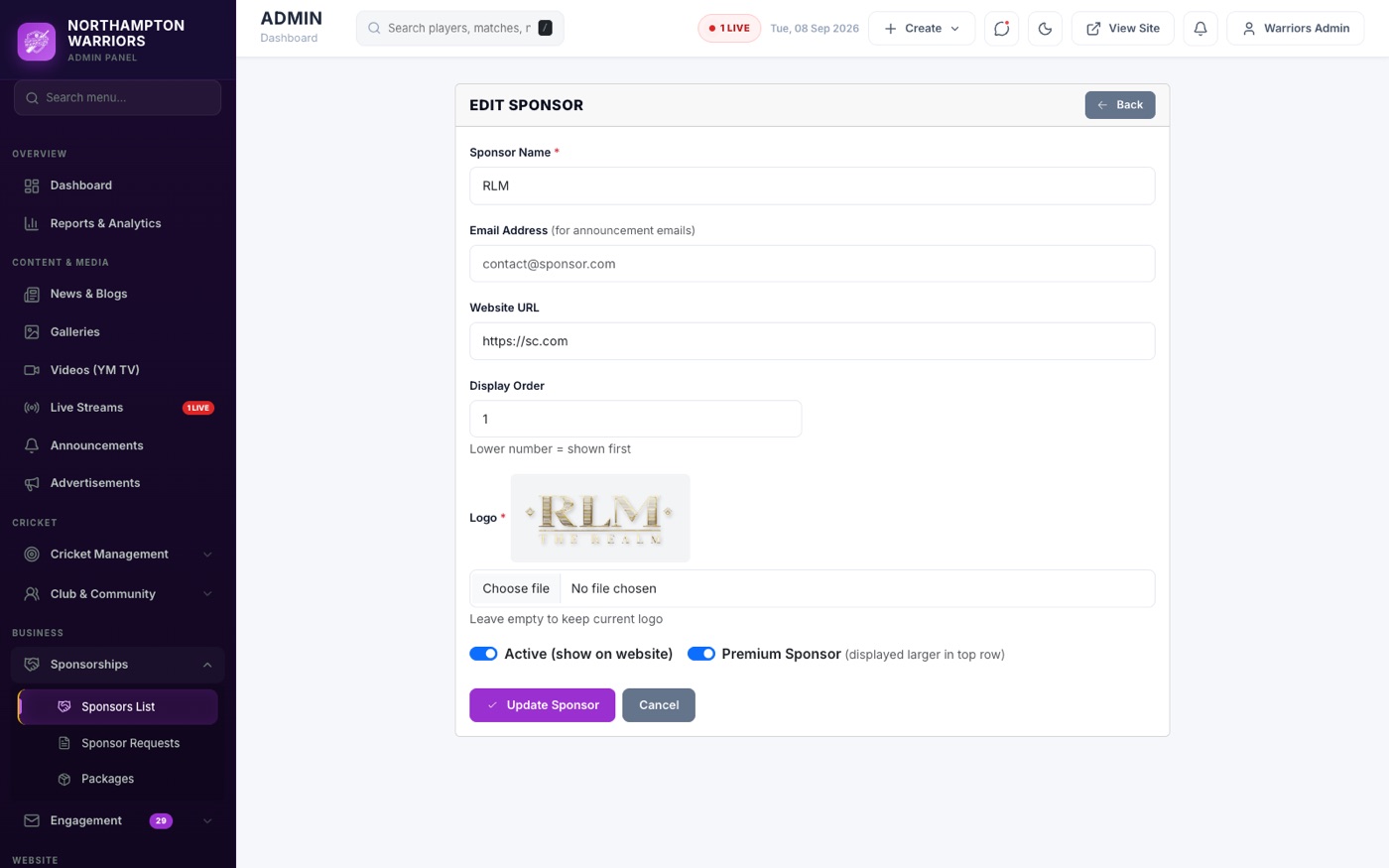
- Enter the sponsor name, logo, website link and tier.
- Set Active and click Save.
13.2
Sponsor Packages
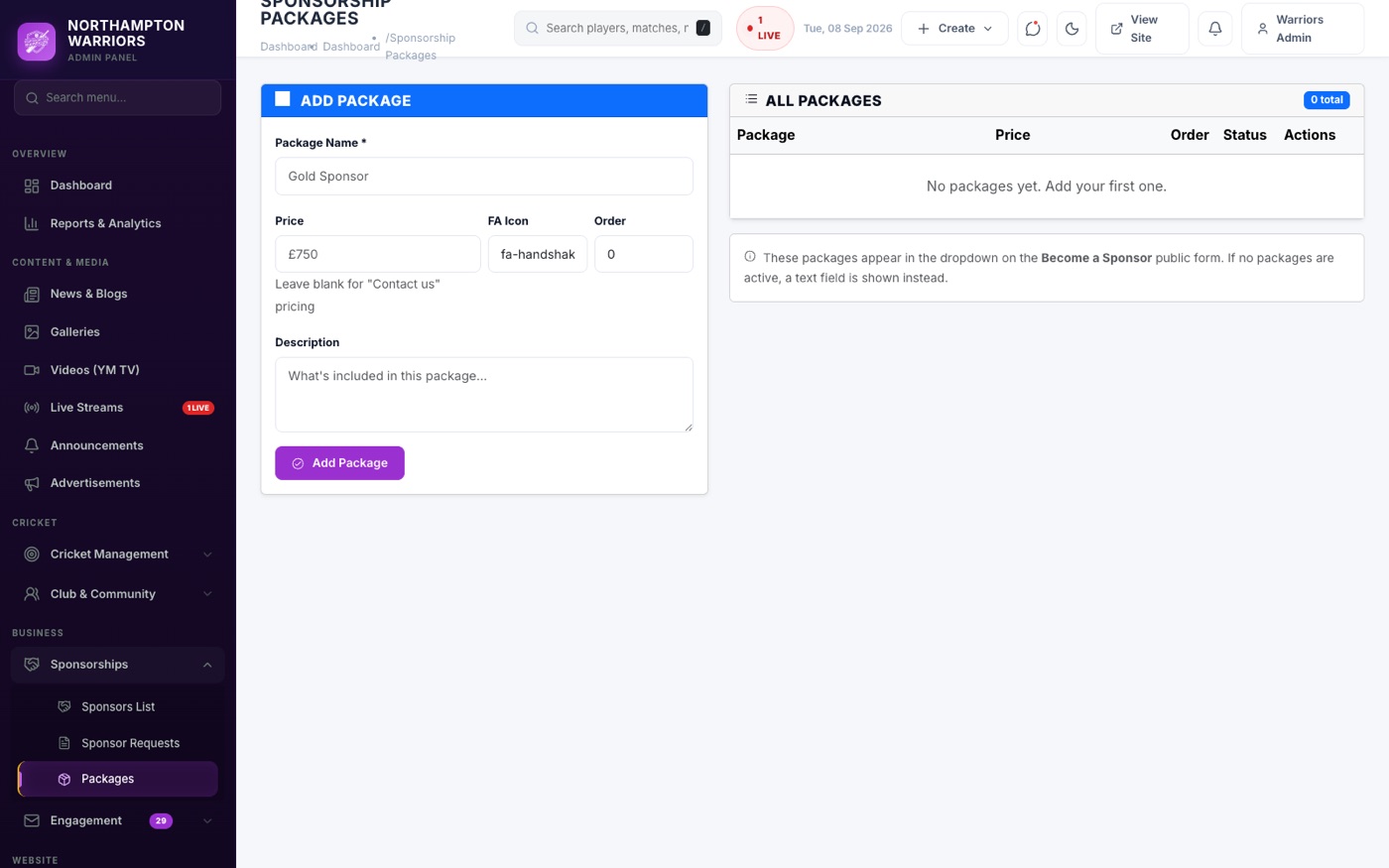
The sponsorship tiers and prices shown to prospective sponsors on the Advertise page.
WhereBusiness›Sponsorships›Sponsor Packages
How to change it
- Sidebar → Business → Sponsor Packages.
- Set each package name, price and what it includes, then Save.
13.3
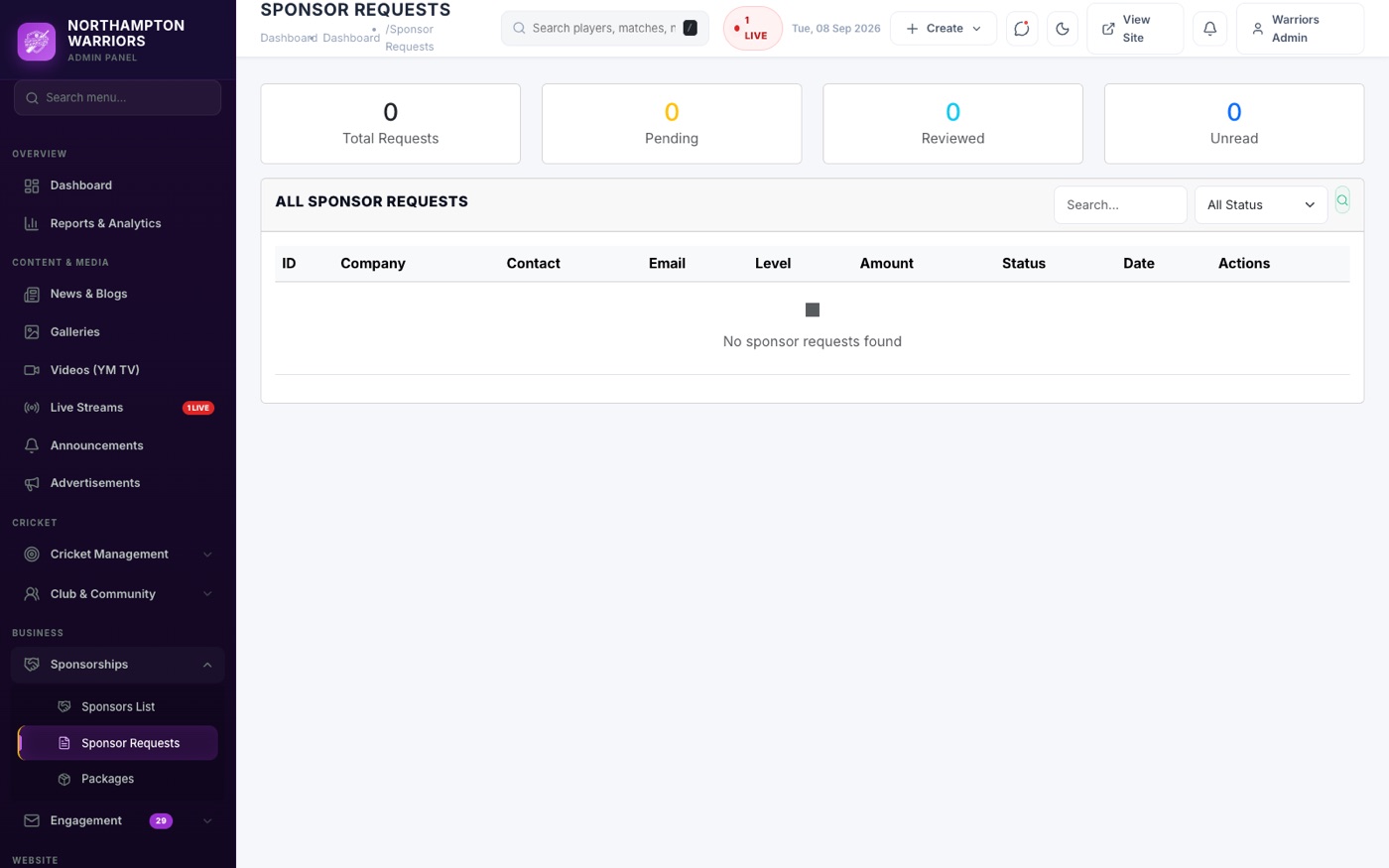
Sponsor Requests
Businesses who have applied to sponsor the club through the website.
WhereBusiness›Sponsorships›Sponsor Requests
How to change it
- Sidebar → Business → Sponsor Requests.
- Open a request to read it, then follow up with the business directly.
13.4
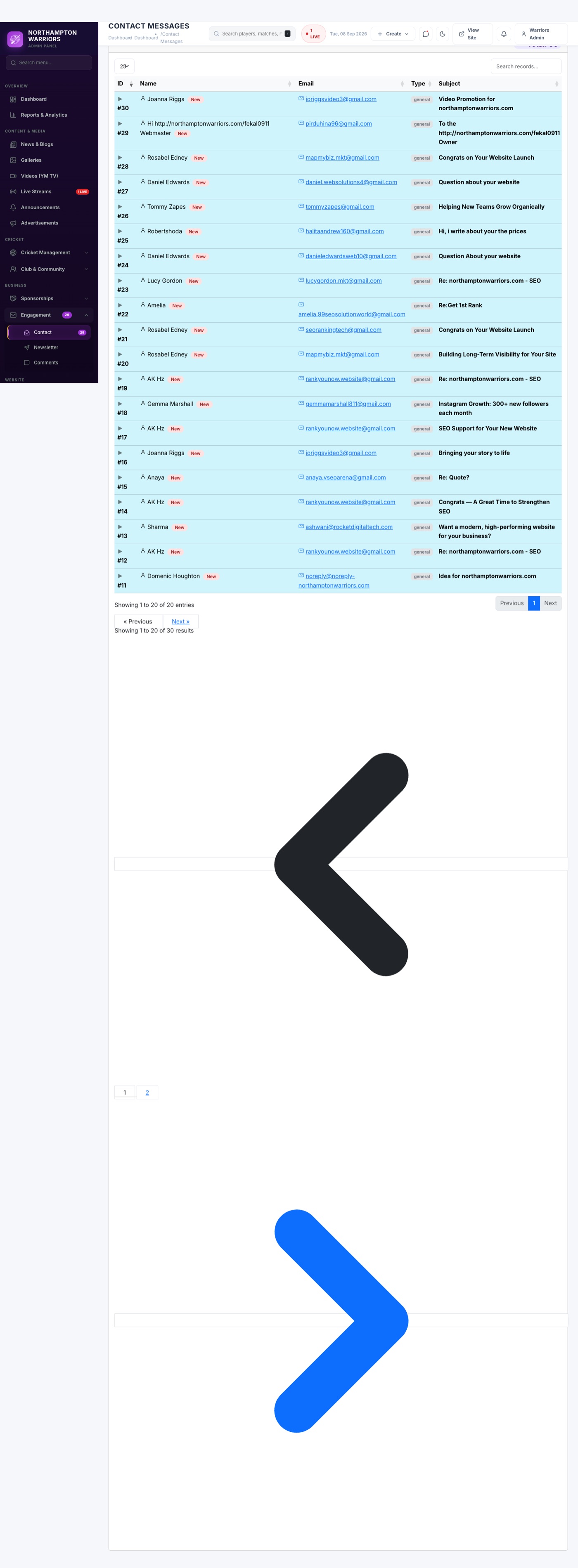
Contacts
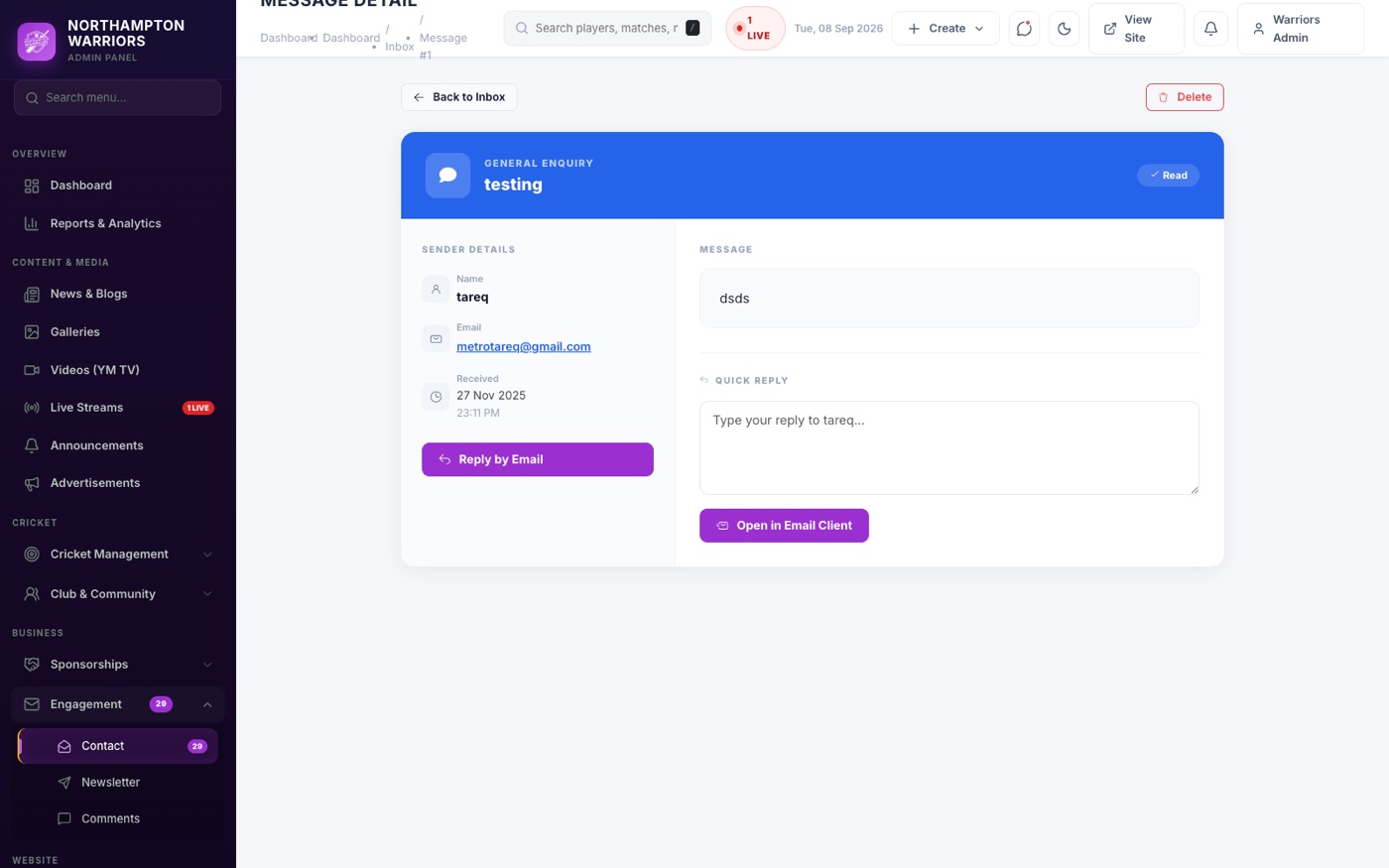
Every enquiry submitted through the website contact form, stored so nothing is lost if an email goes astray.
WhereBusiness›Engagement›Contacts
How to change it
- Sidebar → Business → Contacts.
- Click a row to read the full message.
- Reply from your own email account — the dashboard stores enquiries, it does not send replies.
13.5
Newsletters
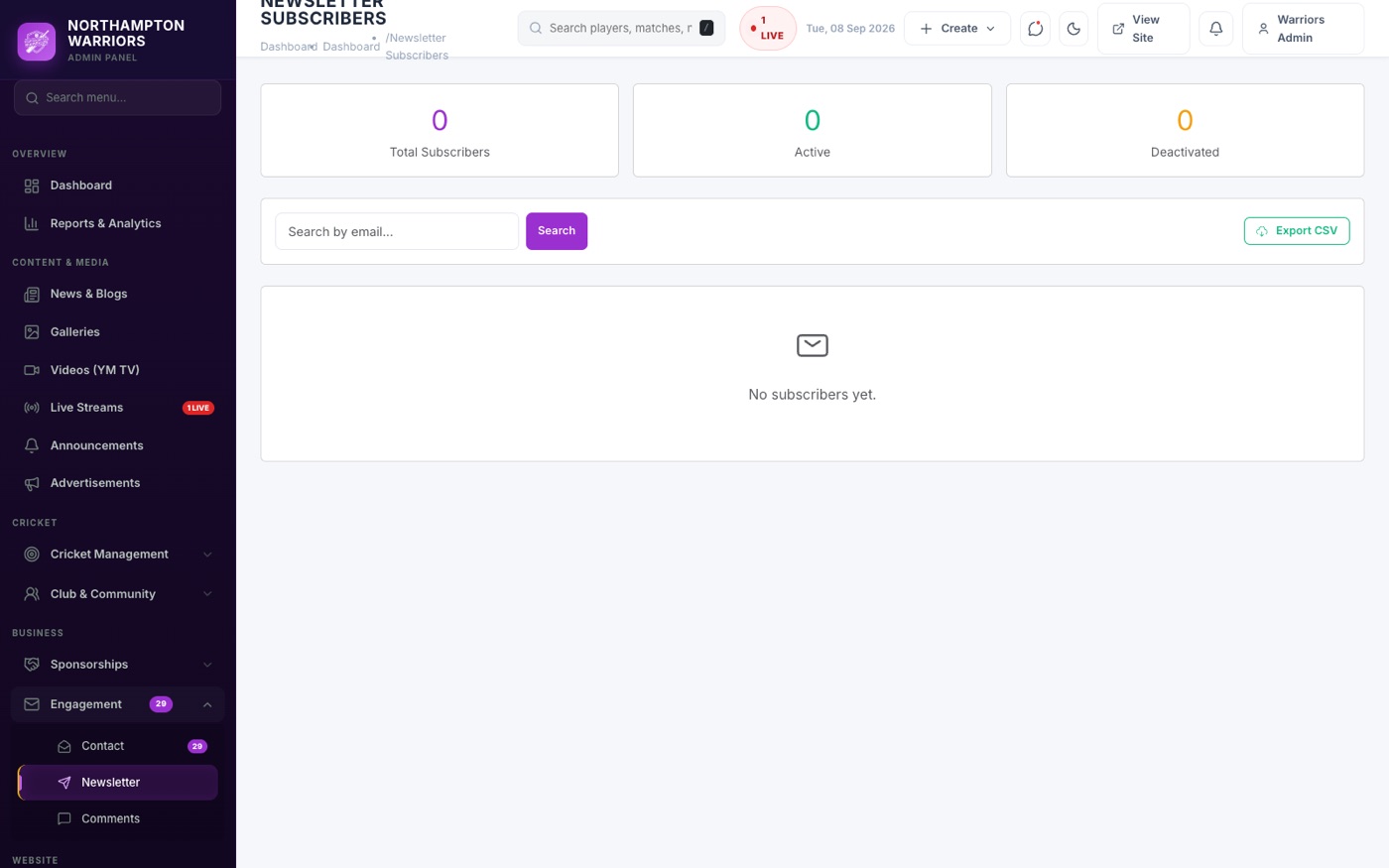
Everyone who has signed up for club updates, with a spreadsheet export.
WhereBusiness›Engagement›Newsletters
How to change it
- Sidebar → Business → Newsletters.
- Click Export to download the list for your mailing tool.
- Only use these addresses for what people signed up to receive, and remove anyone who asks.
13.6
Comments
Reader comments on news articles, held until you approve them.
WhereBusiness›Engagement›Comments
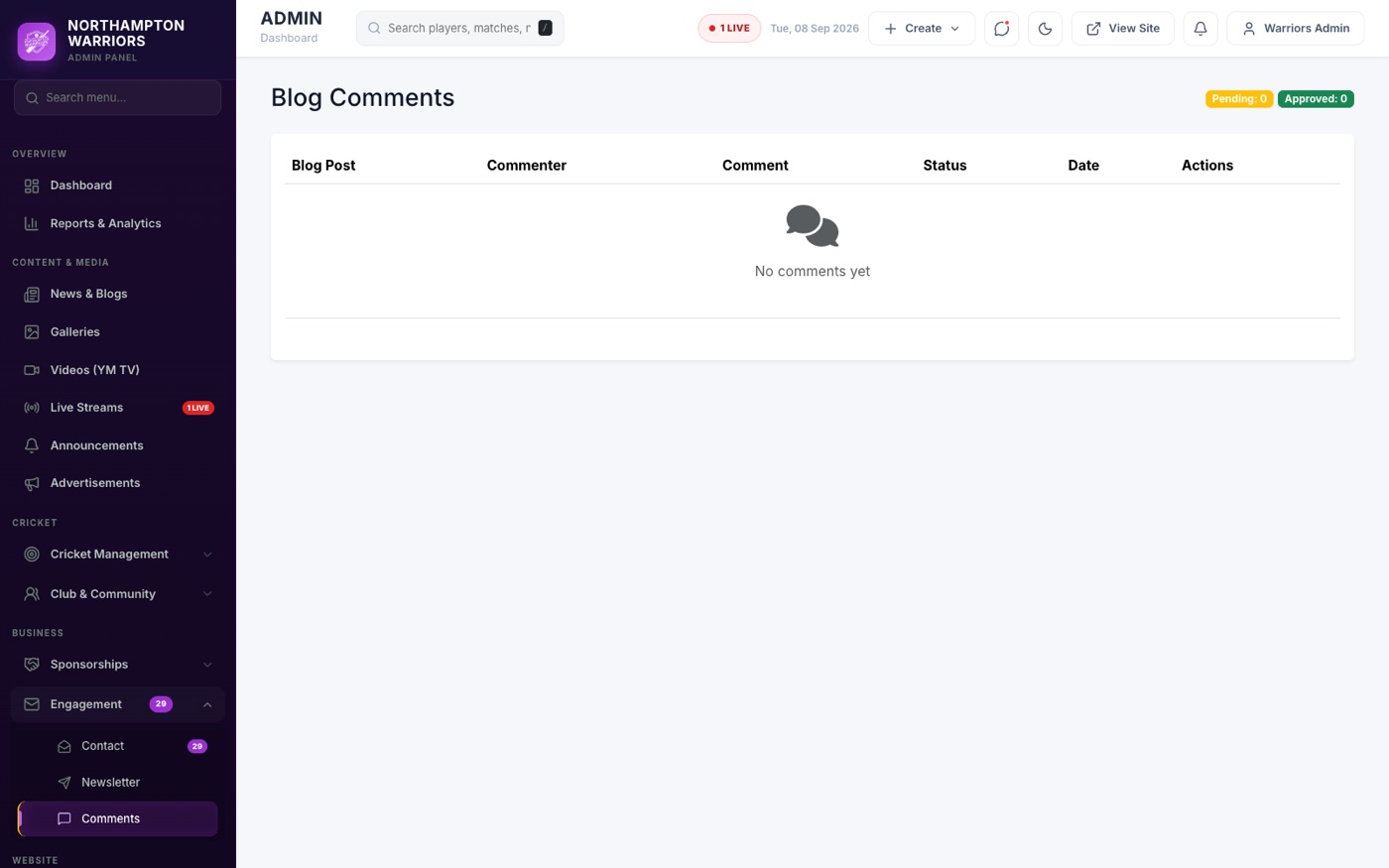
How to change it
- Sidebar → Business → Comments.
- Read the comment and see which article it belongs to.
- Click Approve to publish it, or Delete to remove it.