News, galleries, videos and events
Everything under the News and Media menus — articles, photo galleries, YM TV, events, awards and live streaming.
News listing page
All your published articles, newest first, filterable by category.
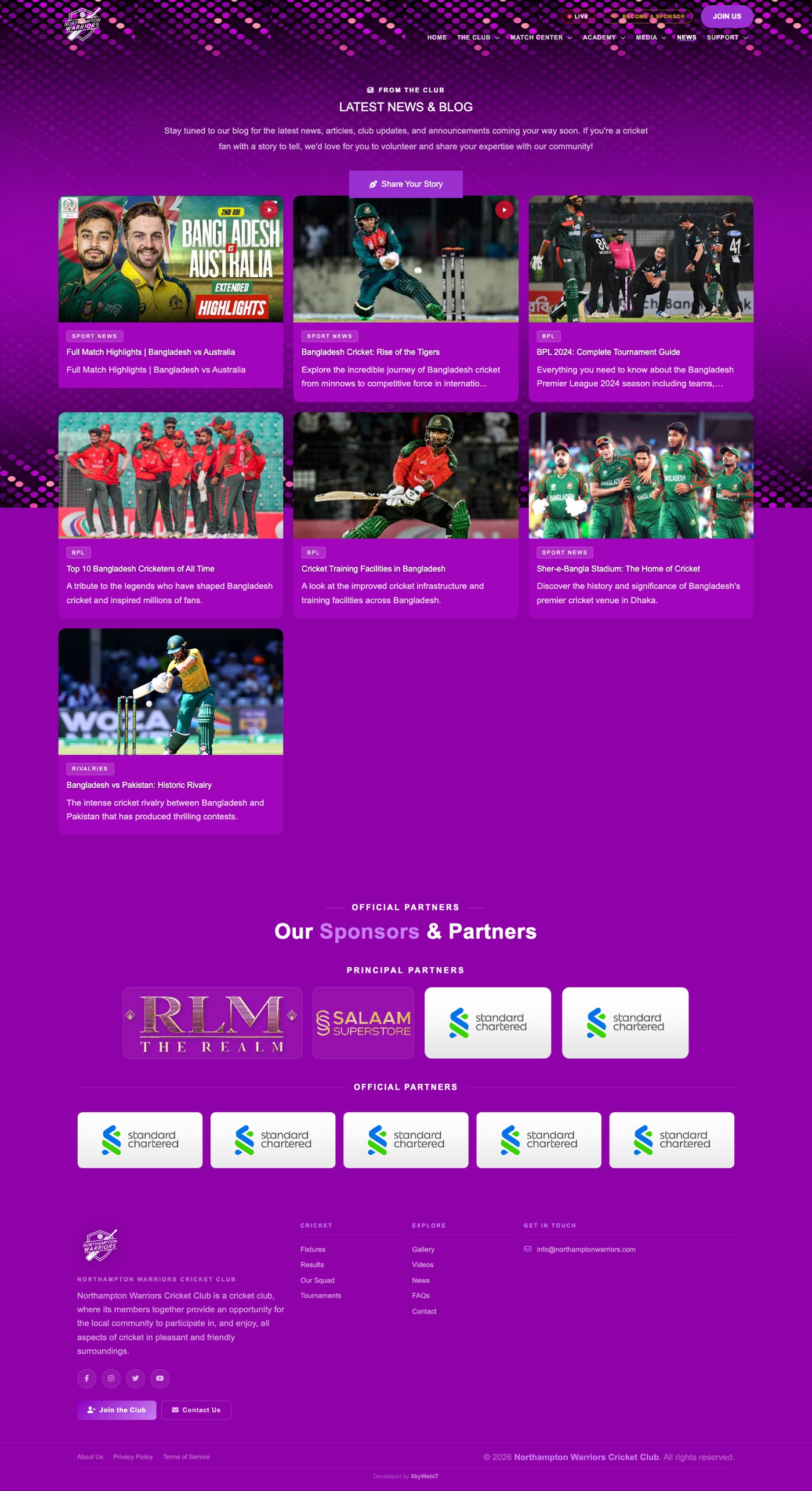
How to change it
- Sidebar → Content & Media → News & Blogs.
- Click Add New to create one, or Edit on any row to change an existing one.
- Enter the title, choose a category, upload a featured image and write the article.
- Turn the Active / Published switch on so it shows on the website.
- Click Save, then refresh the public page to check it.
To manage categories
Use Blog Categories to add or rename the category labels used to filter this page.
To feature a post on the home page
Turn on Show in hero when editing the post.
Article page
A single article, with its image, body text, optional video and reader comments.

How to change it
- Sidebar → Content & Media → News & Blogs.
- Click Edit on the article.
- Update the body using the editor. You can also paste a video URL to embed a video in the article.
- Set the published date if you want to backdate it.
- Click Save.
Reader comments
Comments left by visitors appear here for you to approve or delete before they show publicly.
Photo Galleries page
Photo albums from matches, events and club occasions.
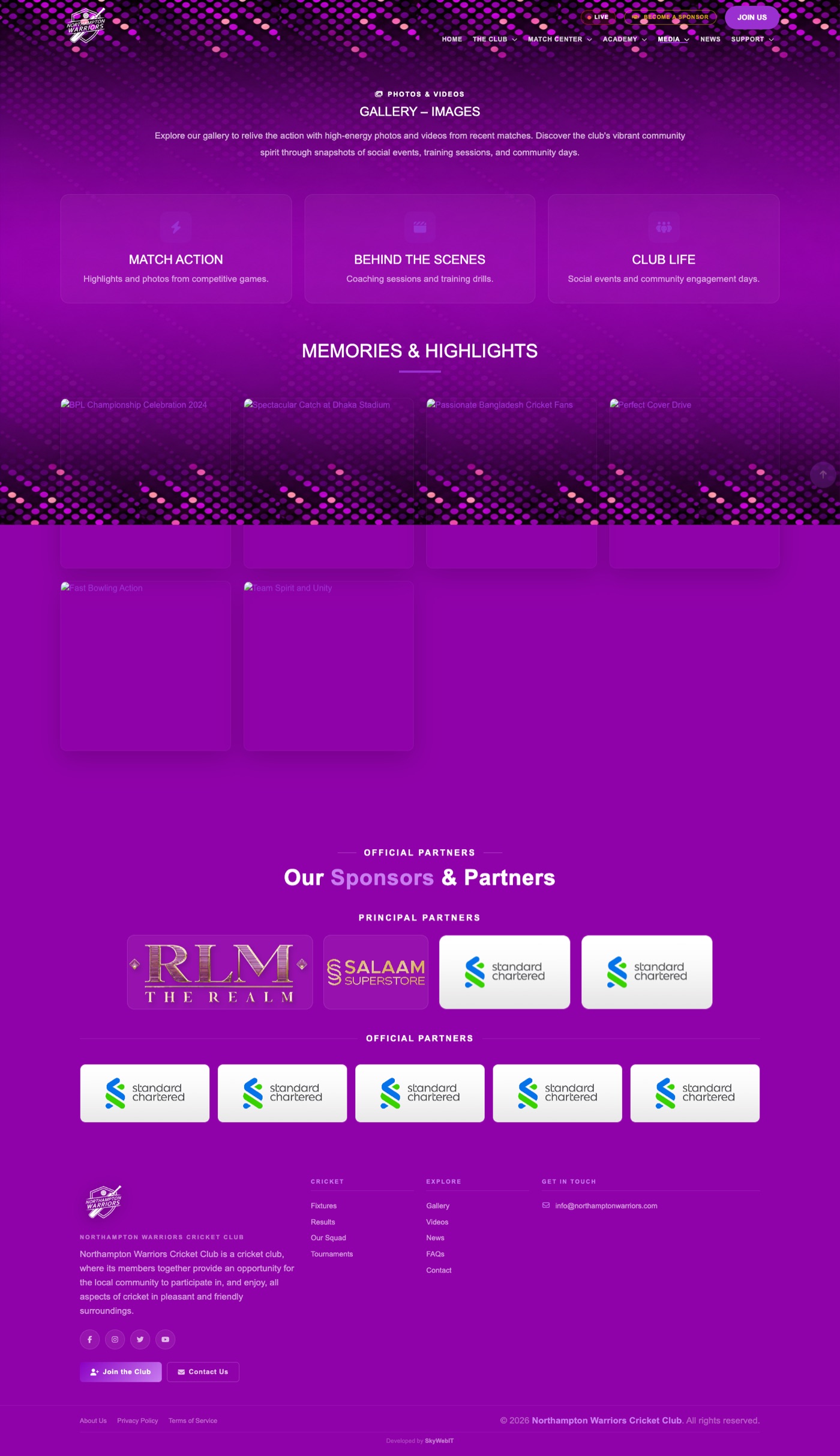
How to change it
- Sidebar → Content & Media → Galleries.
- Click Add New to create one, or Edit on any row to change an existing one.
- Enter the album title and description, then upload your photos.
- Turn the Active / Published switch on so it shows on the website.
- Click Save, then refresh the public page to check it.
Videos / YM TV page
Your video library — match highlights, interviews and club films.
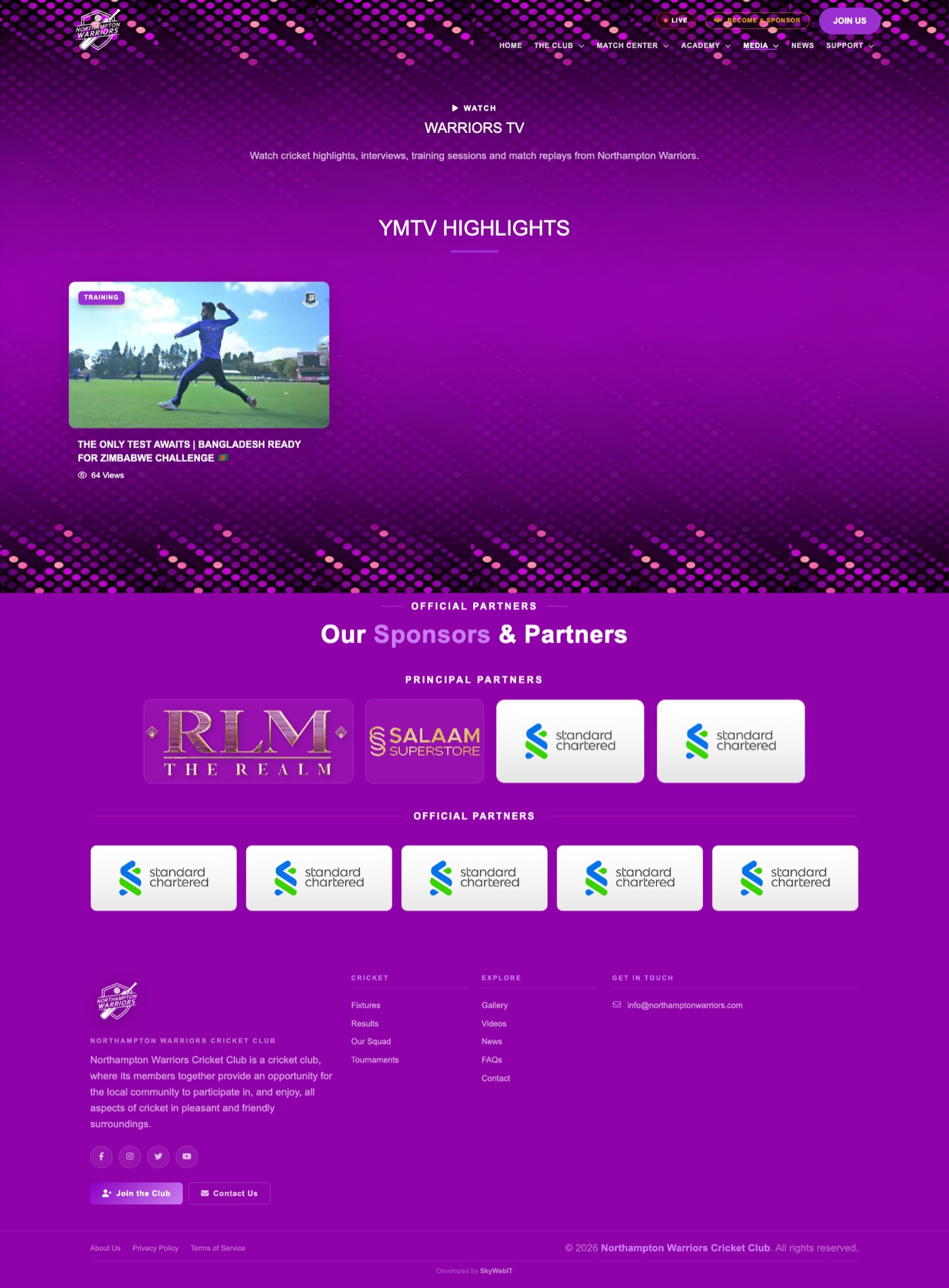
How to change it
- Sidebar → Content & Media → Videos (YM TV).
- Click Add New to create one, or Edit on any row to change an existing one.
- Enter the video title, description, the YouTube or Vimeo link and a thumbnail.
- Turn the Active / Published switch on so it shows on the website.
- Click Save, then refresh the public page to check it.
Events page
Club events — dinners, presentations, fundraisers and open days.
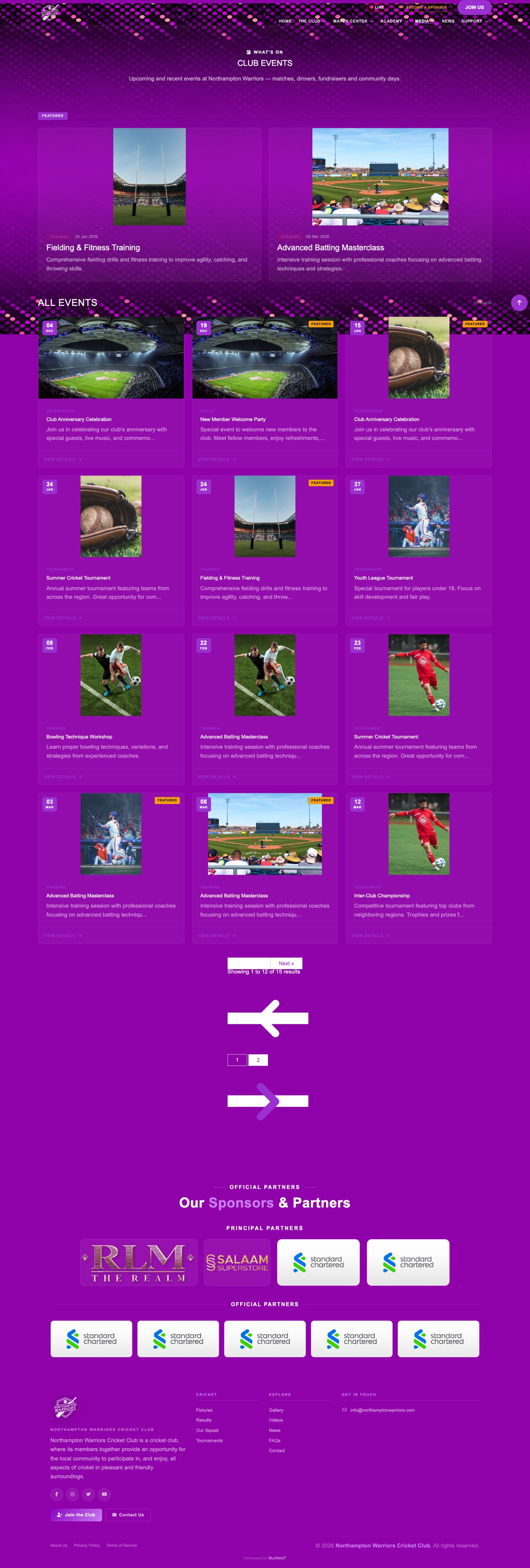
How to change it
- Sidebar → Cricket → Events.
- Click Add New to create one, or Edit on any row to change an existing one.
- Enter the event name, date and time, venue, image and description.
- Turn the Active / Published switch on so it shows on the website.
- Click Save, then refresh the public page to check it.
Who has signed up
Open an event and choose Registrations to see everyone who has registered to attend.
Event detail page
The full page for one event, with its details and the sign-up form.

How to change it
- Sidebar → Cricket → Events.
- Click Edit on the event.
- Update the date and time, venue, image and description.
- Click Save.
Who has signed up
Open the event and choose Registrations to see the attendee list.
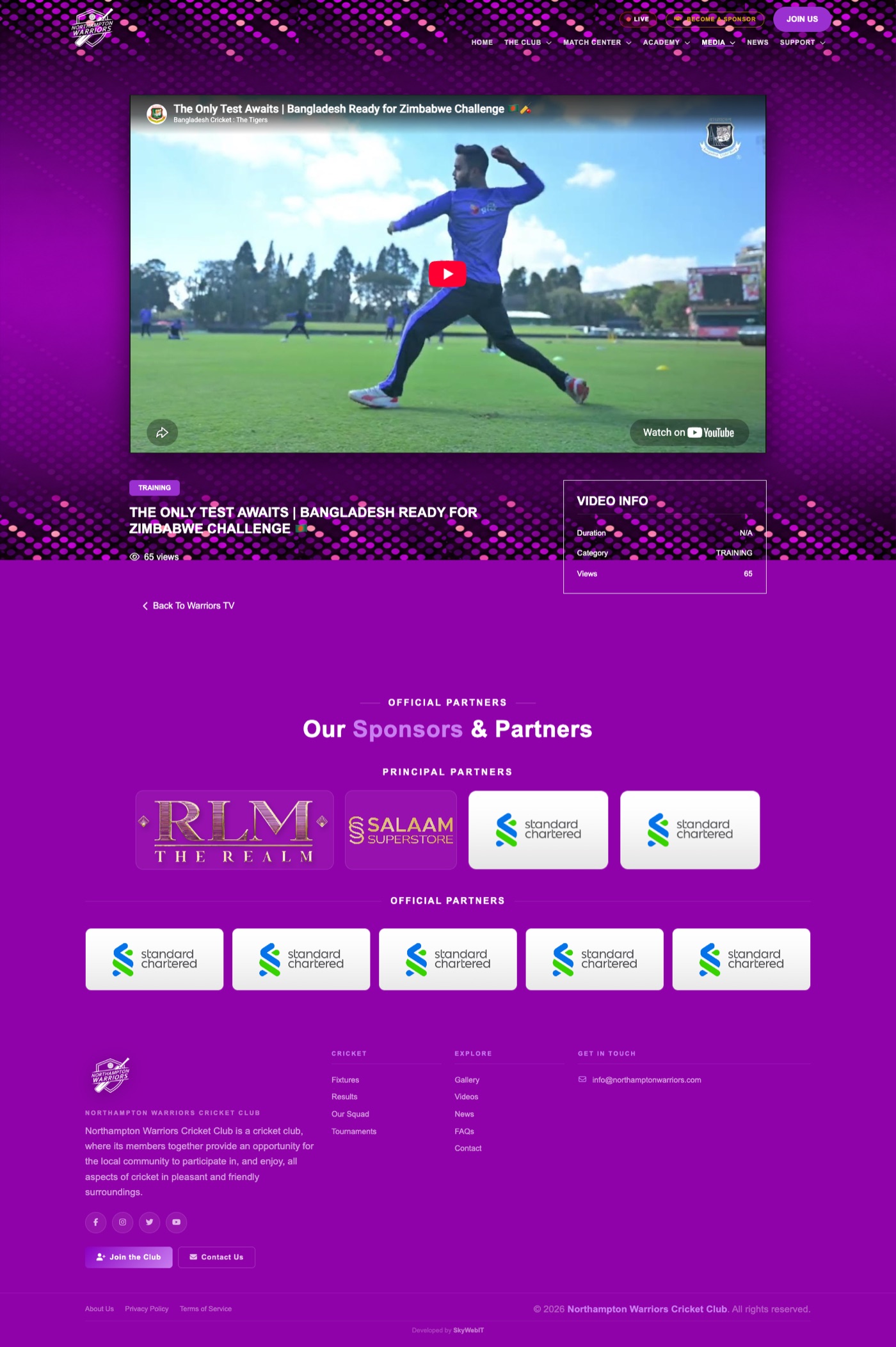
Video page
The page for a single video, with the player and description.
How to change it
- Sidebar → Content & Media → Videos (YM TV).
- Click Edit on the video.
- Update the title, description or the YouTube/Vimeo link.
- Click Save.
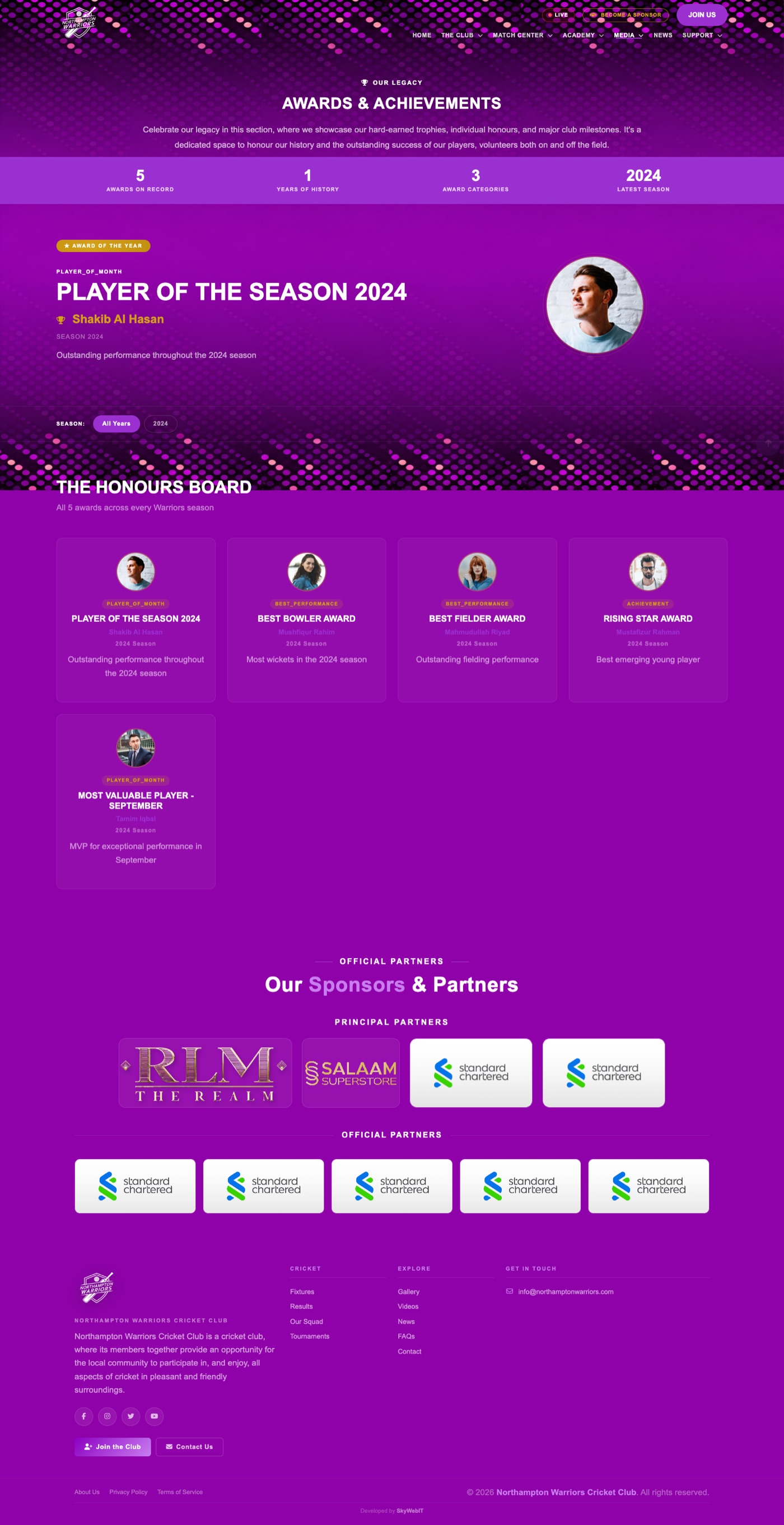
Awards page
Club honours, player of the year and trophies won.
How to change it
- Sidebar → Cricket → Awards.
- Click Add New to create one, or Edit on any row to change an existing one.
- Enter the award name, year, recipient and a photo.
- Turn the Active / Published switch on so it shows on the website.
- Click Save, then refresh the public page to check it.
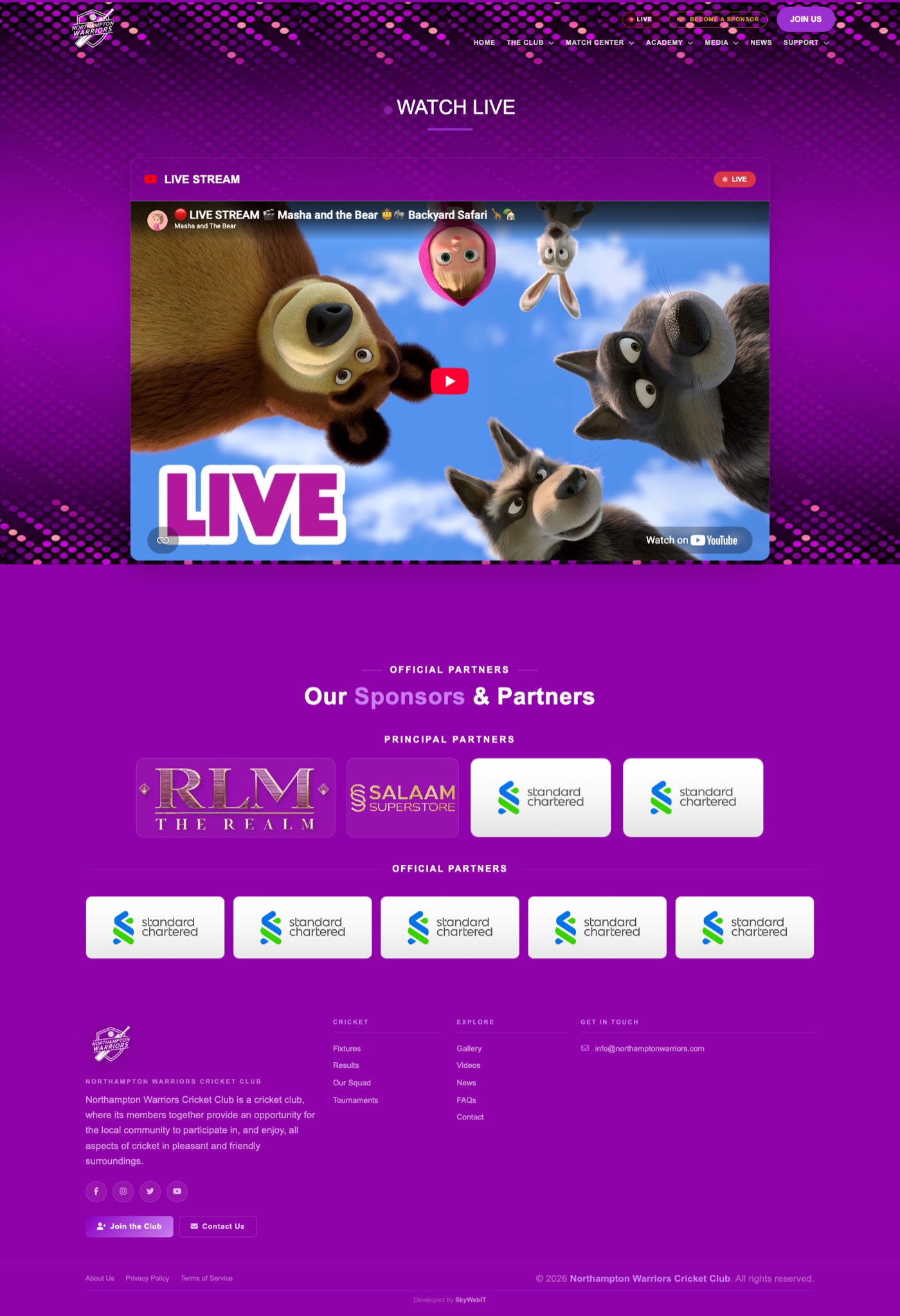
Live Streams page
Live match streaming, and the red LIVE badge in the site header.
How to change it
- Sidebar → Content & Media → Live Streams.
- Click Add New to create one, or Edit on any row to change an existing one.
- Enter the stream title and the streaming link, and set it Active when you go live.
- Turn the Active / Published switch on so it shows on the website.
- Click Save, then refresh the public page to check it.