Chapter 03Page guide
The Club pages
The pages under the “The Club” menu: your story, values, people and history.
03.1
About Us page
Your main club story page.
WhereWebsite›Content & Layout›Site Pages
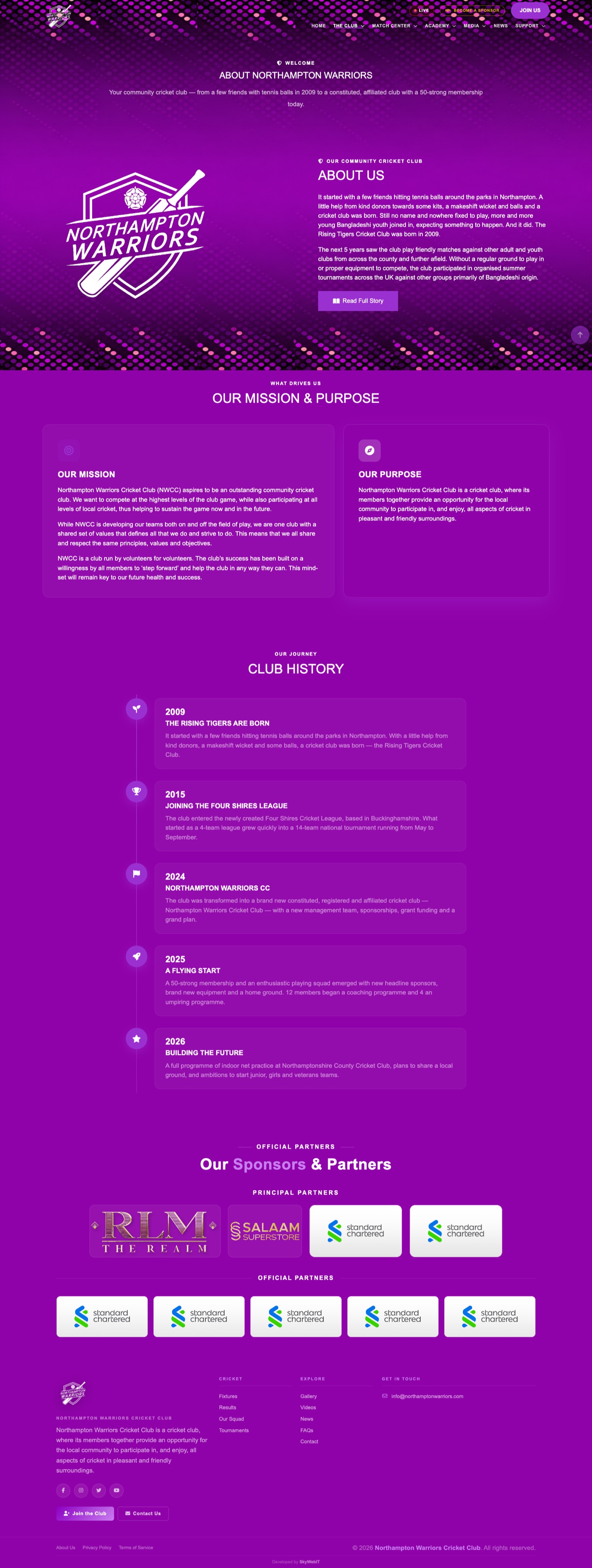
How to change it
- Sidebar → Website → Site Pages.
- Find the row About us and click Edit.
- Change the Title, intro text and the page body using the editor.
- Upload or replace the banner image if you want a different header.
- Click Save.
Site Pages controls most standard pages.About, Our Values, Our Team, Our Future, the academy pages and the training pages are all edited the same way — find the row in Site Pages and click Edit.
03.2
Our Values page
The club’s guiding principles, shown as a set of value cards.
WhereCricket›Club & Community›Club Values

How to change it
- Sidebar → Cricket → Club Values.
- Click Add New to create one, or Edit on any row to change an existing one.
- Enter the value title, its description and pick an icon.
- Turn the Active / Published switch on so it shows on the website.
- Click Save, then refresh the public page to check it.
To change the intro text above the cards
WhereWebsite›Site Pages
Edit the Our values row in Site Pages.
03.3
Our Team page
The people who run the club, with photos and roles.
WhereCricket›Club & Community›Committees
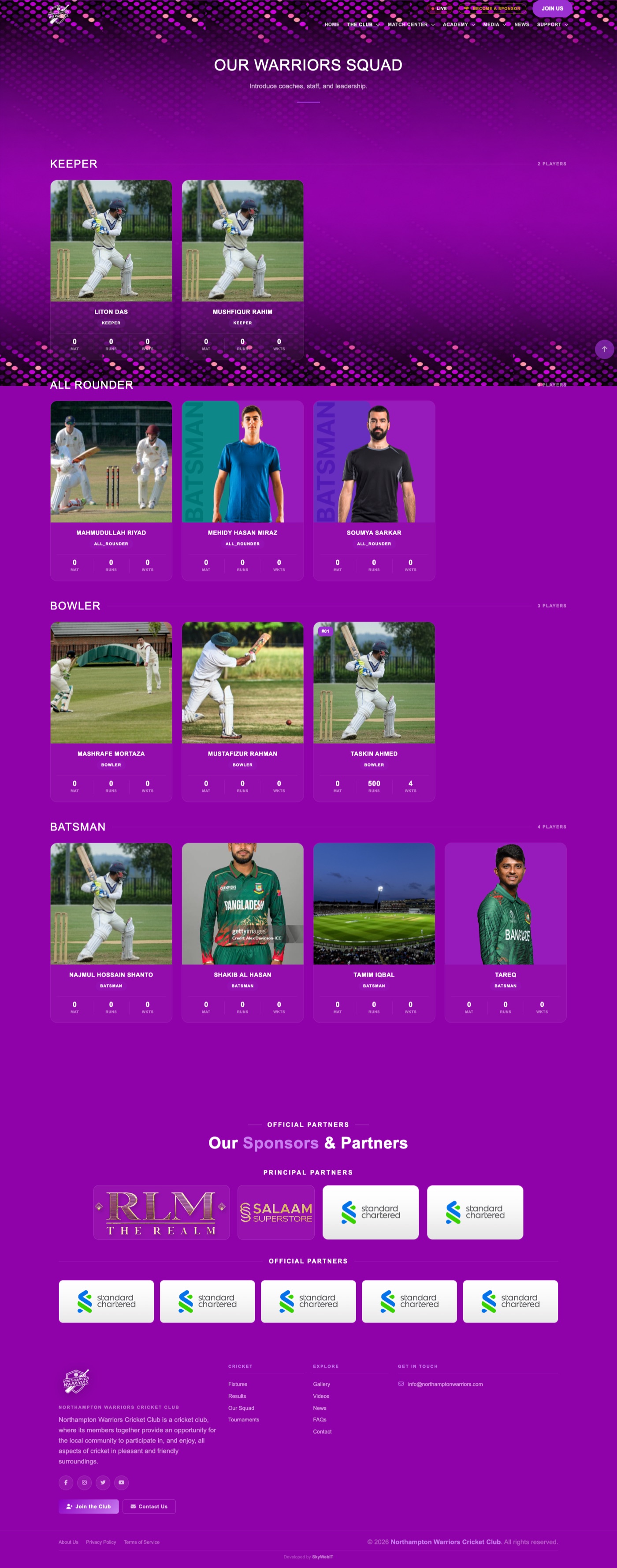
How to change it
- Sidebar → Cricket → Committees.
- Click Add New to create one, or Edit on any row to change an existing one.
- Enter the person’s name, role, photo and any contact details.
- Turn the Active / Published switch on so it shows on the website.
- Click Save, then refresh the public page to check it.
03.4
Our Future page
Where the club is heading — plans, ambitions and milestones.
WhereCricket›Club & Community›Club Milestones
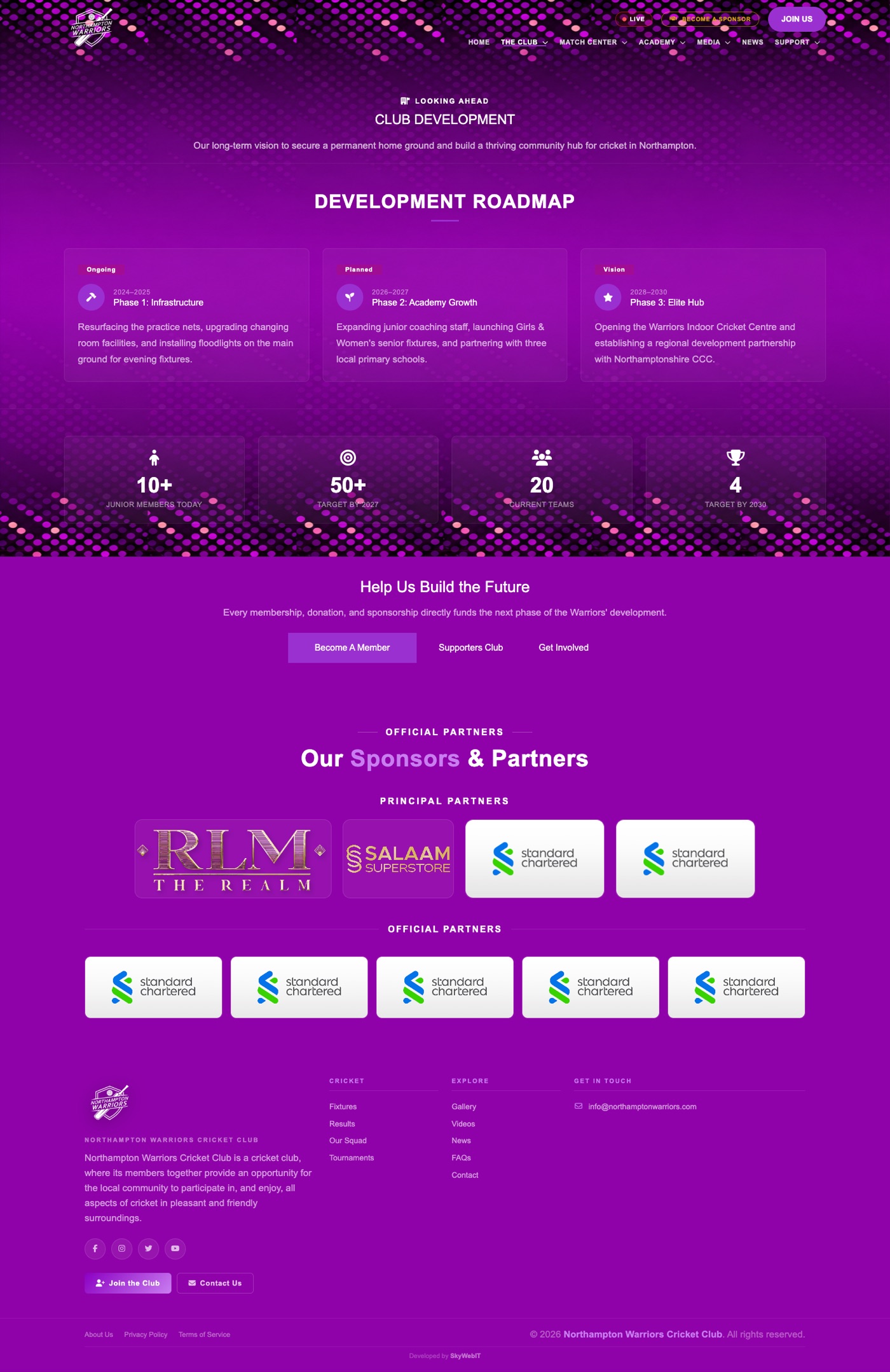
How to change it
- Sidebar → Cricket → Club Milestones.
- Click Add New to create one, or Edit on any row to change an existing one.
- Enter the milestone year, title and description.
- Turn the Active / Published switch on so it shows on the website.
- Click Save, then refresh the public page to check it.
To change the page intro
WhereWebsite›Site Pages
Edit the Our future row.
03.5
Chairman’s Message page
The full-length welcome from the chairman.
WhereSystem›Settings›General
Direct address: /admin/settings/general
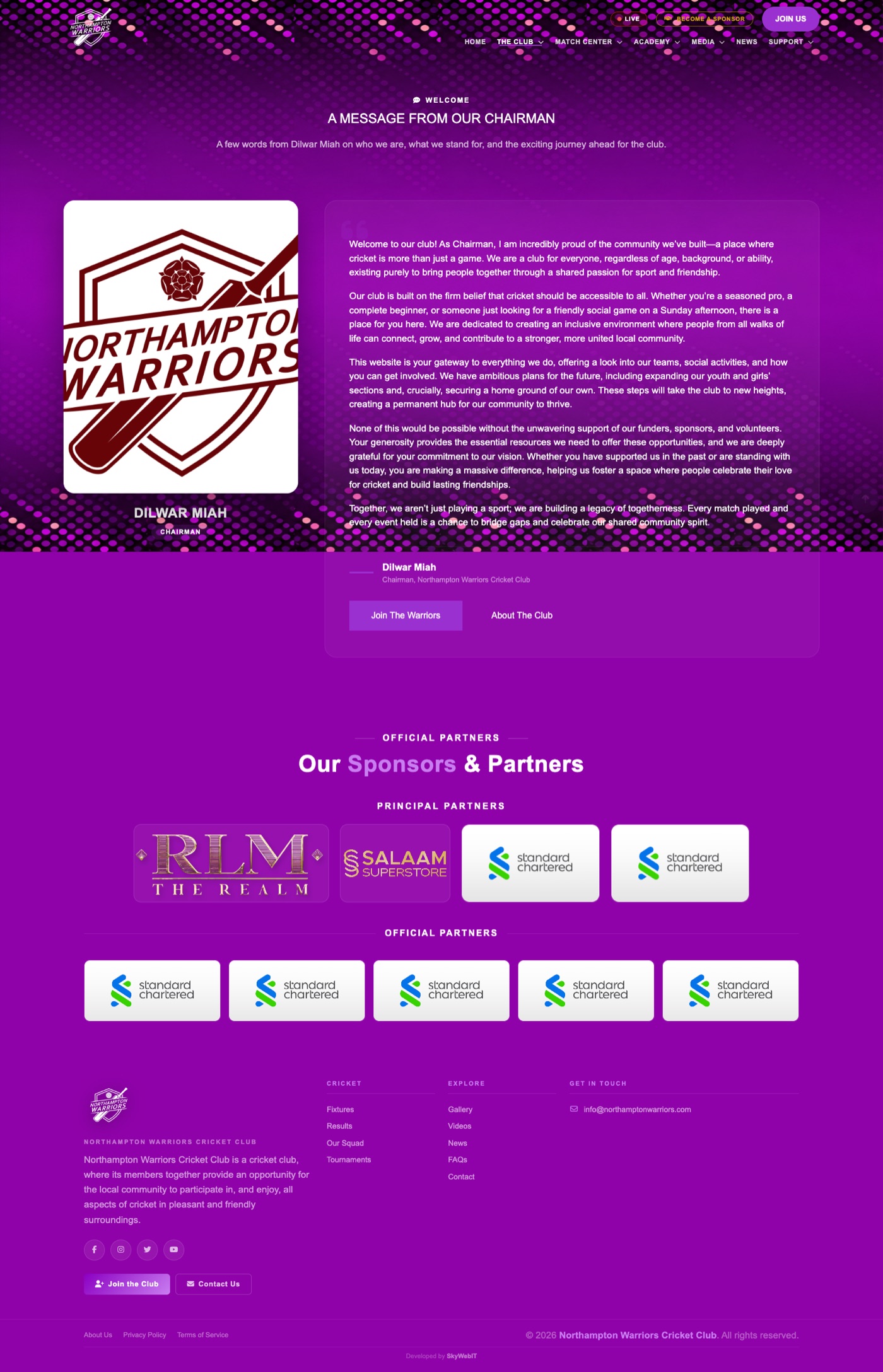
How to change it
- Open Settings → General.
- Edit Chairman Name, Position / Title, Photo and Message.
- Click Save Settings.
Same source as the home page.This page and the home page block share one set of fields — editing either updates both.
03.6
Committee page
Your elected committee members and their positions.
WhereCricket›Club & Community›Committees

How to change it
- Sidebar → Cricket → Committees.
- Click Add New to create one, or Edit on any row to change an existing one.
- Enter the member’s name, position, photo and order.
- Turn the Active / Published switch on so it shows on the website.
- Click Save, then refresh the public page to check it.