Sponsors, contact and support pages
Commercial and contact pages — sponsors, advertising, enquiry forms, FAQs and your legal policies.
Sponsors page
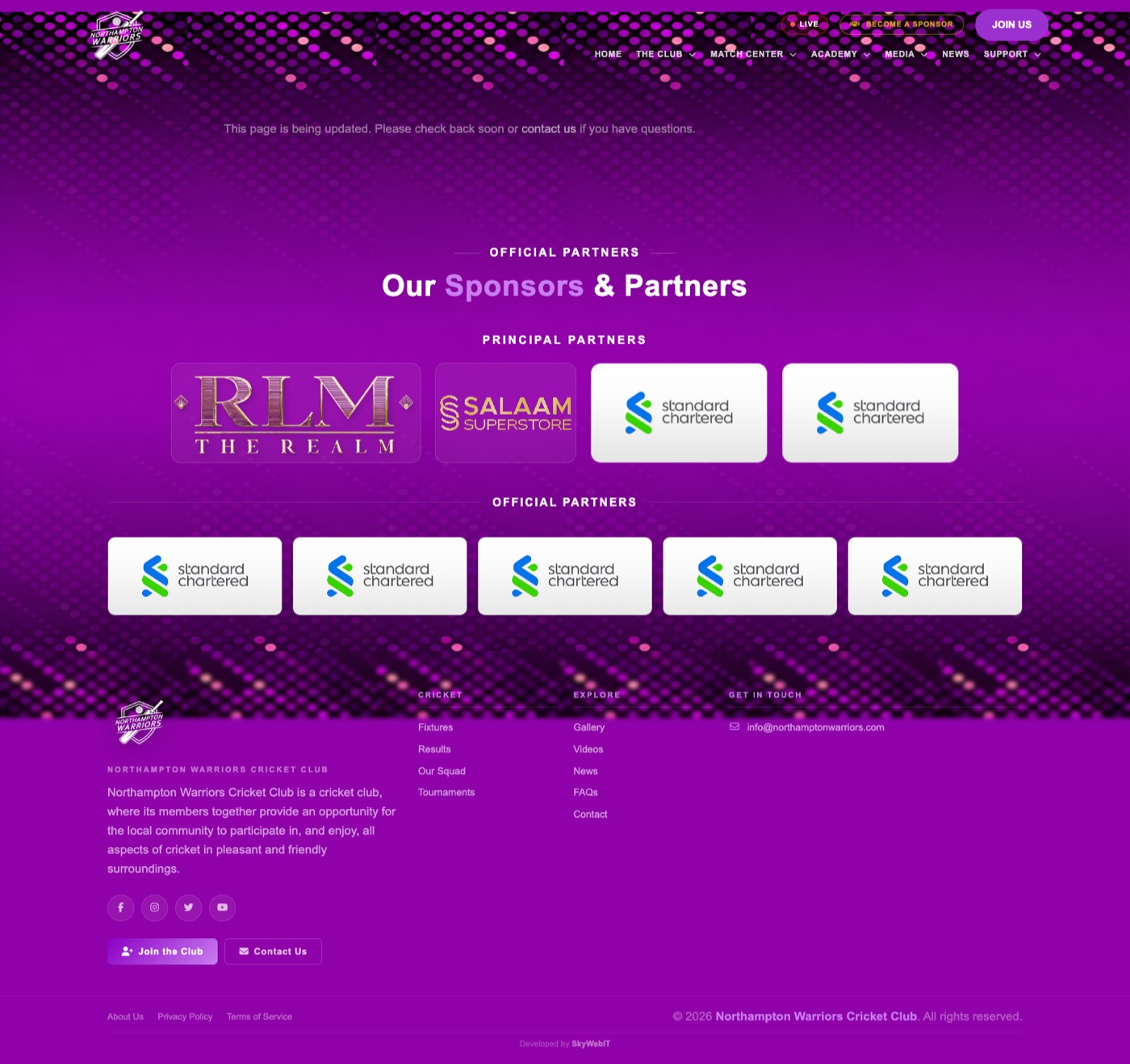
Your sponsors and partners, with logos linking to their websites.
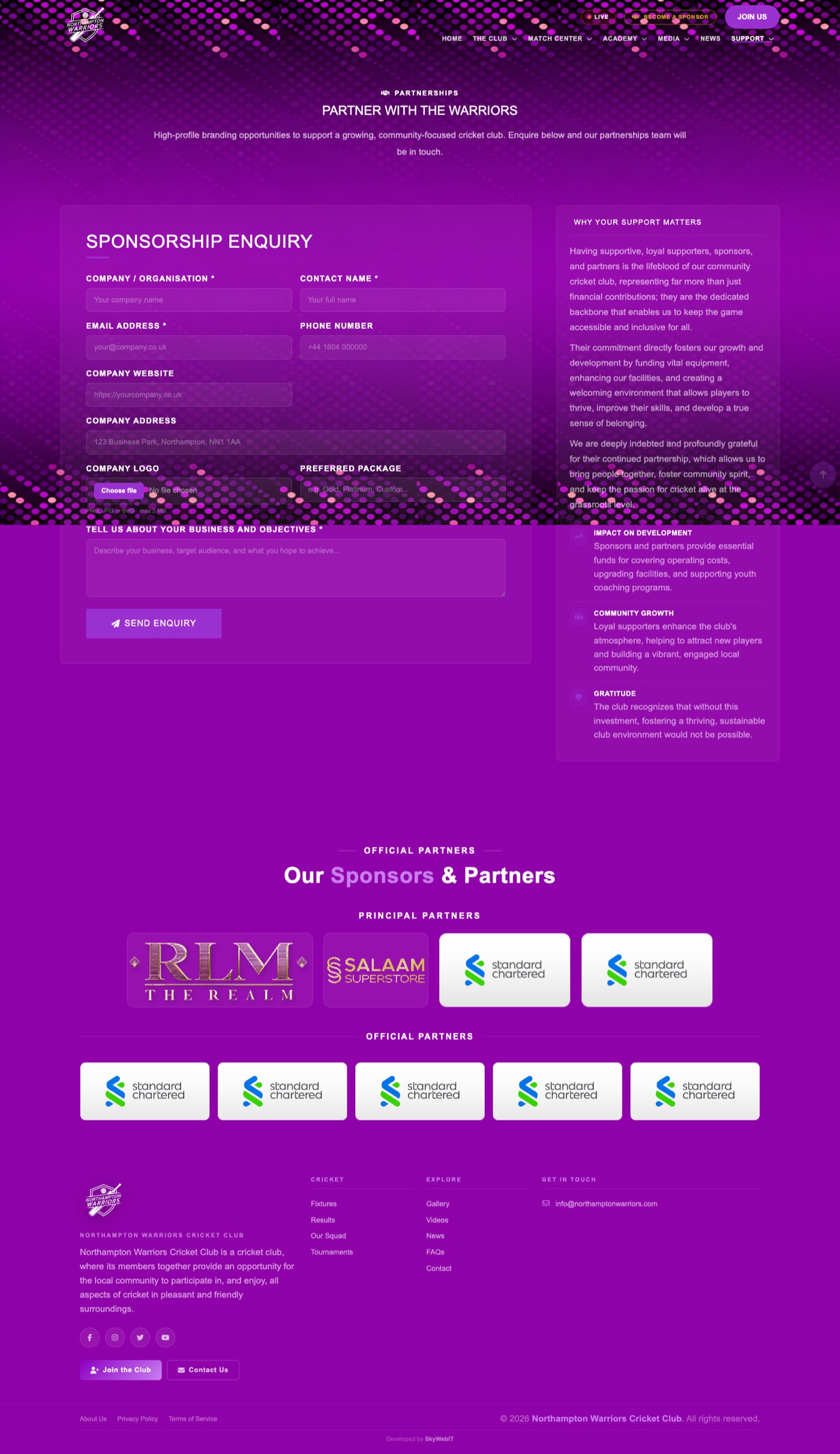
How to change it
- Sidebar → Business → Sponsors.
- Click Add New to create one, or Edit on any row to change an existing one.
- Enter the sponsor name, upload their logo, set their website link and tier.
- Turn the Active / Published switch on so it shows on the website.
- Click Save, then refresh the public page to check it.
Sponsorship enquiries
Businesses who apply through the website appear here for you to review.
Sponsorship packages
Set the tiers and prices you offer — these are shown to prospective sponsors.
Supporters page
Your supporters club and community backers.
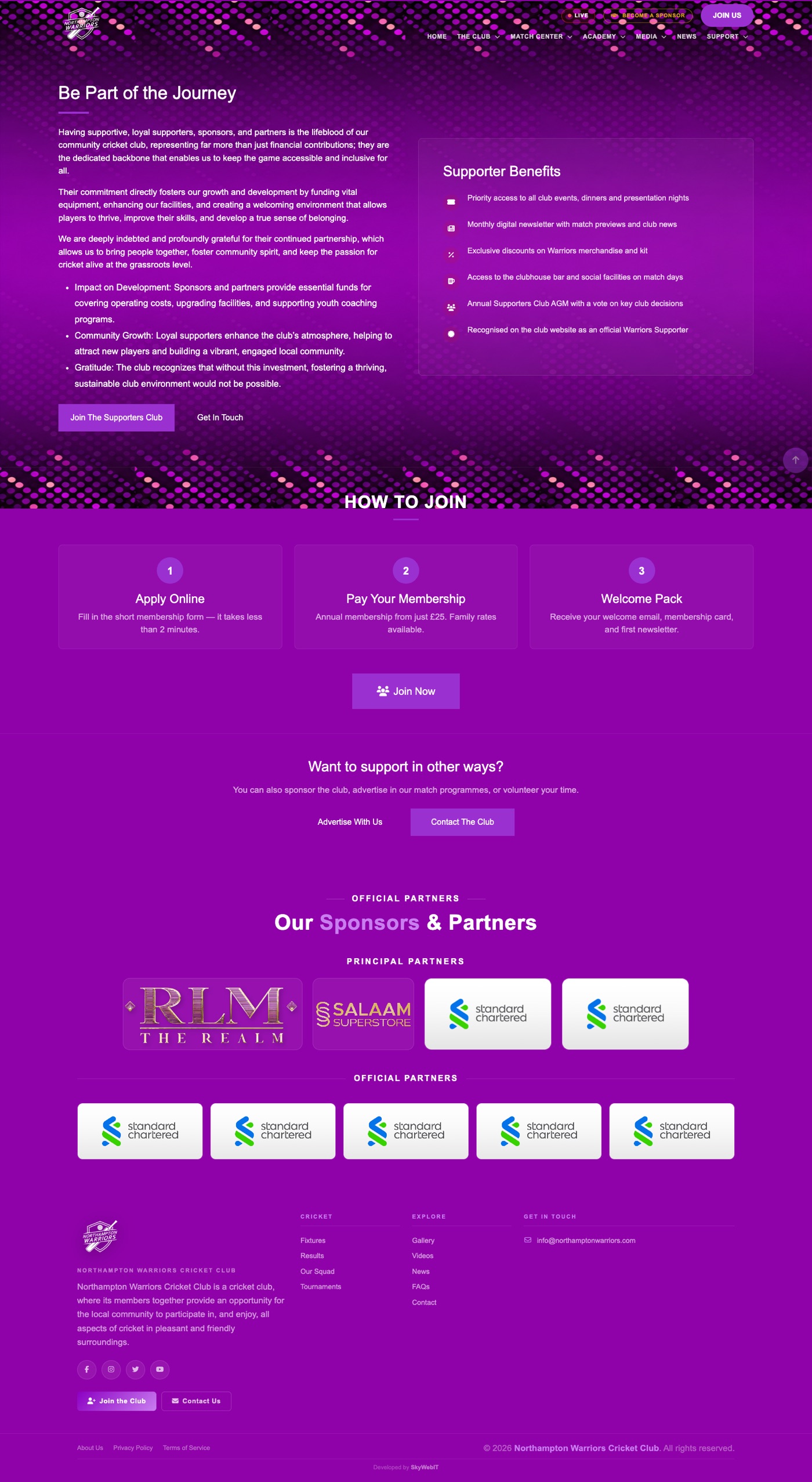
How to change it
- Sidebar → Website → Site Pages.
- Edit the Supporters row.
- Update the content and click Save.
Advertise With Us page
Your pitch to prospective advertisers, with the packages you offer.
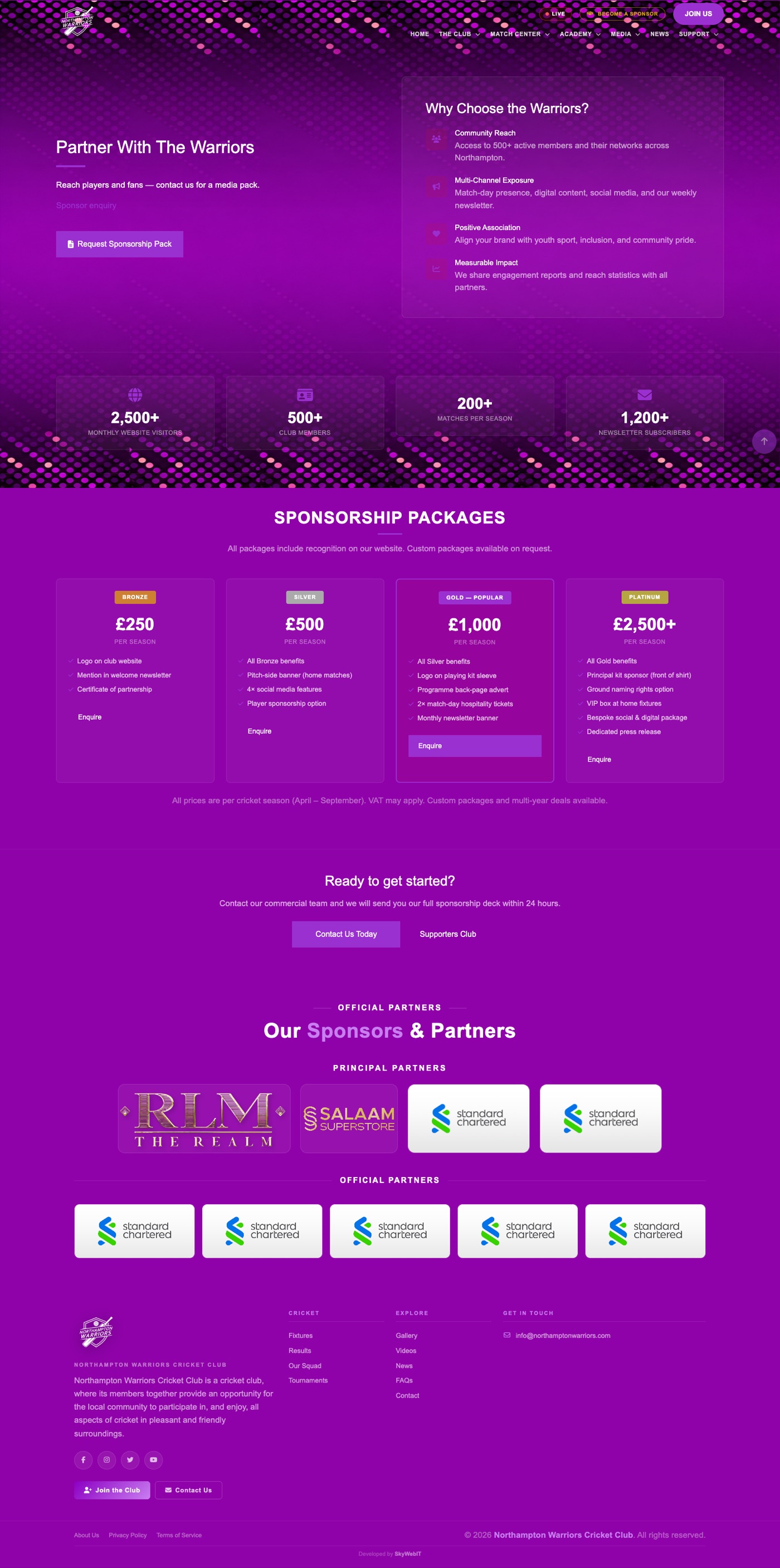
How to change it
- Sidebar → Business → Sponsor Packages.
- Click Add New to create one, or Edit on any row to change an existing one.
- Enter each package name, price and what it includes.
- Turn the Active / Published switch on so it shows on the website.
- Click Save, then refresh the public page to check it.
To change the page wording
Edit the Advertise with us row in Site Pages.
Contact page
Your address, phone, email, map and the enquiry form.
Direct address: /admin/settings/general
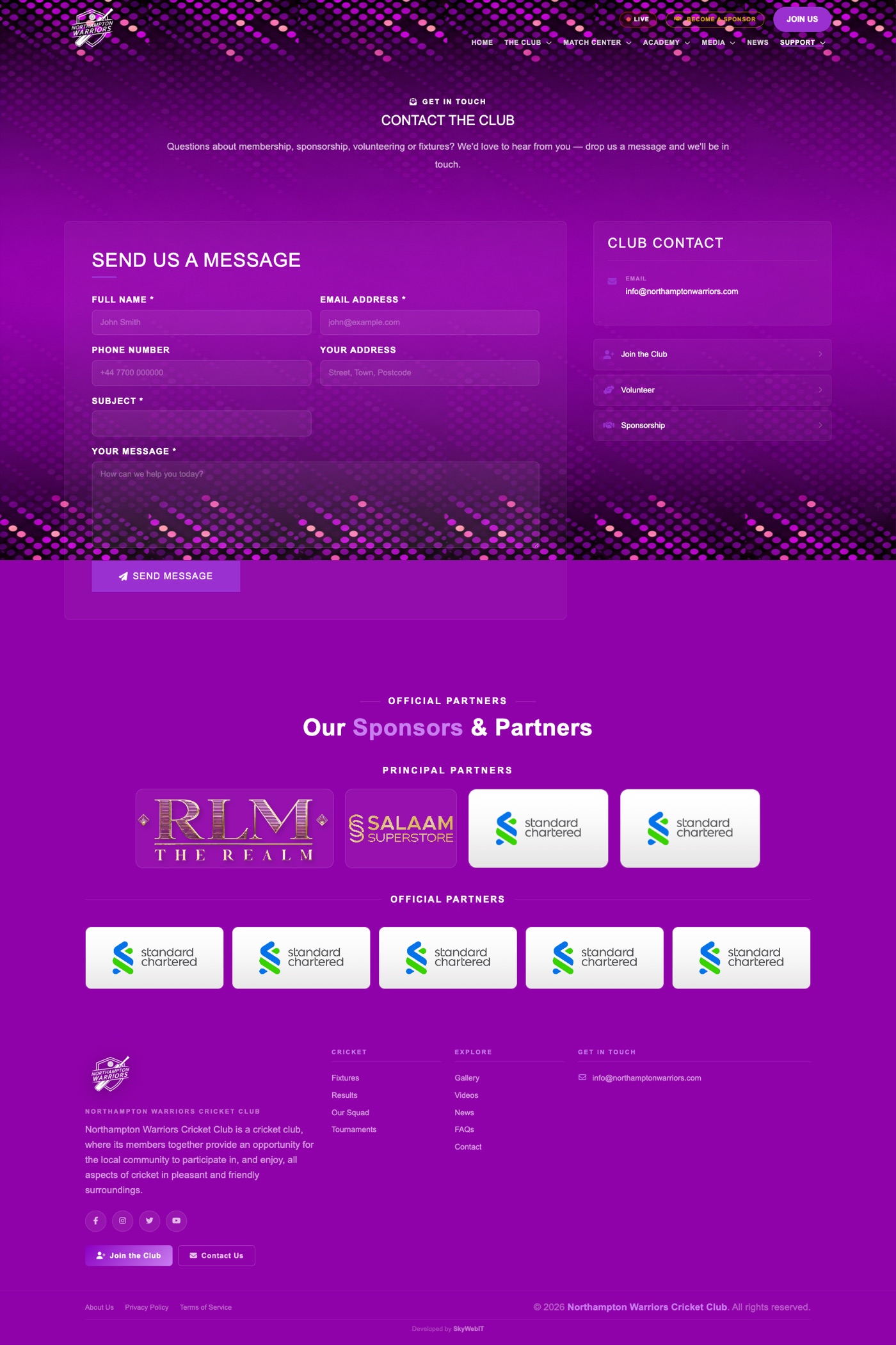
How to change it
- Open Settings → General.
- Set Public Contact Email, Contact Phone, Office Address and Support Hours.
- To change the map, paste a Google Maps embed code into Contact Page Map Embed.
- Click Save Settings.
Messages sent through the form
Every enquiry submitted on the website is stored here, so nothing is lost if an email goes astray.
Join Us page
How new members join the club.
Direct address: /admin/settings/general
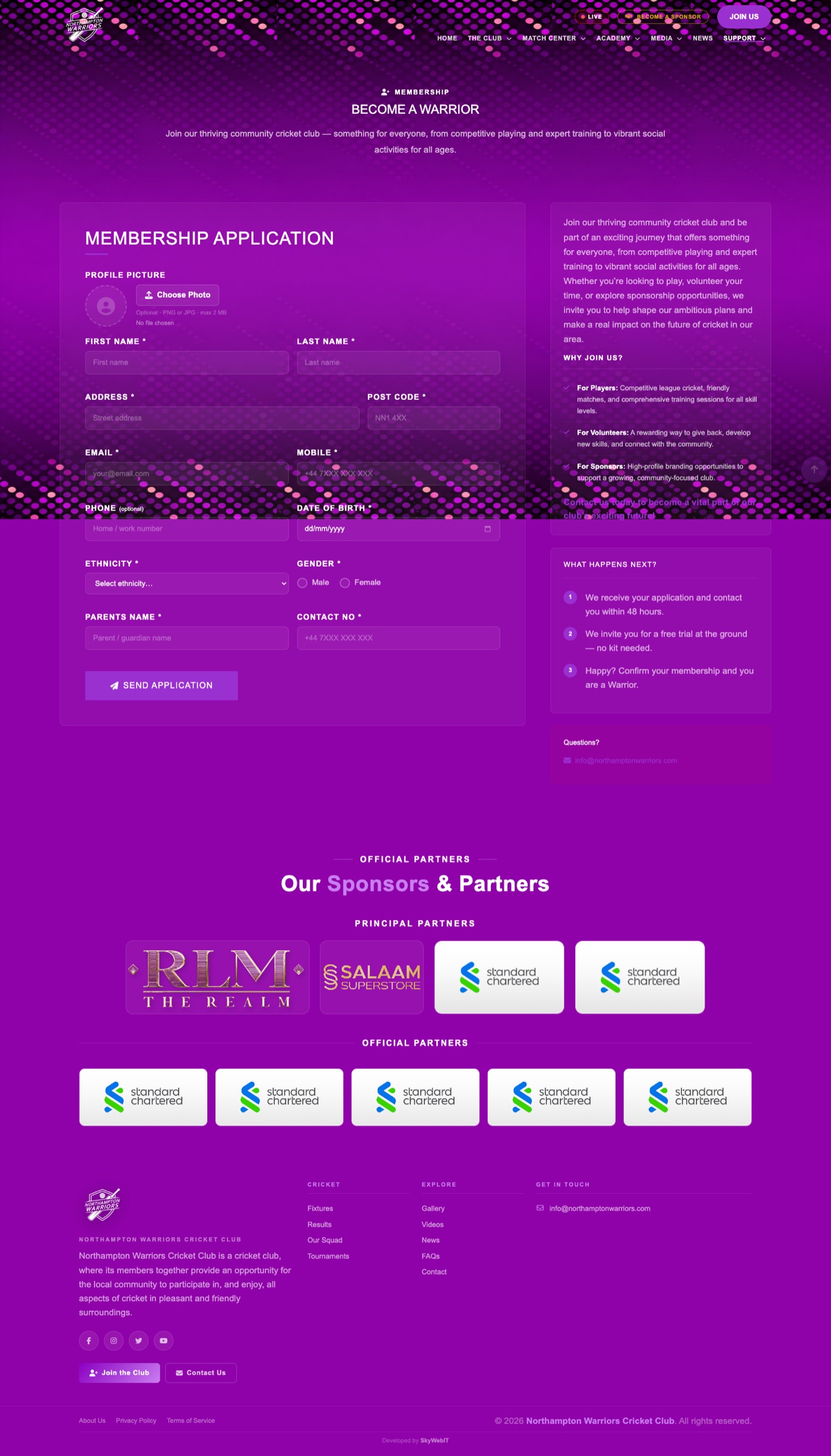
How to change it
- Open Settings → General.
- Edit the Why Join Us content field.
- Click Save Settings.
Volunteer page
Volunteering opportunities at the club.
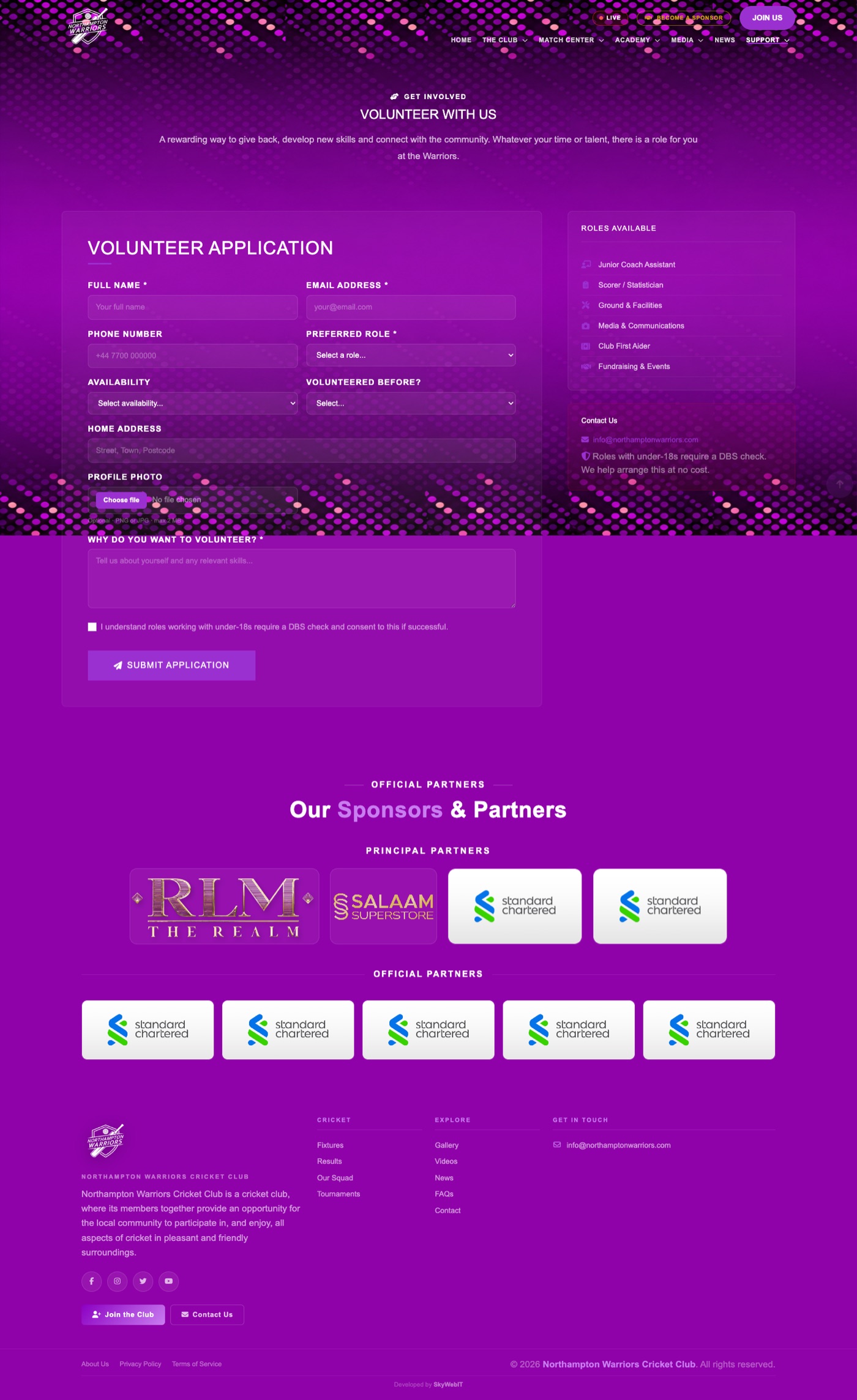
How to change it
- Sidebar → Website → Site Pages.
- Edit the volunteer page row.
- Update the content and click Save.
FAQ page
Frequently asked questions, shown as an expanding list.
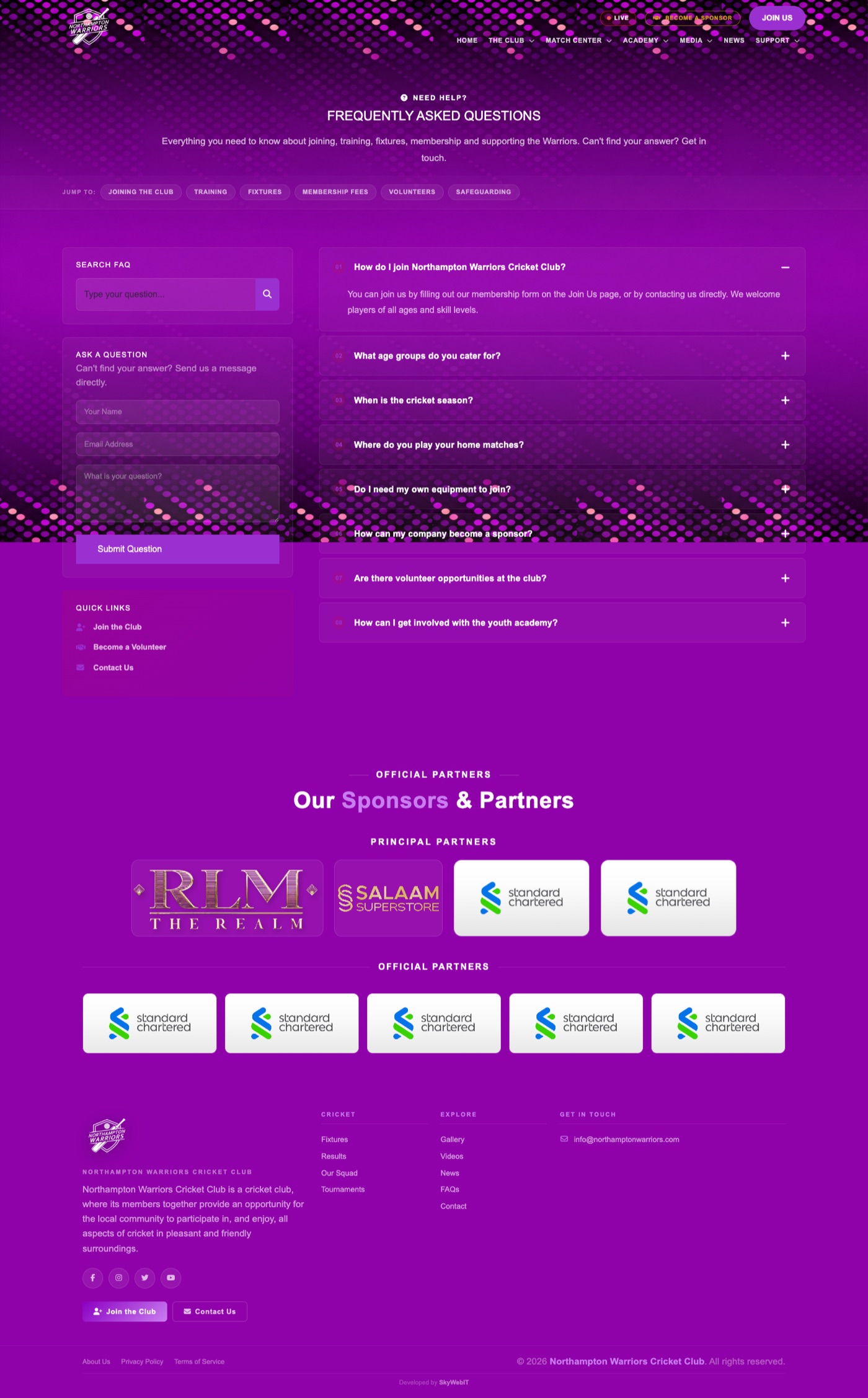
How to change it
- Sidebar → Website → FAQs.
- Click Add New to create one, or Edit on any row to change an existing one.
- Enter the question and its answer, and set the order they appear in.
- Turn the Active / Published switch on so it shows on the website.
- Click Save, then refresh the public page to check it.
Privacy Policy and Terms pages
Your legal policy pages, linked from the footer.
Direct address: /admin/settings/general
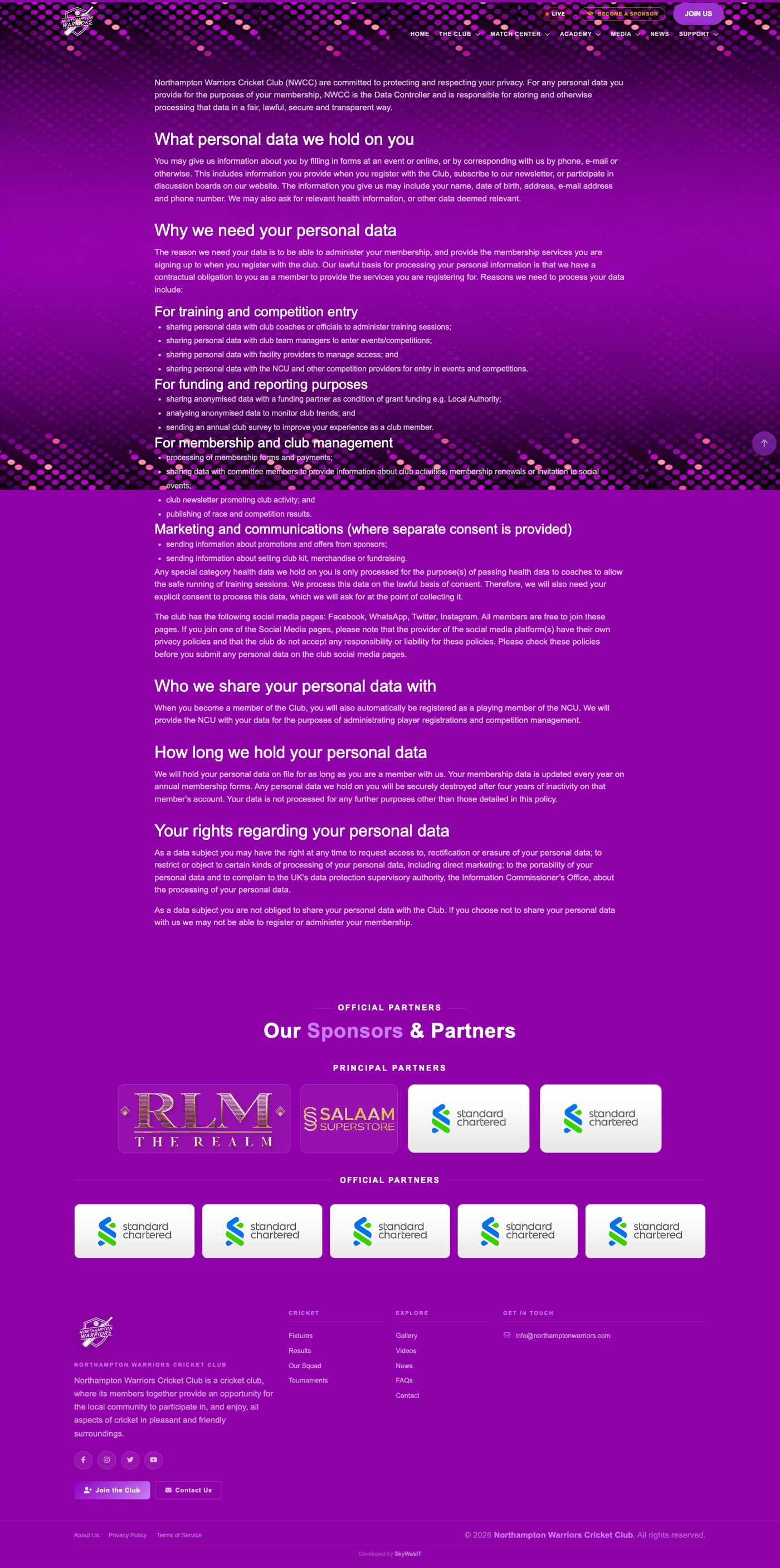
How to change it
- Open Settings → General.
- Edit Privacy Policy Content and Terms & Conditions Content.
- Click Save Settings.
Search results page
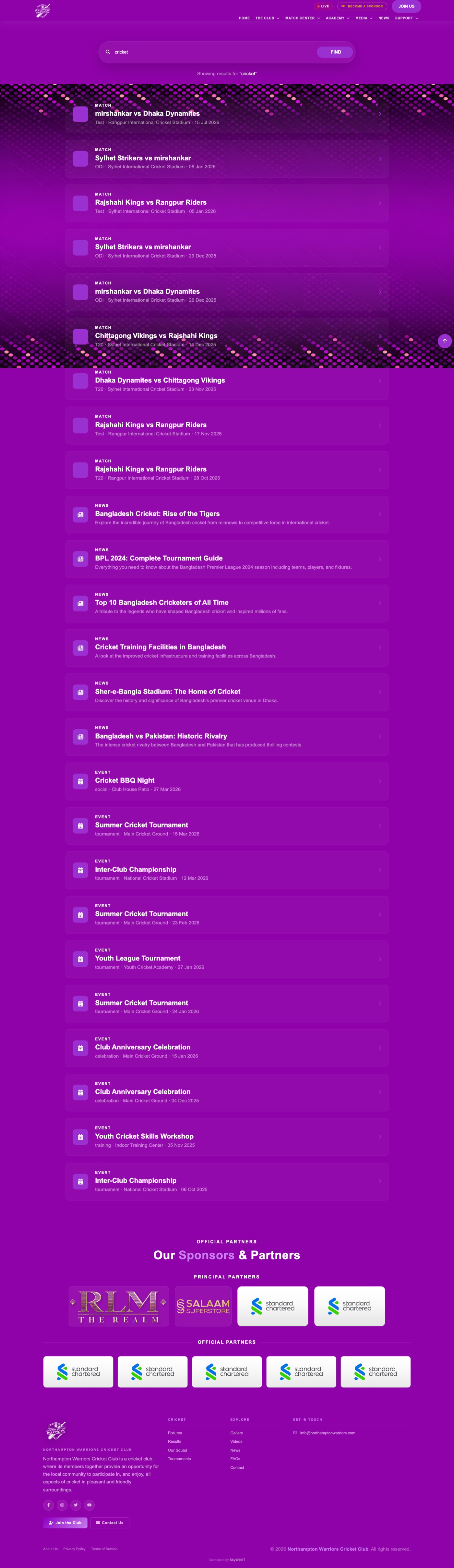
What visitors see when they search your site.
How to change it
- Nothing to set up. Search automatically covers your news, players, matches and pages.
- Results improve on their own as you add more content.