Website and System screens
The screens that shape the site itself — the menu, page content, the home page slider, FAQs — and every settings screen.
Hero Slides
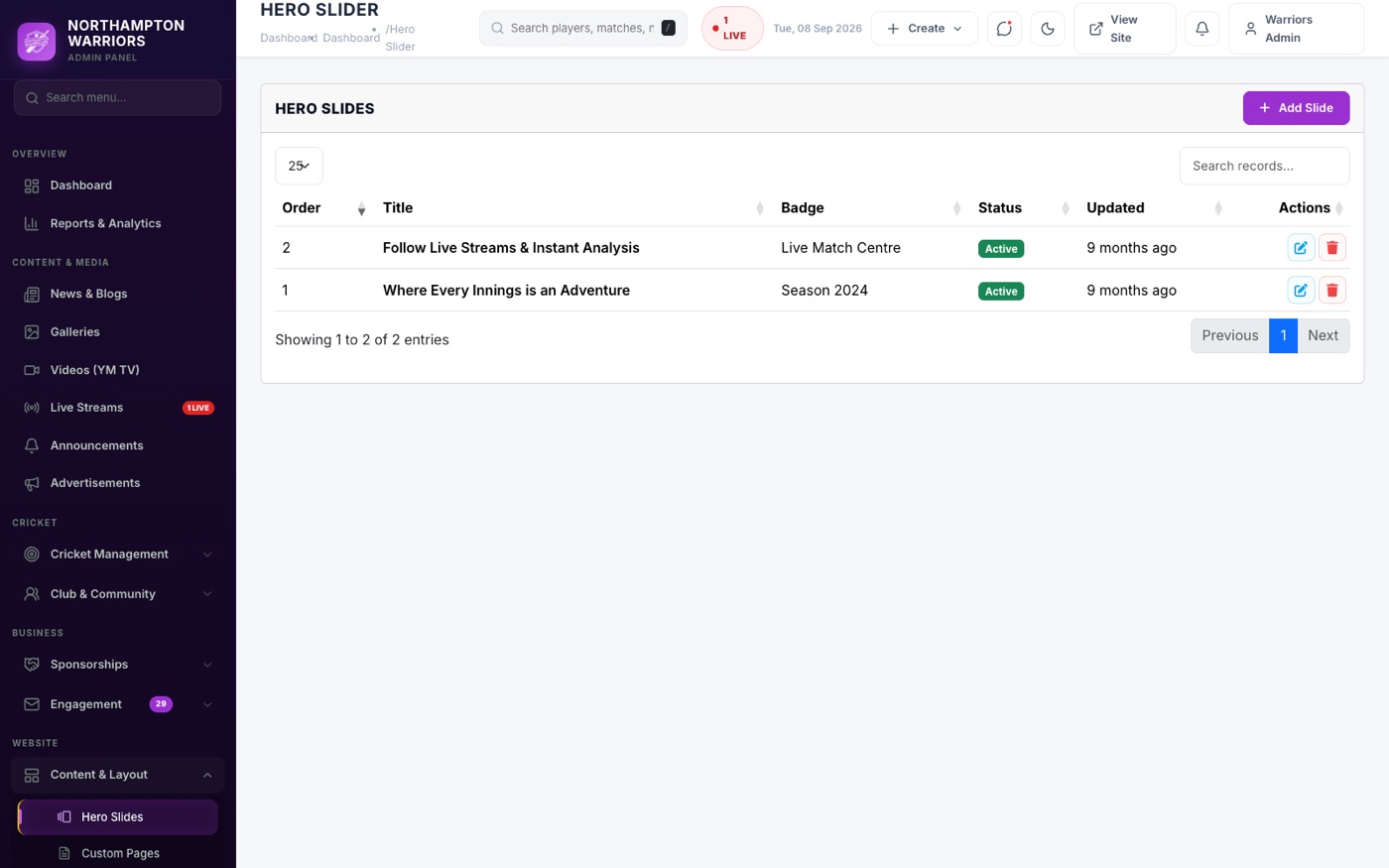
The rotating image banner for the home page. Only shown when Home Hero Type is set to slider.
How to change it
- Sidebar → Website → Hero Slides → Add New.
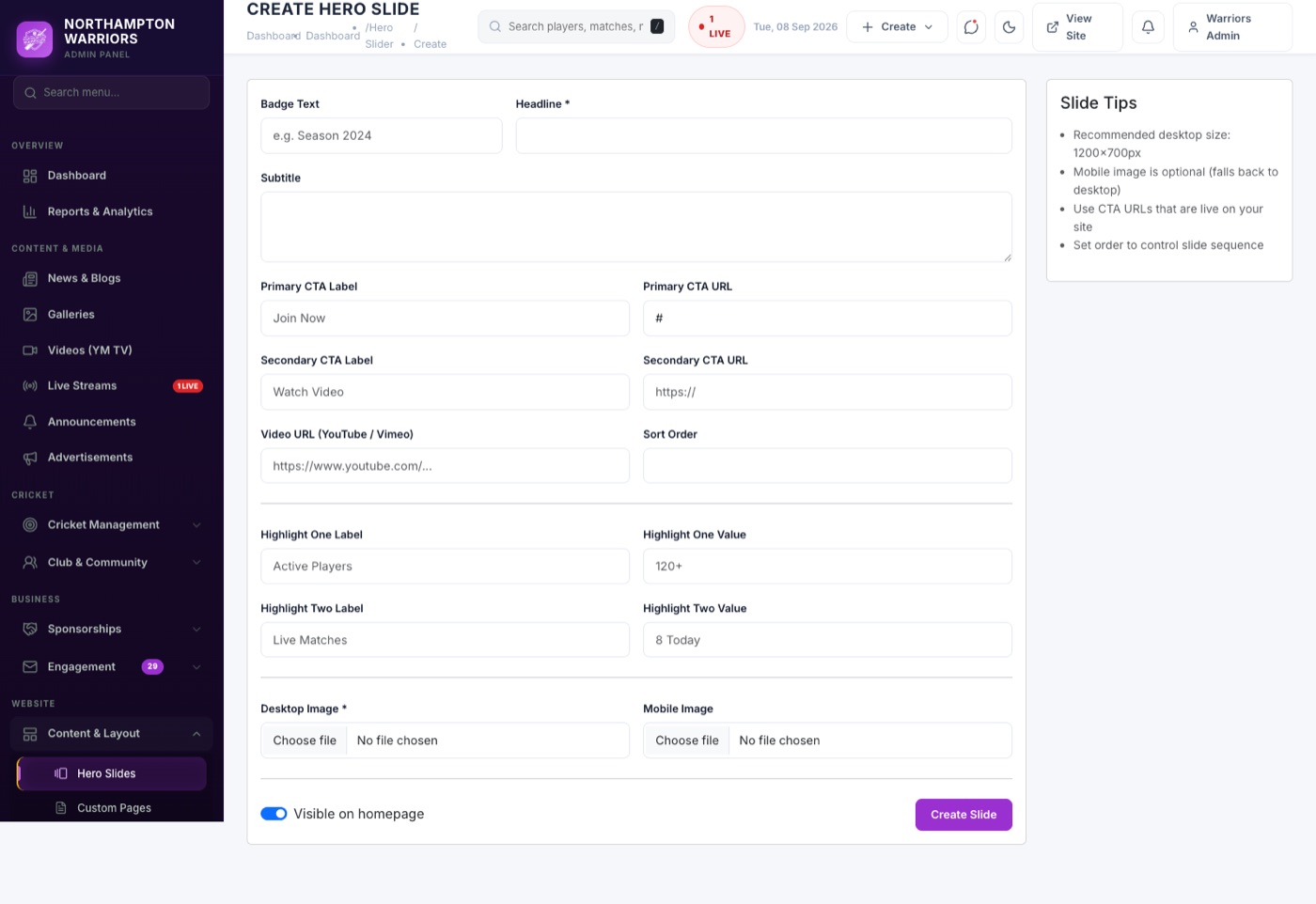
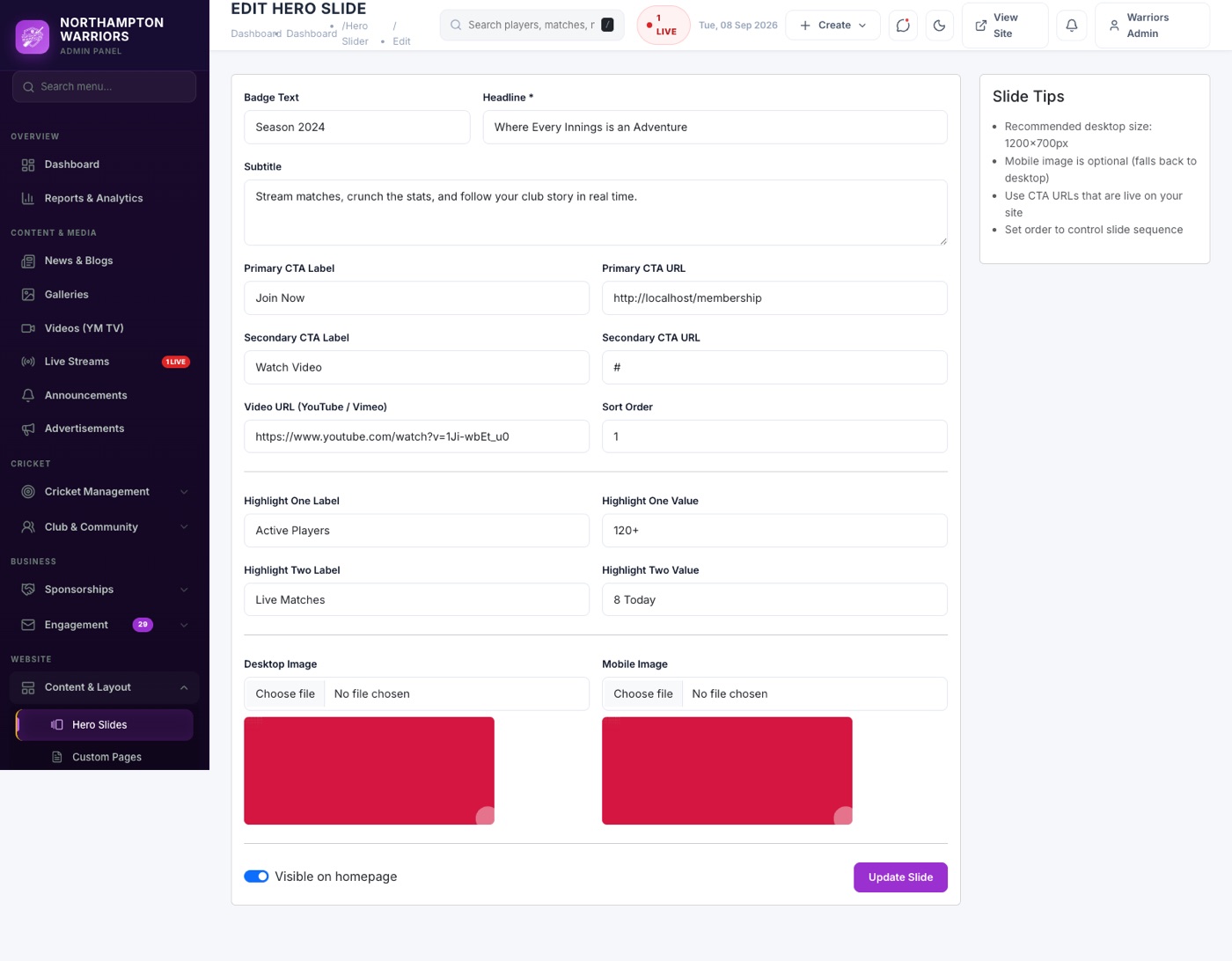
- Upload the image and add a heading, subheading and button link.
- Set Sort Order for the sequence and Active to show it.
- Click Save. Then set Home Hero Type to slider in Settings → Website.
Site Pages
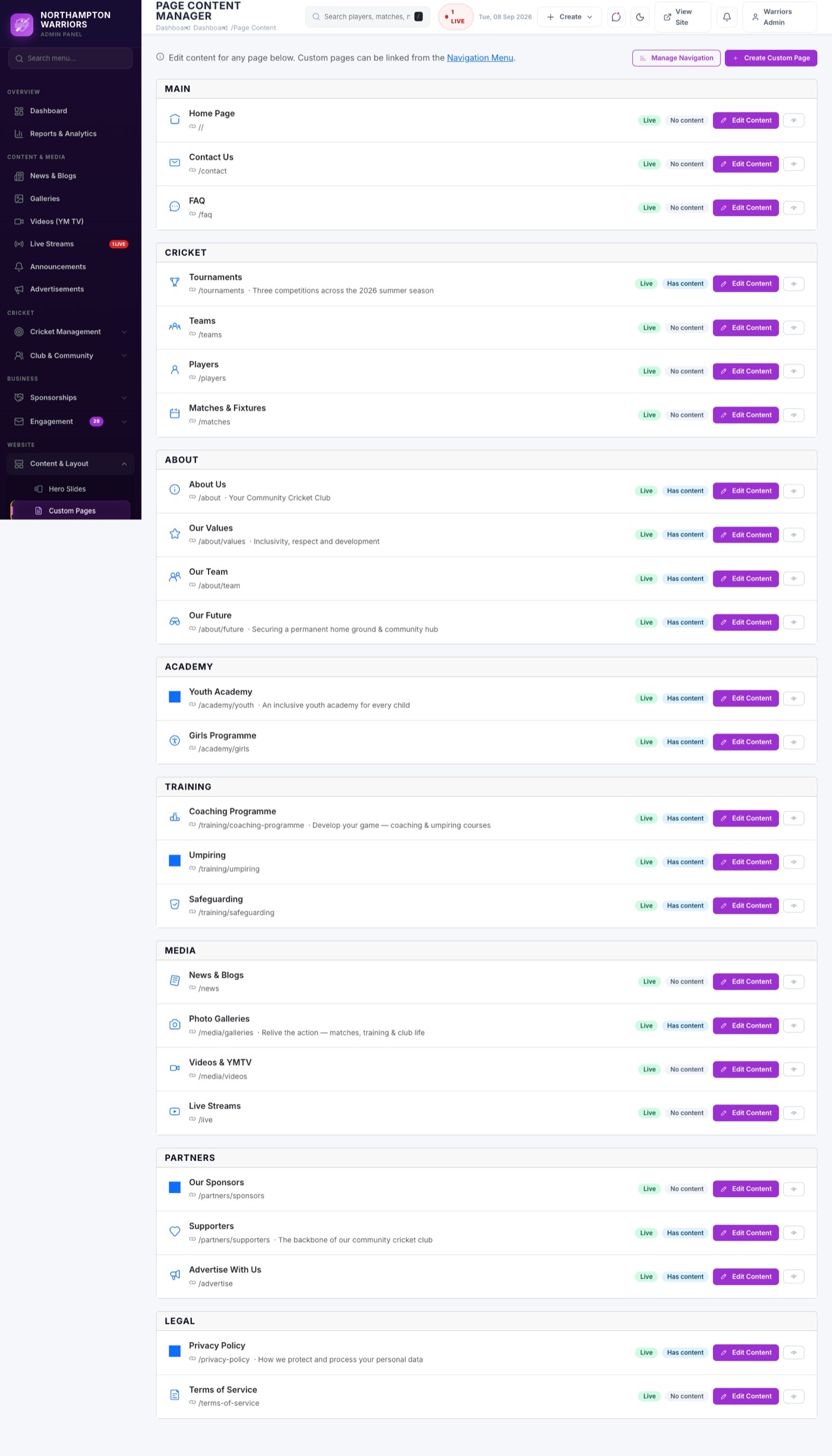
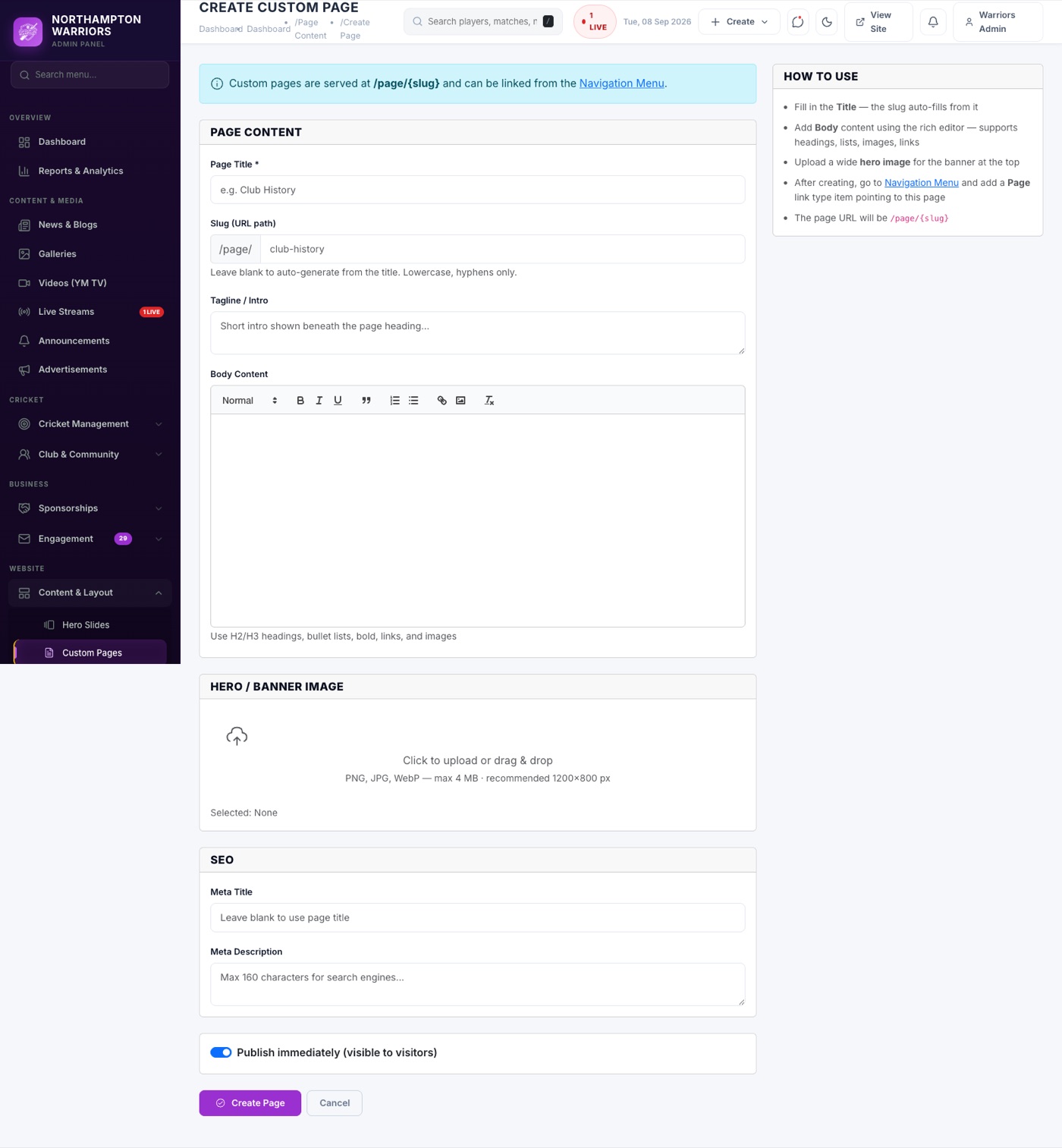
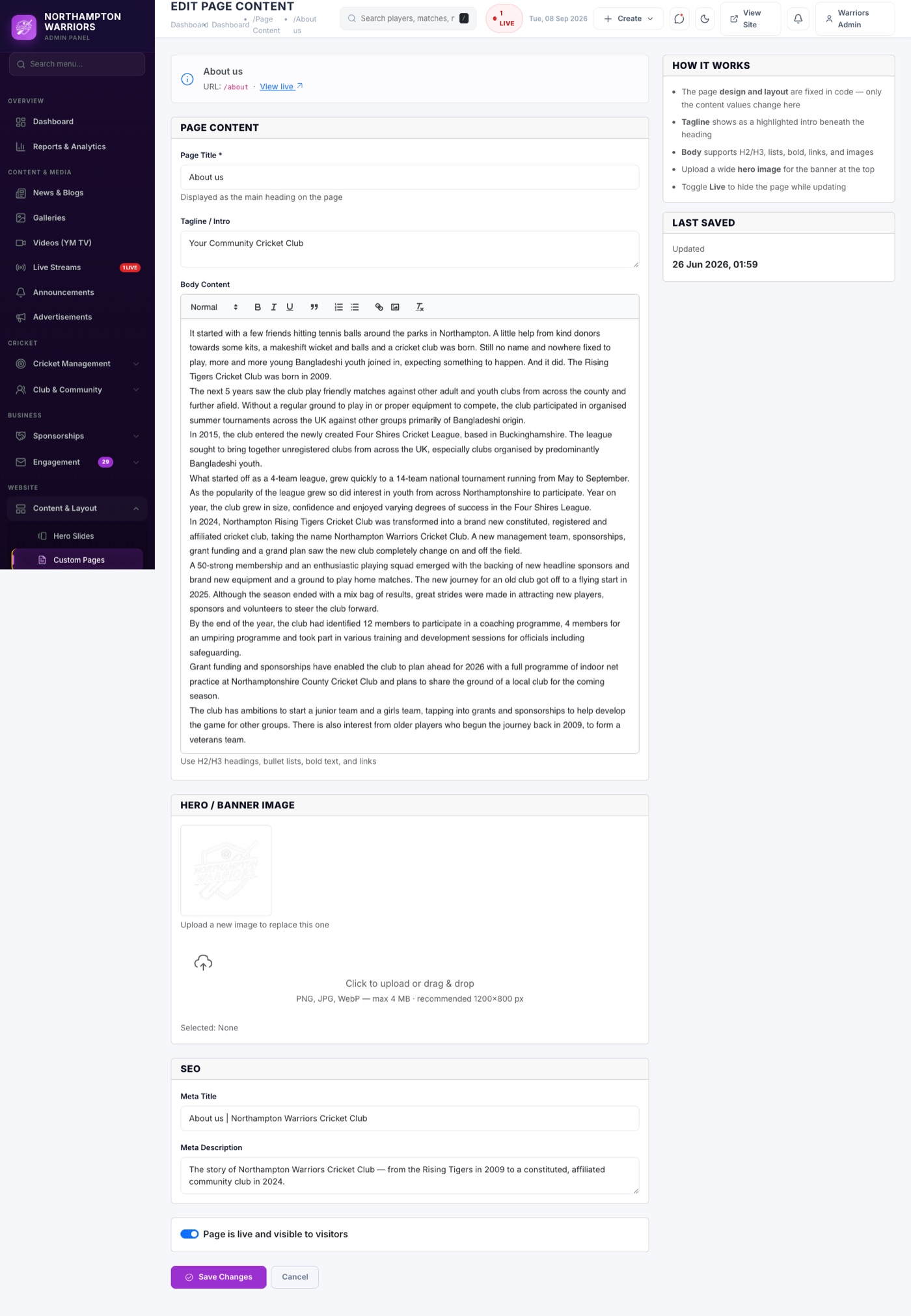
Content for most standard pages — About, Values, Team, Future, academy and training pages. Also where you create brand new pages.
How to change it
- Sidebar → Website → Site Pages.
- Find the page in the list and click Edit.
- Change the title, intro, banner image and body content.
- Click Save.
- To build a new page, use Create Custom Page, then add a Nav Item pointing at it.
Nav Items
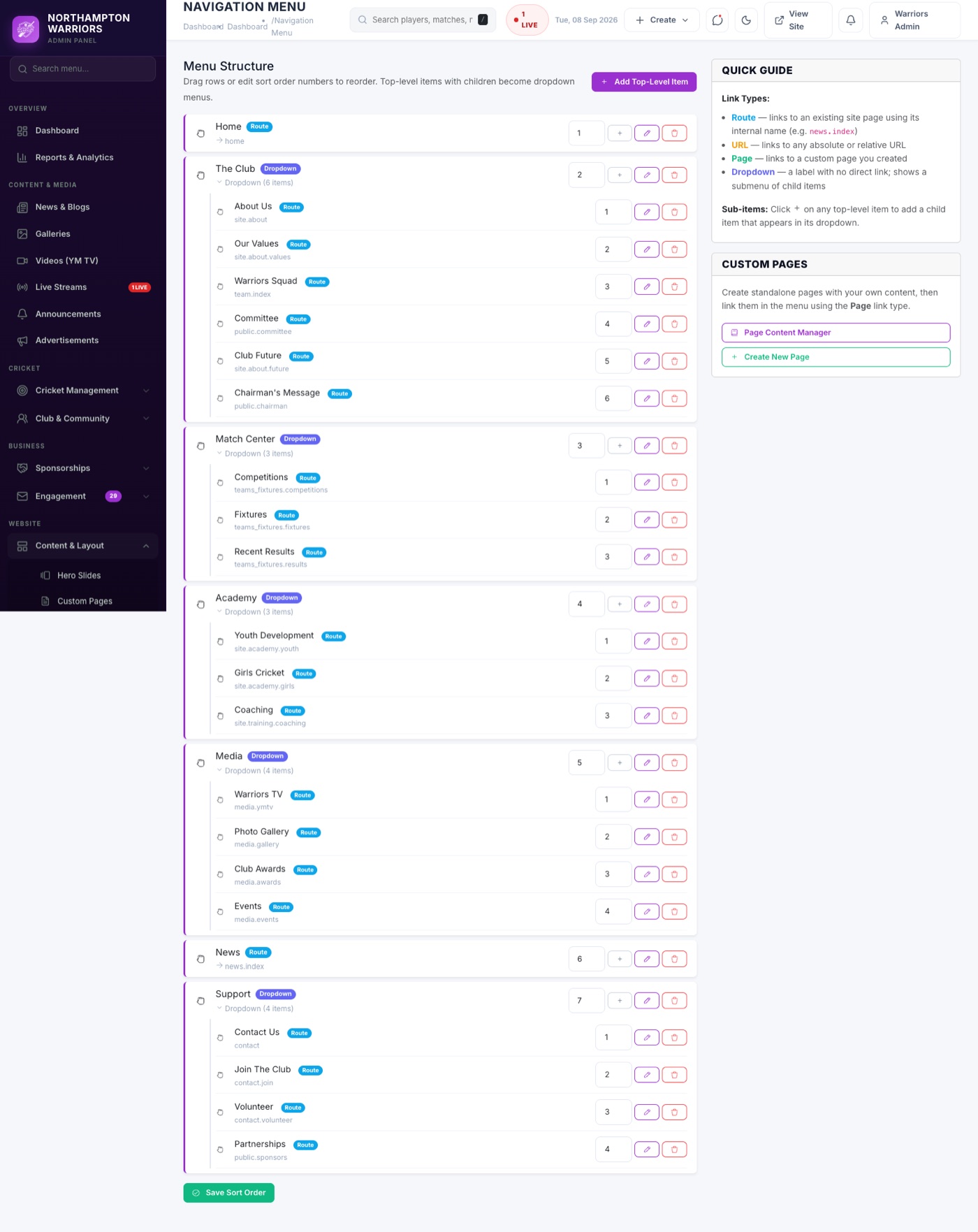
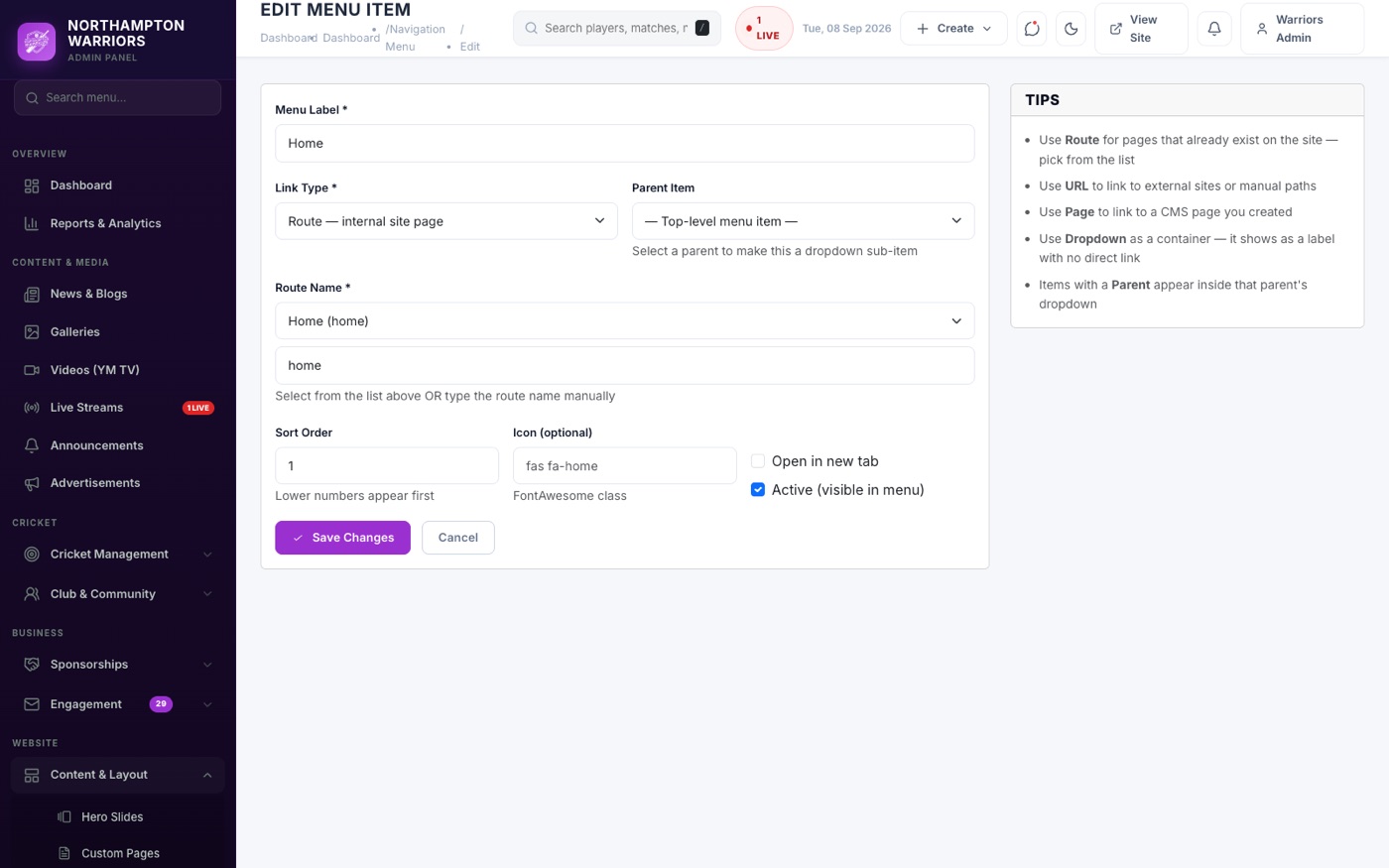
The navigation menu across the top of every page, including dropdowns.
How to change it
- Sidebar → Website → Nav Items.
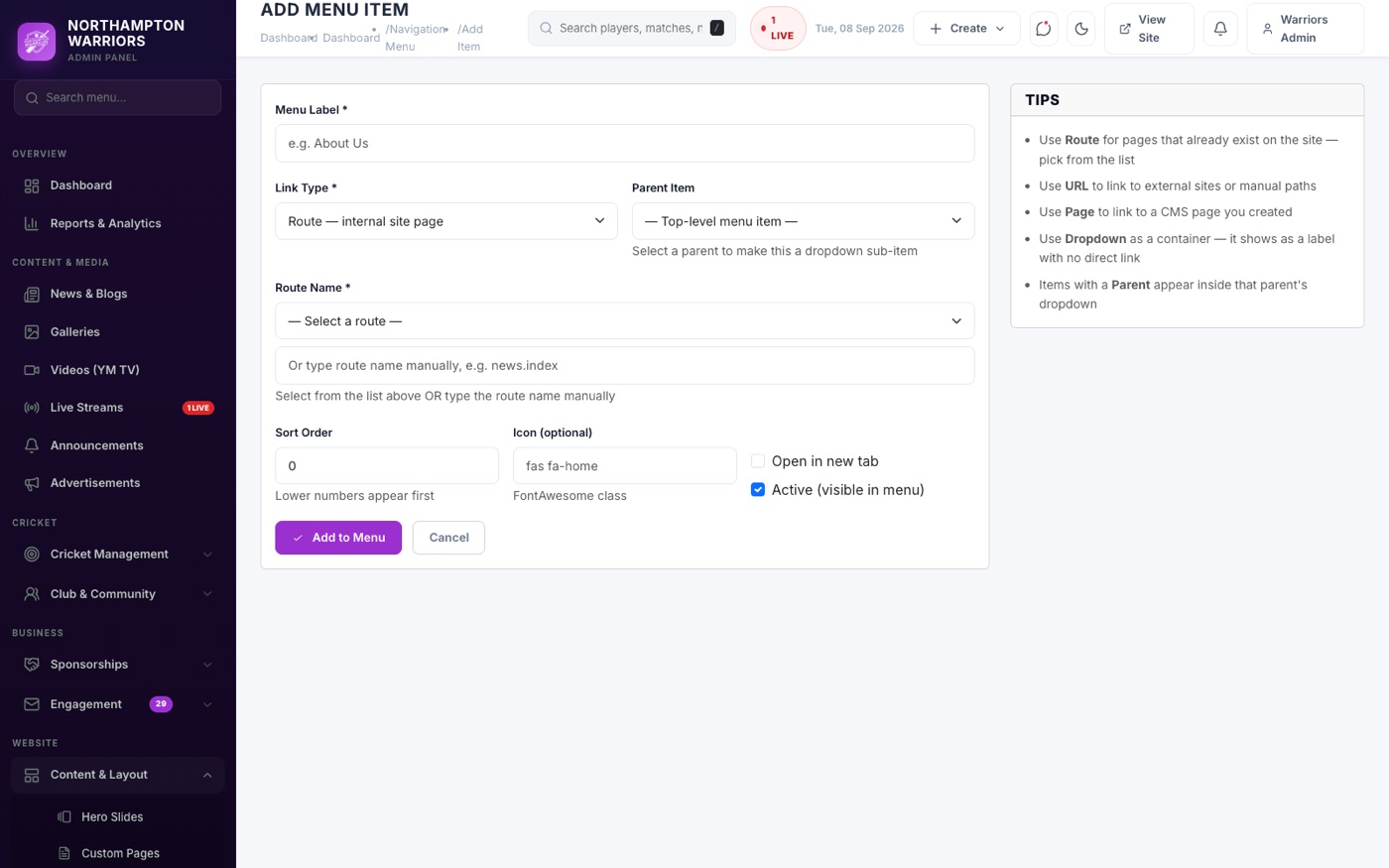
- Set the Label visitors read and the URL it opens.
- To make it a dropdown item, set its Parent to the top-level menu it sits under.
- Use Order to arrange them, then Save.
- Click the item on the live site afterwards to check the link works.
FAQs
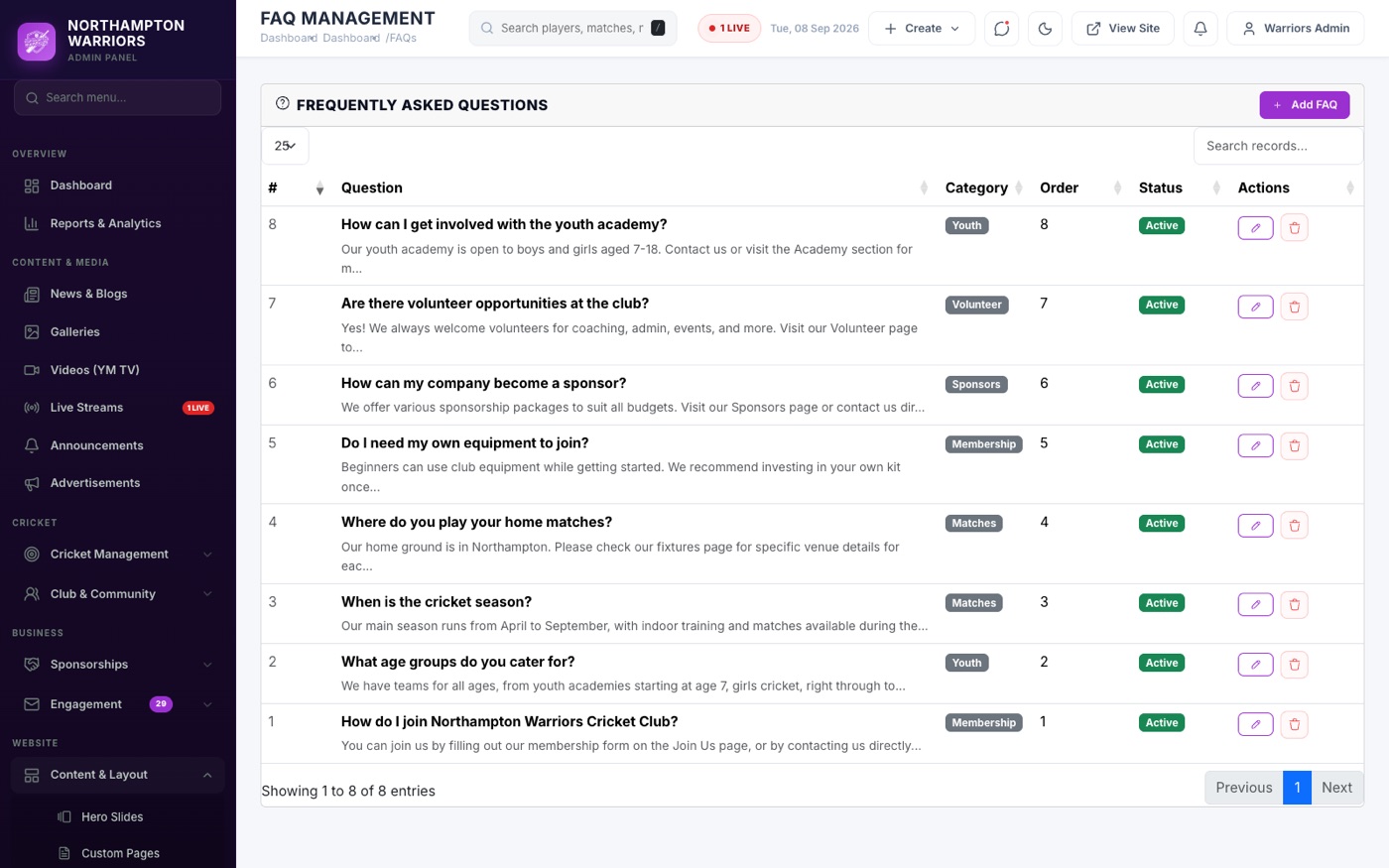
The questions and answers on the FAQ page.
How to change it
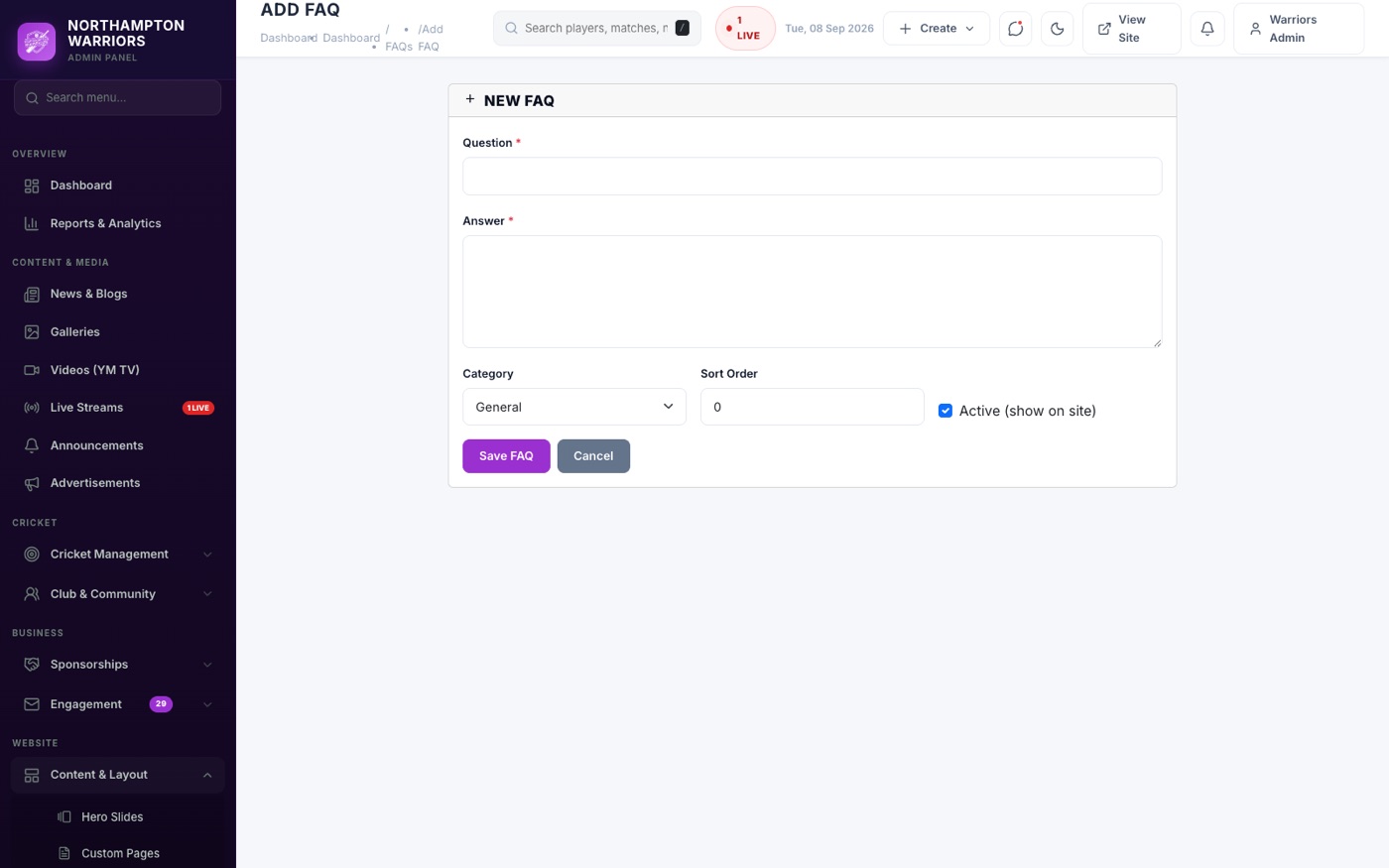
- Sidebar → Website → FAQs → Add New.
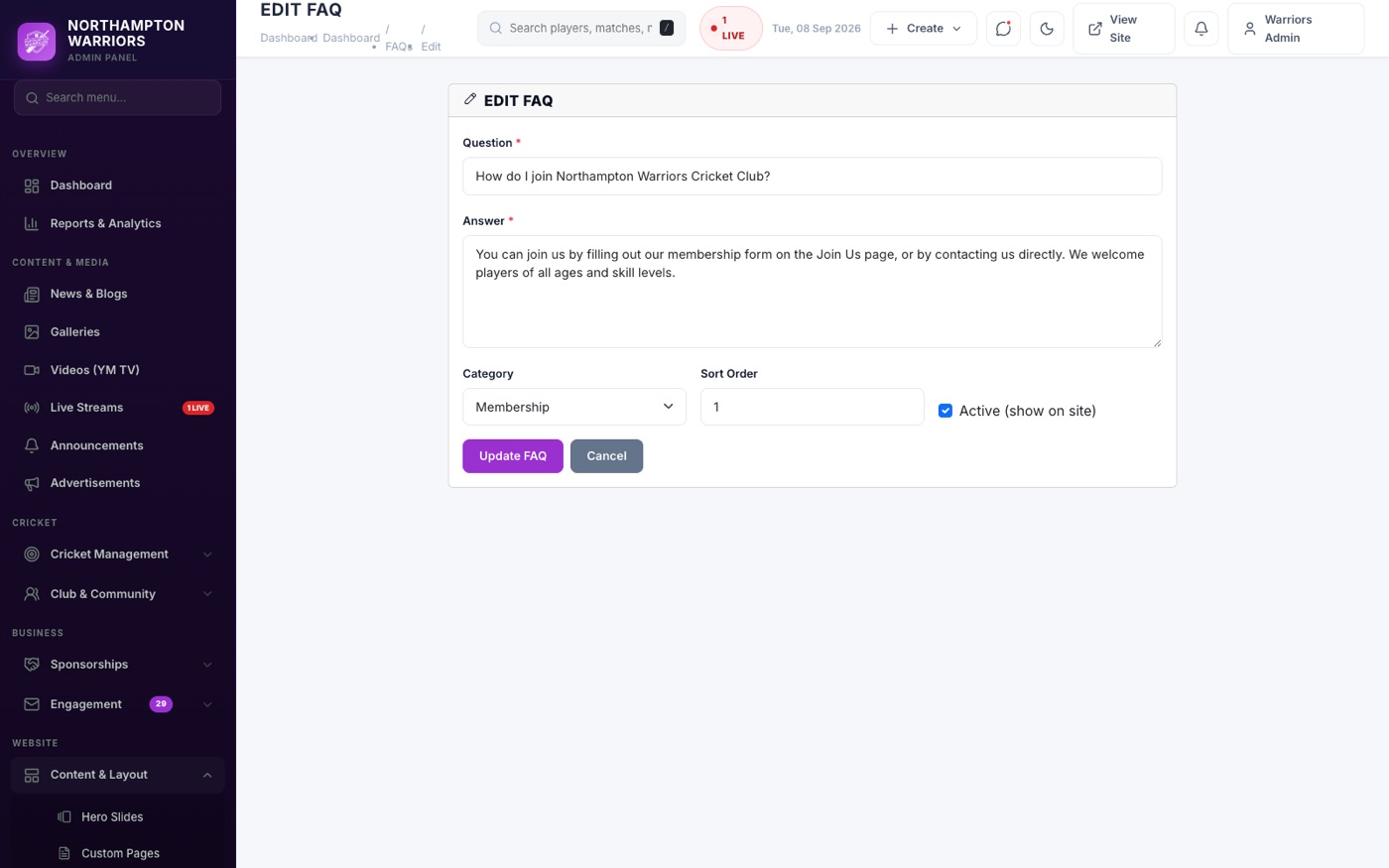
- Enter the question and answer, and the order it should appear in.
- Click Save.
Settings — General
Logo, favicon, contact details, chairman, footer, safeguarding contacts and your policy page text. The only settings screen linked from the sidebar.
Direct address: /admin/settings/general
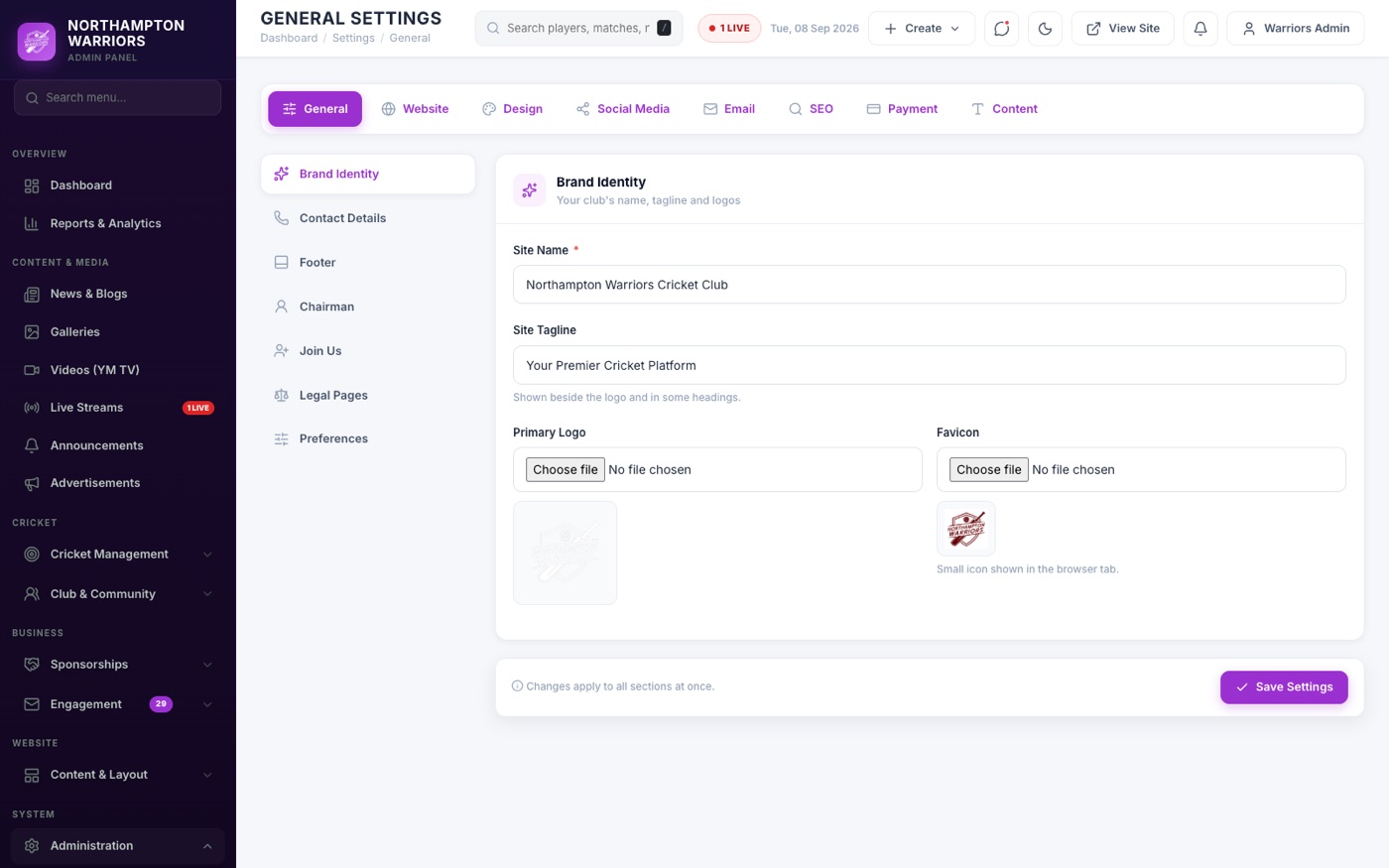
How to change it
- Sidebar → System → Settings.
- Work down the form — site name, logo, favicon, contact details, chairman, footer, welfare officer, policies.
- Click Save Settings.
Settings — Website
Home page hero type, the About block and its statistics, copyright text and maintenance mode.
Direct address: /admin/settings/website

How to change it
- Go to
/admin/settings/website— there is no menu link. - Set Home Hero Type to choose the news grid or the image slider.
- Edit the About title, paragraphs, statistics and image.
- Set the copyright text, and maintenance mode if you need to take the site offline.
- Click Save.
Settings — Design
The club accent colour, fonts, and the background image or colour behind each section of the site, set separately for light and dark mode.
Direct address: /admin/settings/design
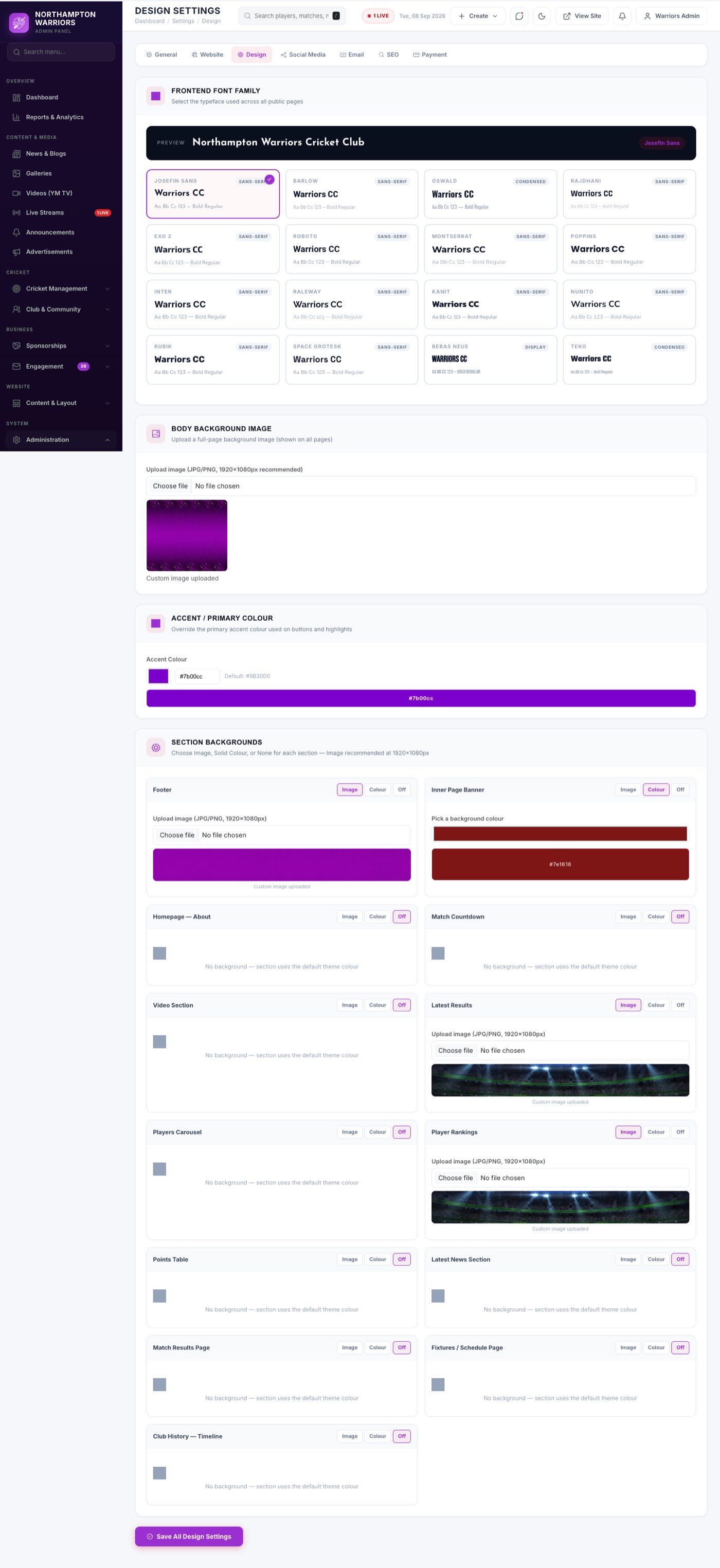
How to change it
- Go to
/admin/settings/design. - Set the Accent Colour used across the site.
- For each section choose a background image or flat colour, and switch it on or off.
- Check both light and dark mode — they are set separately.
- Click Save.
Settings — SEO
The title and description each page shows in Google and when shared on social media.
Direct address: /admin/settings/seo
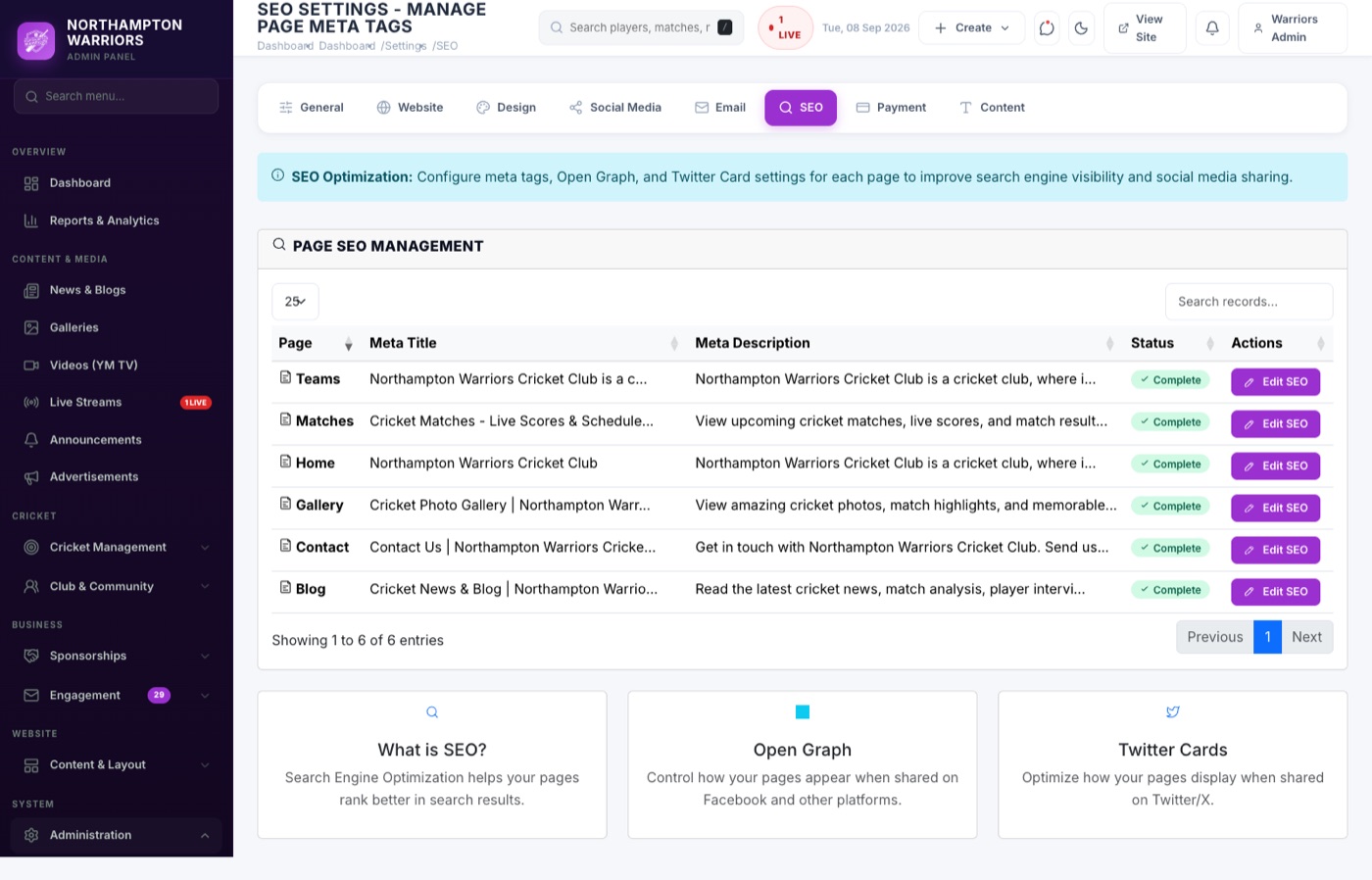
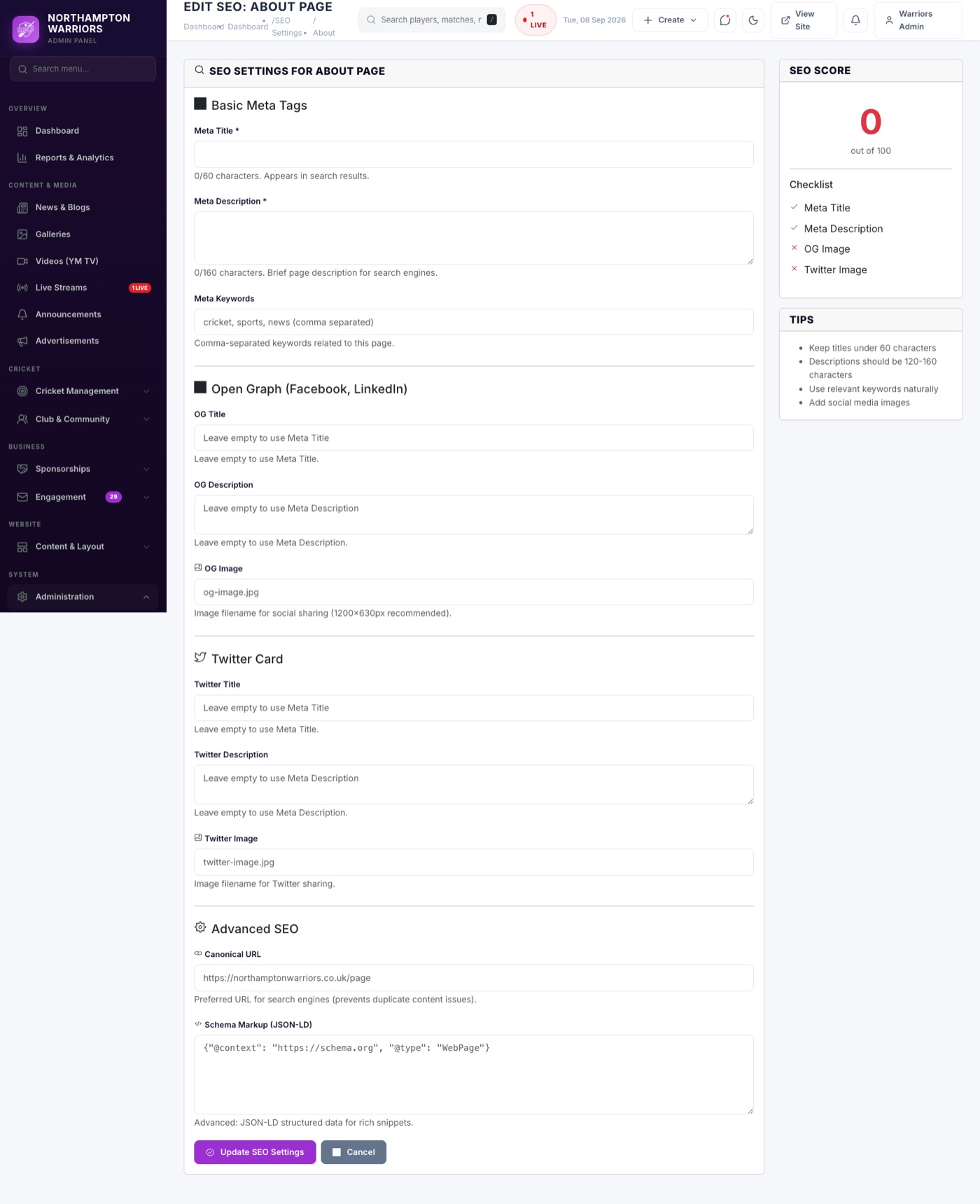
How to change it
- Go to
/admin/settings/seo. - Pick a page from the list.
- Write a meta title under about 60 characters and a description under about 155.
- Click Save. Search engines may take days or weeks to pick it up.
Settings — Social
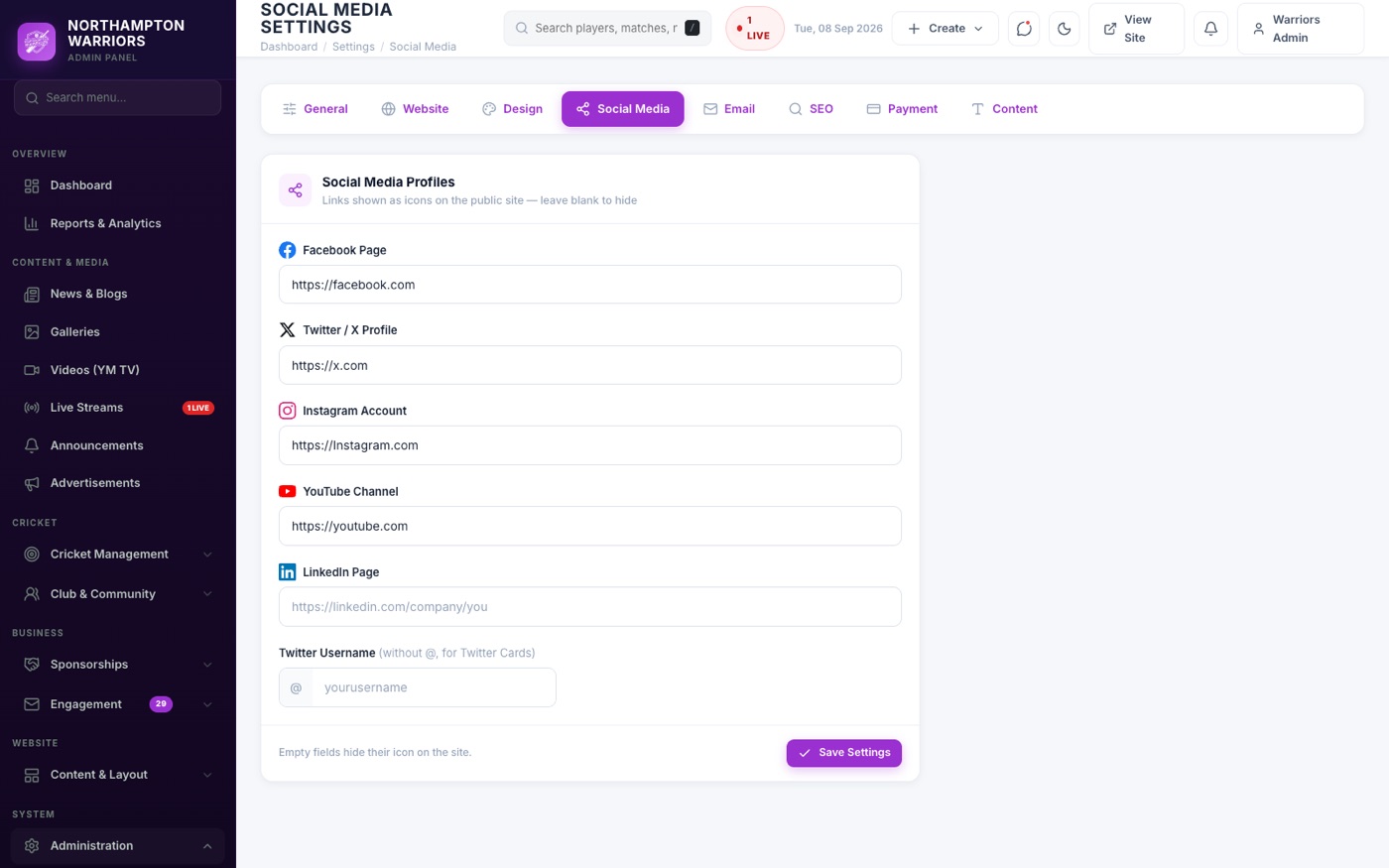
The social media profile links used by the icons in the header and footer.
Direct address: /admin/settings/social
How to change it
- Go to
/admin/settings/social. - Paste the full address of each profile. Leave one blank to hide that icon.
- Click Save.
Settings — Content
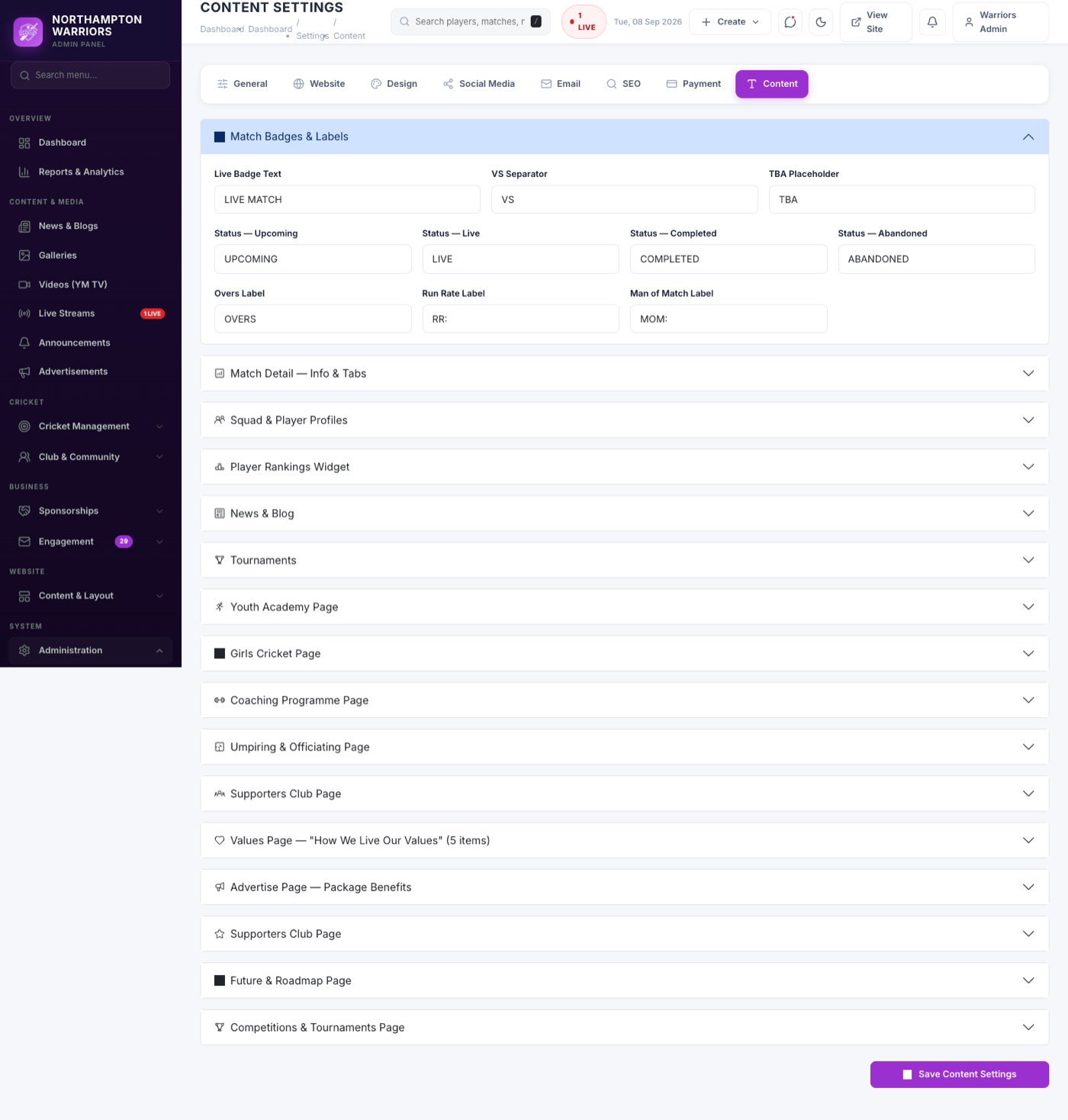
The wording used on match pages — “Live”, “vs”, “TBA”, “Venue”, “Toss”, “Man of the Match” and the rest. Change it once and it updates everywhere.
Direct address: /admin/settings/content
How to change it
- Go to
/admin/settings/content— this screen is not linked from anywhere in the dashboard. - Change any label you want worded differently.
- Click Save.
Settings — Email
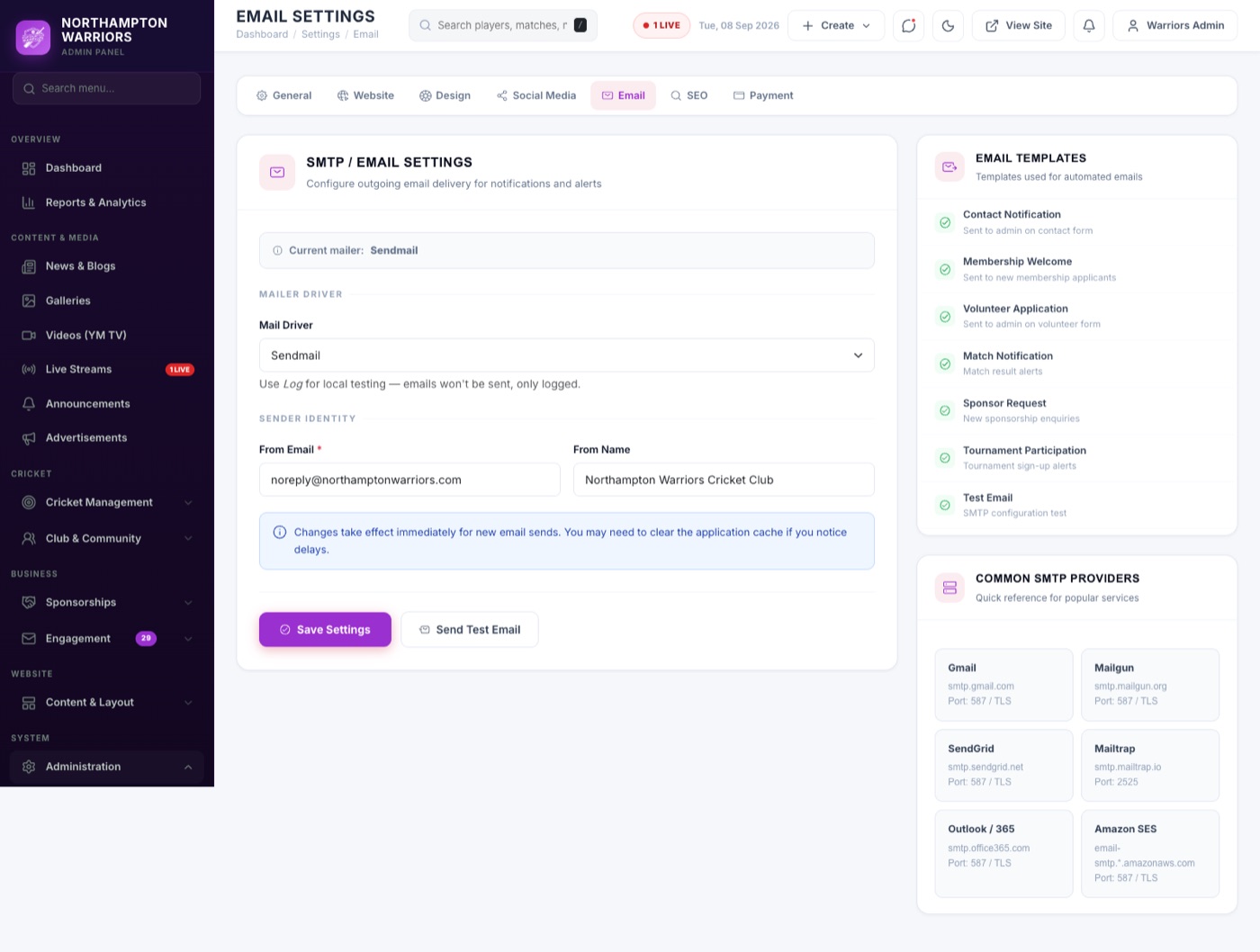
The mail server used to send enquiry notifications and automated emails.
Direct address: /admin/settings/email
How to change it
- Go to
/admin/settings/email. - Enter the SMTP host, port, username, password and encryption from your email provider.
- Set the From Address and From Name recipients will see.
- Click Save, then send yourself a test enquiry to confirm it works.
Settings — Payment
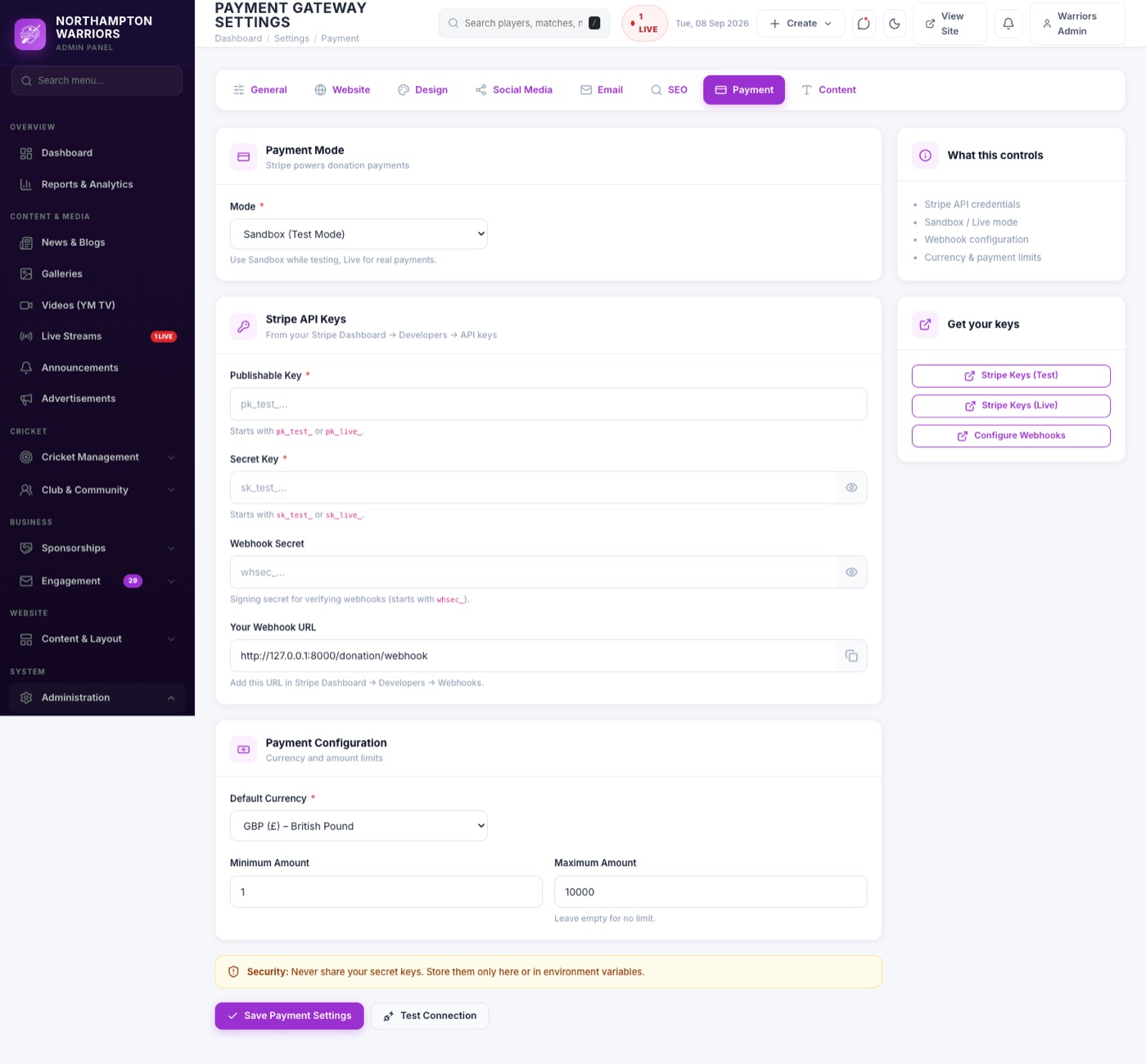
Payment gateway configuration.
Direct address: /admin/settings/payment
How to change it
- Go to
/admin/settings/payment. - Enter the keys from your payment provider.
- Click Save.
Dropdown Options
The lists of choices offered in dropdown fields elsewhere in the dashboard.
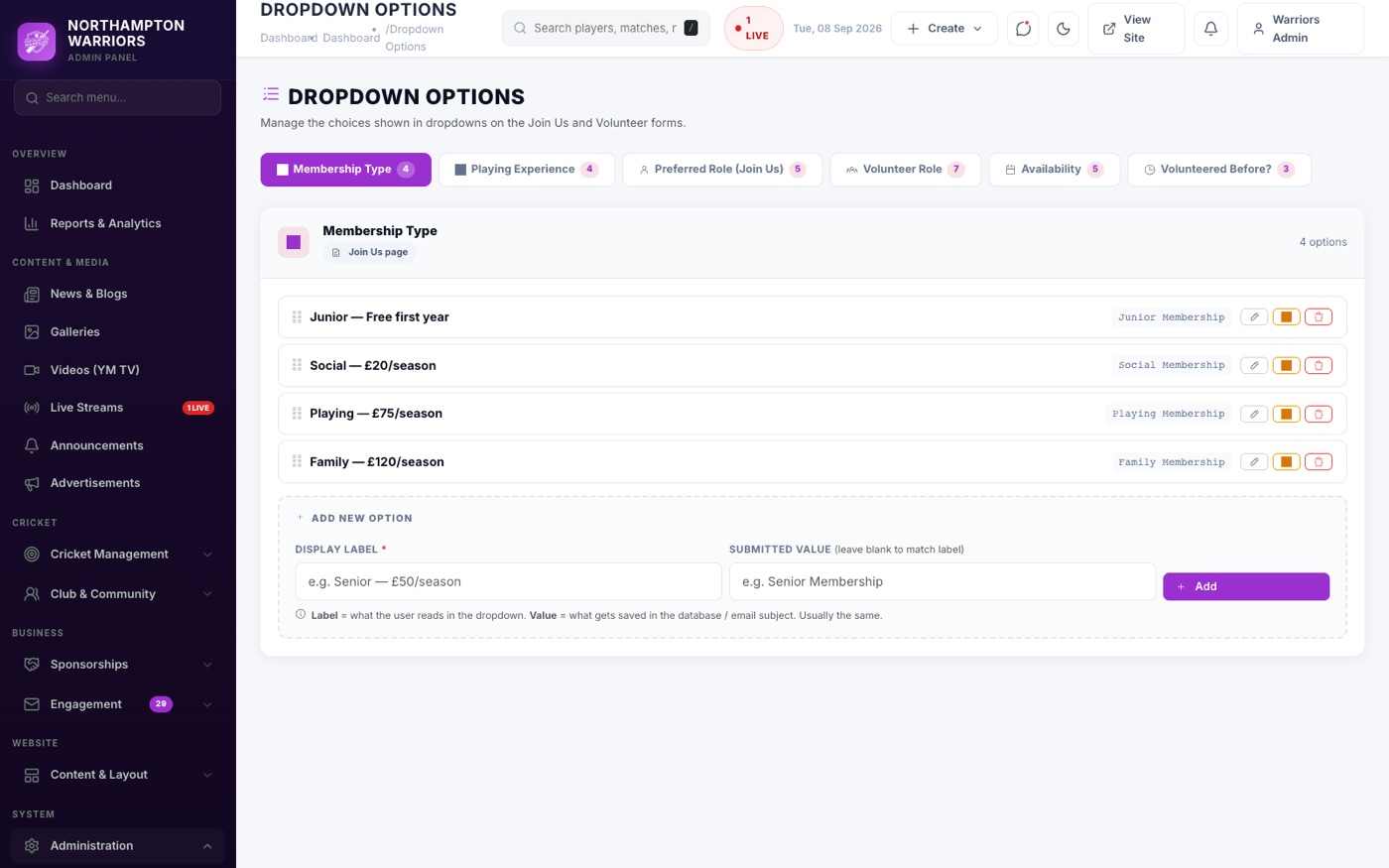
How to change it
- Sidebar → System → Dropdown Options.
- Pick the list, then add, rename or remove options.
- Rename rather than delete where you can — deleting an option that is already in use can leave records blank.